|
|
ESP32 Camera module |
x 1 |

|
Screw thread maker |
|

|
arduino IDEArduino
|
|

|
Python |
Simple ESP32 CAM Object detection using Open CV
Object detection is a computer vision technique that involves identifying and locating objects within an image or video. It is a fundamental task in various applications, such as surveillance, autonomous driving, and image retrieval.
This time I will explain to you how to make a powerful object detection device that uses only an inexpensive ESP32 Camera module with a built-in FTDI USB to serial converter.

This means that there is no need for any soldering or connection of external components. We only need to connect the Module directly to the USB port of the PC. Basically the whole system consists of two parts
- Esp32 Camera module with arduino code installed
- and the second part is а pc software, actually Python code that uses Open CV, which is a powerful library for computer vision tasks, including identifying and localizing objects, as well as object detection. In our case are processed series of images received from the camera module.
This project is sponsored by PCBWay. They has all the services you need to create your project at the best price, whether is a scool project, or complex professional project. On PCBWay you can share your experiences, or get inspiration for your next project. They also provide completed Surface mount SMT PCB assemblY service at a best price, and ISO9001 quality control. Visit pcbway.com for more services

Now I will explain the installation method in order.
First we need to enable camera module support in the Arduino environment. For this purpose we go to Arduino IDE - File - Preferences - where we add the ESP32 URL to "Board Manager URLs" as follows:
(https://raw.githubusercontent.com/espressif/arduino-esp32/gh-pages/package_esp32_index.json)

Now click "Tool-->Board-->Board Manager", and search for "esp32". It is recommended to
install version 2.0.6 or newer ESP32 core. I installed the latest version.

Next, on Arduino IDE -> Tools -> ESP32 Arduino we choose: AI Thihker ESP32-Cam

With this, the procedure for entering support for the specific Camera Мodule in the Arduino IDE is completed.
Next we install the ESP32cam library from the attached .zip file.
We go to Sketch - Include Library - add ZIP library and select the given library

After this we upload the provided Arduino code. Just don't forget to enter the credentials of our Wi-Fi network beforehand in the code. Now in the Arduino Serial Monitor we check if the camera is initialized and working, and we also need to remember the IP address that was assigned to it in the local network because we will need it when starting the Python code

Next comes the installation of the Python environment section. For this purpose, we go to the Python page, download the latest version, and install it with default settings, noting that we need to mark the checkbox "add python .exe to path"

As I mentioned at the beginning, in order for Python code to work, several necessary libraries need to be installed, namely NumPy, OpenCV and cvlib libraries. For this purpose, we go to the command prompt and execute the following commands
-type: pip install numpy and press enter. After the installation is done.
-type: pip install opencv-python and press enter.
-type: pip install cvlib and press enter

Now we start the Python IDLE editor which is an integral part of the Python installation, or any other Python editor. We go to File - Open - and search for the provided Python code. Let me mention that together with the code, there are three more files that must be located in the same folder as the code. When we open the code, we need to enter the IP address from the camera that was previously given to the Arduino Serial Monitor.

We press RUN, and if we have completed the previous steps, a video from the camera appears on the screen for a few moments, on which various objects surrounded by a rectangular green frame are detected. The name of the detected object is written on the upper part of the frame.
And now let's see how it looks in real conditions. As can be seen from the examples, the system is capable of detecting objects with high precision.

In particular, this system uses a pre-trained object detection model. The file "coco.names" contains the names of the 90+ objects that the YOLOv3 model is trained to detect.
And finally a short conclusion. Object detection is having uses in almost all sorts of industries. It is used for tracking objects, people counting, automated CCTV surveillance, vehicle detection, etc. This is certainly the simplest and cheapest object detection system that can serve perfectly for the presentation of the possibilities of this technology, and for powerful object detection and identification even without using the Python Code we can use the AMB82-Mini IoT AI Camera, which will probably be the subject of analysis in one of my next videos.
Simple ESP32 CAM Object detection using Open CV









Raspberry Pi 5 7 Inch Touch Screen IPS 1024x600 HD LCD HDMI-compatible Display for RPI 4B 3B+ OPI 5 AIDA64 PC Secondary Screen(Without Speaker)
BUY NOW


- Comments(0)
- Likes(2)
More by Mirko Pavleski
-
 Arduino 3D Printed self Balancing Cube
Self-balancing devices are electronic devices that use sensors and motors to keep themselves balanc...
Arduino 3D Printed self Balancing Cube
Self-balancing devices are electronic devices that use sensors and motors to keep themselves balanc...
-
 DIY ESP32 Universal Timer with Touchscreen & Rotary Encoder
In several of my previous videos, I presented different projects based on the CrowPanel 2.1-inch HM...
DIY ESP32 Universal Timer with Touchscreen & Rotary Encoder
In several of my previous videos, I presented different projects based on the CrowPanel 2.1-inch HM...
-
 Build a Real 5-Band Parametric EQ with ESP32 + WM8960 - Stereo DSP Audio Processor
Audio equalizer (EQ) is an electronic device that allows control over the strength of different fre...
Build a Real 5-Band Parametric EQ with ESP32 + WM8960 - Stereo DSP Audio Processor
Audio equalizer (EQ) is an electronic device that allows control over the strength of different fre...
-
 Bass Reflex vs Sealed vs Horn – Same 2 inch Speaker Test
In one of the previous videos I presented the making of a miniature Horn type speaker box with a 2 ...
Bass Reflex vs Sealed vs Horn – Same 2 inch Speaker Test
In one of the previous videos I presented the making of a miniature Horn type speaker box with a 2 ...
-
 Building a Mini Fostex Horn Speaker with a 2-Inch Full-Range Driver
A back-loaded horn speaker is a loudspeaker design that channels the rear sound wave of a driver th...
Building a Mini Fostex Horn Speaker with a 2-Inch Full-Range Driver
A back-loaded horn speaker is a loudspeaker design that channels the rear sound wave of a driver th...
-
 ESP32 Moon Lamp That Shows the Real Moon Phase on Crowpanel Round Dispaly
Recently on the Hackaday portal I came across a very interesting project called Moon Display by aut...
ESP32 Moon Lamp That Shows the Real Moon Phase on Crowpanel Round Dispaly
Recently on the Hackaday portal I came across a very interesting project called Moon Display by aut...
-
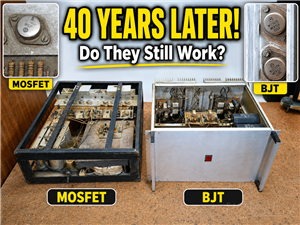 40-Year-Old DIY Power Amplifiers – Do They Still Work - 500W MOSFET & Transistor Amps
This time I want to describe my two DIY super powerful audio amplifiers that I made about 40 years ...
40-Year-Old DIY Power Amplifiers – Do They Still Work - 500W MOSFET & Transistor Amps
This time I want to describe my two DIY super powerful audio amplifiers that I made about 40 years ...
-
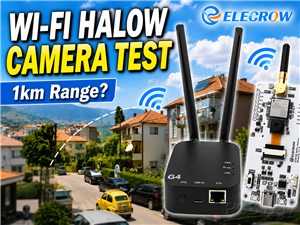 Wi-Fi HaLow Explained! Long-Range Camera Test up to 300m (ESP32 + ThinkNode G4 from ELECROW)
I recently needed to install a security camera at a relatively large distance from my home, more pre...
Wi-Fi HaLow Explained! Long-Range Camera Test up to 300m (ESP32 + ThinkNode G4 from ELECROW)
I recently needed to install a security camera at a relatively large distance from my home, more pre...
-
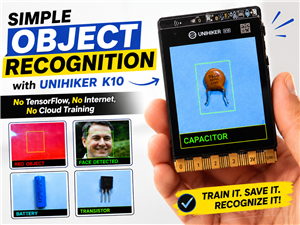 Simple Object Recognition with the UNIHIKER K10 – No TensorFlow, No Internet, No Cloud AI
Object recognition has become one of the most popular applications of artificial intelligence and em...
Simple Object Recognition with the UNIHIKER K10 – No TensorFlow, No Internet, No Cloud AI
Object recognition has become one of the most popular applications of artificial intelligence and em...
-
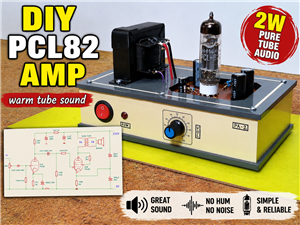 DIY PCL82 Tube Amplifier, Single-Ended Amp with Amazing Sound
The idea for this project came from a local electronics magazine called EMITER, issue 12/13 from 20...
DIY PCL82 Tube Amplifier, Single-Ended Amp with Amazing Sound
The idea for this project came from a local electronics magazine called EMITER, issue 12/13 from 20...
-
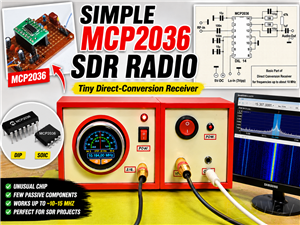 Simple MCP2036 SDR Radio - The Most Unusual Software Defined Radio
SDR (Software Defined Radio) is a radio communication system where many of the key electronic compo...
Simple MCP2036 SDR Radio - The Most Unusual Software Defined Radio
SDR (Software Defined Radio) is a radio communication system where many of the key electronic compo...
-
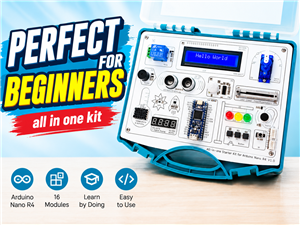 Elecrow All-in-One Arduino Starter Kit Review - 20 Projects & 16 Modules
This time I will describe a simple and practical way to enter the world of microcontrollers, specif...
Elecrow All-in-One Arduino Starter Kit Review - 20 Projects & 16 Modules
This time I will describe a simple and practical way to enter the world of microcontrollers, specif...
-
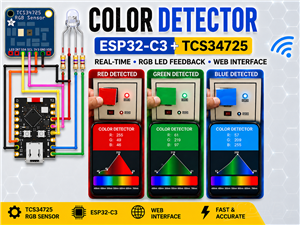 ESP32-C3 Color Detector with TCS34725, Real-Time RGB Detection & Web Interface
Color detection is a fundamental task in many embedded systems – from industrial sorting machines t...
ESP32-C3 Color Detector with TCS34725, Real-Time RGB Detection & Web Interface
Color detection is a fundamental task in many embedded systems – from industrial sorting machines t...
-
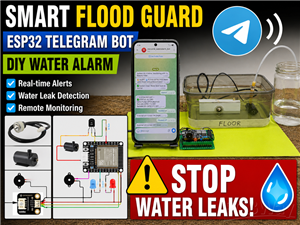 DIY ESP32 Telegram Flood Protection System - Smart Home Automation
Recently I had an unpleasant experience in my home, specifically my ground floor was flooded as a r...
DIY ESP32 Telegram Flood Protection System - Smart Home Automation
Recently I had an unpleasant experience in my home, specifically my ground floor was flooded as a r...
-
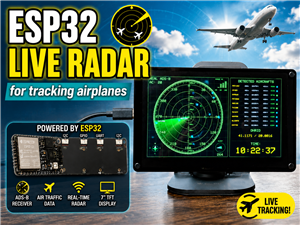 Real-Time Air Traffic Radar using ESP32 + ADS-B Data
ADS-B, which stands for Automatic Dependent Surveillance-Broadcast, is the modern standard for trac...
Real-Time Air Traffic Radar using ESP32 + ADS-B Data
ADS-B, which stands for Automatic Dependent Surveillance-Broadcast, is the modern standard for trac...
-
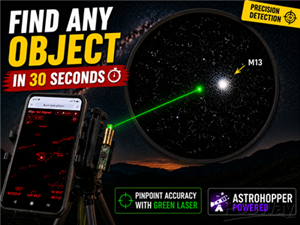 DIY Green Laser Night Sky Object Finder - Find Stars & Galaxies Instantly with great accuracy
As an amateur astronomer, especially at the beginning, the most difficult part of observing the nig...
DIY Green Laser Night Sky Object Finder - Find Stars & Galaxies Instantly with great accuracy
As an amateur astronomer, especially at the beginning, the most difficult part of observing the nig...
-
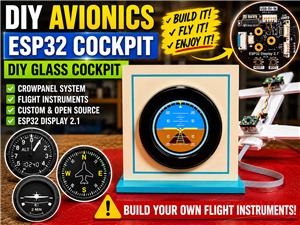 DIY Avionics Simulator with ESP32 - Artificial Horizon, Compass & Altimeter
The inspiration for this project comes from classical aircraft cockpit instruments used for navigat...
DIY Avionics Simulator with ESP32 - Artificial Horizon, Compass & Altimeter
The inspiration for this project comes from classical aircraft cockpit instruments used for navigat...
-
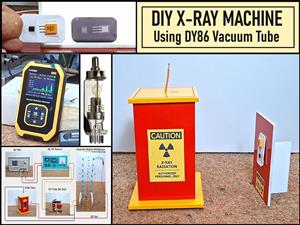 DIY Miniature X-Ray Machine using a TV Vacuum Tube DY86
An X-ray machine (or radiograph) is a quick, painless medical test that produces images of the struc...
DIY Miniature X-Ray Machine using a TV Vacuum Tube DY86
An X-ray machine (or radiograph) is a quick, painless medical test that produces images of the struc...
-
Émetteur Récepteur Optique Expérimental (communication UART ATtiny + fibre optique)
142 0 1 -
SmallOLED - Live PC Stats, Animated Clocks & Audio Visualizer
990 0 3 -
"Talking Multimeter": Arduino-Based Speech Add-on for Multimeters with SCPI Protocol
569 0 1 -
Programmable Mist Maker - XIAO / QT PY Extension
3040 2 3 -
RadioHAT - Raspberry Pi radio development platform
2584 0 4 -
-
-