

|
|
Arduino Nano R3 |
x 1 | |
|
|
I2C 16x2 Arduino LCD Display Module |
x 1 | |
|
|
Buzzer |
x 1 | |
|
|
PUSHBUTTON |
x 2 | |
|
|
LED |
x 10 | |
|
|
Resistor, 470 ohm |
x 10 | |
|
|
Resistor 10k ohm |
x 2 |

|
arduino IDEArduino
|
|

|
Soldering Iron Kit |
DIY addictive Arduino 1D Pong game
Pong is a table tennis–themed 2 dimensional graphics arcade video game manufactured by Atari and originally released on 1972. 
This time I will present you a simple way to make a 1D LED Pong game which is an interesting project that simulates a Pong game on a single-dimensional array of LEDs. This can be done using Arduino microcontroller board. The movement of the ball is simulated by the array of LEDs, and the paddles are the two buttons. The game is for 2 players, in which the "ball" travels down the length of the LED array, and will bounce back if the button is pressed when yellow LED is illuminated.
The result is displayed on the LCD screen. The movement of the ball, the winning of a point as well as the victory are accompanied by appropriate sounds
The device is very simple to make and consists of several components:
- Arduino Nano microcontroller board
- 16x2 LCD Display
- 10 Leds
- 12 resistors
- two buttons
- and Buzzer

The game starts by moving the ball from player 1 to player 2, and if player 2 fails to press the button while the yellow LED is on, the red LED will light up and it's a point for player 1. Each game is started by the winner of the previous one. The speed of the ball is increases after every hit, making it more difficult to hit the ball in time. The match ends when one of the players wins 10 games, and at that moment the Leds that are on the winner's side will flash.

- The starting speed of movement of the LEDs is set in the row:
const unsigned long initialMillisecondsPerLED = 400;
The lower this number, the faster the movement speed

- The degree of acceleration after each hit is adjusted in the rows:
if (deltaMillisecondsPerLED > 50)
{
deltaMillisecondsPerLED -= 50;
and the higher this number is, the higher the acceleration.

The game can be played by one or two players. In the case of two players, which is a natural option, it is preferable to use robust external arcade buttons.

For this purpose I used these buttons that I made for the needs of one of my previous projects. They are large, and have a precise, and audible click.
Finally a short conclusion. This is an interesting one-dimensional compact version of the classic "Pong" game made with a minimal number of components, yet extremely addictive, and can be played for hours before you get bored. The device is mounted in a suitable box made of PVC board and lined with self-adhesive wallpaper. For power, it is preferable to use a lithium battery for the sake of mobility

//#include <LiquidCrystal.h>

#include <Wire.h>

#include <LiquidCrystal_I2C.h>
LiquidCrystal_I2C lcd(0x27, 16, 2);


bool willTheBallGoTowardsPlayerTwo = true;
bool isInputAllowed = true;

const int playerOne = 12;
const int goalPlayerOne = 13;
const int buttonPlayerOne = 3;

const int playerTwo = 5;
const int goalPlayerTwo = 4;
const int buttonPlayerTwo = 2;

int scoreOfPlayerOne = 0;
int scoreOfPlayerTwo = 0;

const unsigned long initialMillisecondsPerLED = 400;
const unsigned long initialDeltaMillisecondsPerLED = 50;
unsigned long millisecondsPerLED = initialMillisecondsPerLED;
unsigned long deltaMillisecondsPerLED = initialDeltaMillisecondsPerLED;
unsigned long currentMillis = 0;
unsigned long previousMillis = 0;

int currentPosition = playerOne;        //Player one starts the game.
int previousPosition = playerOne + 1;
int deltaPosition = 0;

int buttonStatePlayerOne = 0;
int lastButtonStatePlayerOne = 0;
int buttonStatePlayerTwo = 0;
int lastButtonStatePlayerTwo = 0;

void setup() {


 lcd.backlight();
 lcd.begin(16,2);
  lcd.clear();
  lcd.setCursor(2, 0);
  lcd.print("1D-Pong Game");
  lcd.setCursor(3, 1);
  lcd.print("by mircemk");
  delay(2000.);

 lcd.clear();
 lcd.setCursor(0, 0);
 lcd.print("Player One: 0");
 lcd.setCursor(0, 1);
 lcd.print("Player Two: 0");


  pinMode(4, 1);
  pinMode(5, 1);
  pinMode(6, 1);
  pinMode(7, 1);
  pinMode(8, 1);
  pinMode(9, 1);
  pinMode(10, 1);
  pinMode(11, 1);
  pinMode(12, 1);
  pinMode(13, 1);
  /*Connect pins 4 to 13 to 220ohm resistors, connect the LEDs' longer legs(+) to the resistors,
    connect the other legs(-) of the LEDs' to ground.
    I recommend red LEDs for 4 and 13(Goals), yellow LEDs for 5 and 12(Players), green LEDs for other pins(Field).
  */

  pinMode(2, 0);    //Pushbuttons for players. Pin 2 is for player two. Pin 3 is for player one.
  pinMode(3, 0);    //Connect pushbuttons following the instructions on this page: https://www.arduino.cc/en/Tutorial/DigitalReadSerial
}

void loop()
{
  ListenForInput();
  currentMillis = millis();
  if (currentMillis - previousMillis >= millisecondsPerLED)  //If you don't understand this, see: https://www.arduino.cc/en/Tutorial/BlinkWithoutDelay
  {
    CheckGoalConditions();
    lcd.clear();
    lcd.setCursor(0, 0);  //(Column,Row)
    lcd.print("Player One: ");
    lcd.setCursor(12, 0);
    lcd.print(scoreOfPlayerOne);

    lcd.setCursor(0, 1);  //(Column,Row)
    lcd.print("Player Two: ");
    lcd.setCursor(12, 1);
    lcd.print(scoreOfPlayerTwo);
    CheckEndGame();
    DetermineNextPosition();
    MoveBallToNextPosition();

    previousMillis = currentMillis;

  }
}

void ListenForInput()    //If you don't understand this method. See: https://www.arduino.cc/en/Tutorial/StateChangeDetection
{
  buttonStatePlayerOne = digitalRead(buttonPlayerOne);
  buttonStatePlayerTwo = digitalRead(buttonPlayerTwo);

  if (buttonStatePlayerOne != lastButtonStatePlayerOne && isInputAllowed)
  {
    if (buttonStatePlayerOne == 1)
    {
      if (currentPosition == playerOne)
      {
        ToggleBallDirection();
        IncreaseSpeed();

      }
      else
      {
        ScoreForPlayer(2);

      }
    }
    lastButtonStatePlayerOne = buttonStatePlayerOne;
  }
  if (buttonStatePlayerTwo != lastButtonStatePlayerTwo && isInputAllowed)
  {
    if (buttonStatePlayerTwo == 1)
    {
      if (currentPosition == playerTwo)
      {
        ToggleBallDirection();
        IncreaseSpeed();

      }
      else
      {
        ScoreForPlayer(1);

      }
    }
    lastButtonStatePlayerTwo = buttonStatePlayerTwo;
  }
}

void ToggleBallDirection()
{
  willTheBallGoTowardsPlayerTwo = !willTheBallGoTowardsPlayerTwo;
  isInputAllowed = false;   //Only one direction change per frame is allowed for consistent gameplay.
}

void IncreaseSpeed()
{
  millisecondsPerLED -= deltaMillisecondsPerLED;
  if (deltaMillisecondsPerLED > 50)  //Because of this, it takes a little more time to reach to an insane speed. Adjust or remove this if rounds become too long.
  {
    deltaMillisecondsPerLED -= 50;
  }
}

void MoveBallToNextPosition()      //Moves the ball one spot.
{
  previousPosition = currentPosition;
  digitalWrite(previousPosition, 0);
  currentPosition = currentPosition + deltaPosition;
  digitalWrite(currentPosition, 1);
  tone(1, 500, 50);
  isInputAllowed = true;
}

void DetermineNextPosition()
{
  if (willTheBallGoTowardsPlayerTwo)
  {
    deltaPosition = -1;
  }
  else
  {
    deltaPosition = 1;
  }
}

void CheckGoalConditions()
{
  if (currentPosition == goalPlayerTwo)
  {
    ScoreForPlayer(1);
  }
  else if (currentPosition == goalPlayerOne)
  {
    ScoreForPlayer(2);
  }
}

void ScoreForPlayer(int playerWhoScored)
{
  isInputAllowed = false;
  FlashAllLEDs(1, 0);
  if (playerWhoScored == 1)
  {
    scoreOfPlayerOne++;

    Reset(1);
      }
  else if (playerWhoScored == 2)
  {
    scoreOfPlayerTwo++;

    Reset(2);
  }

}

void CheckEndGame()
{
  if (scoreOfPlayerOne == 10)
  {
    lcd.clear();
    lcd.setCursor(0, 0);
    lcd.print("Player One Win");
    EndGameCeremonyFor(1);

  }
  if (scoreOfPlayerTwo == 10)
  {
    lcd.clear();
    lcd.setCursor(0, 0);
    lcd.print("Player Two Win");
    EndGameCeremonyFor(2);

  }
}

void Reset(int playerCurrentlyScored)
{
  if (playerCurrentlyScored == 1)
  {
    digitalWrite(playerOne, 1);
    currentPosition = playerOne;
    willTheBallGoTowardsPlayerTwo = true;
    tone(1, 200 ,150 );
  }
  else if (playerCurrentlyScored == 2)
  {
    digitalWrite(playerTwo, 1);
    currentPosition = playerTwo;
    willTheBallGoTowardsPlayerTwo = false;
      tone(1, 300 ,150 );

  }

  delay(1000);                //Are three seconds enough for players to process the score?
  millisecondsPerLED = initialMillisecondsPerLED;            //Sets speed to initial value at the beginning of each round.
  deltaMillisecondsPerLED = initialDeltaMillisecondsPerLED;
}


void EndGameCeremonyFor(int winner)
{
  FlashAllLEDs(50, winner);
  TurnOffAllLEDsForPlayer(0);
  scoreOfPlayerOne = 0;
  scoreOfPlayerTwo = 0;
  delay(1000);
   lcd.clear();
    lcd.setCursor(4, 0);
    lcd.print("Starting");
     lcd.setCursor(4,1);
    lcd.print("New Game");
    delay(2000);
}

void TurnOnAllLEDsForPlayer(int player)
{
  if (player != 1)          //When this method is called with (2), only these pins(player two's) will turn on
  {
    digitalWrite(4, 1);
    digitalWrite(5, 1);
    digitalWrite(6, 1);
    digitalWrite(7, 1);
    digitalWrite(8, 1);
    tone(1, 1000, 35);
  }
  if (player != 2)          //When this method is called with (1), only these pins(player one's) will turn on
  {
    digitalWrite(9, 1);
    digitalWrite(10, 1);
    digitalWrite(11, 1);
    digitalWrite(12, 1);
    digitalWrite(13, 1);
    tone(1, 1000, 35);
  }
}

void TurnOffAllLEDsForPlayer(int player)
{
  if (player != 1)          //When this method is called with (2), only these pins(player two's) will turn off
  {
    digitalWrite(4, 0);
    digitalWrite(5, 0);
    digitalWrite(6, 0);
    digitalWrite(7, 0);
    digitalWrite(8, 0);
  }
  if (player != 2)          //When this method is called with (1), only these pins(player one's) will turn off
  {
    digitalWrite(9, 0);
    digitalWrite(10, 0);
    digitalWrite(11, 0);
    digitalWrite(12, 0);
    digitalWrite(13, 0);
  }
}

void FlashAllLEDs(int blinkCount, int player) //Second parameter(int player) is for when you want to flash only one player's LEDs. Use 1 for player one, use 2 for player two.
{
  for (int i = 0; i < blinkCount; i++)
  {
    TurnOnAllLEDsForPlayer(player);
    delay(35);
    TurnOffAllLEDsForPlayer(player);
    delay(35);
  }
}
DIY addictive Arduino 1D Pong game









Raspberry Pi 5 7 Inch Touch Screen IPS 1024x600 HD LCD HDMI-compatible Display for RPI 4B 3B+ OPI 5 AIDA64 PC Secondary Screen(Without Speaker)
BUY NOW


- Comments(0)
- Likes(1)
More by Mirko Pavleski
-
 Arduino 3D Printed self Balancing Cube
Self-balancing devices are electronic devices that use sensors and motors to keep themselves balanc...
Arduino 3D Printed self Balancing Cube
Self-balancing devices are electronic devices that use sensors and motors to keep themselves balanc...
-
 Building a Mini Fostex Horn Speaker with a 2-Inch Full-Range Driver
A back-loaded horn speaker is a loudspeaker design that channels the rear sound wave of a driver th...
Building a Mini Fostex Horn Speaker with a 2-Inch Full-Range Driver
A back-loaded horn speaker is a loudspeaker design that channels the rear sound wave of a driver th...
-
 ESP32 Moon Lamp That Shows the Real Moon Phase on Crowpanel Round Dispaly
Recently on the Hackaday portal I came across a very interesting project called Moon Display by aut...
ESP32 Moon Lamp That Shows the Real Moon Phase on Crowpanel Round Dispaly
Recently on the Hackaday portal I came across a very interesting project called Moon Display by aut...
-
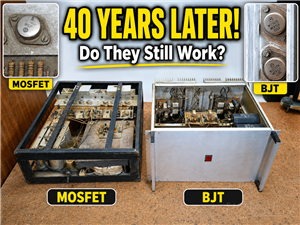 40-Year-Old DIY Power Amplifiers – Do They Still Work - 500W MOSFET & Transistor Amps
This time I want to describe my two DIY super powerful audio amplifiers that I made about 40 years ...
40-Year-Old DIY Power Amplifiers – Do They Still Work - 500W MOSFET & Transistor Amps
This time I want to describe my two DIY super powerful audio amplifiers that I made about 40 years ...
-
 Wi-Fi HaLow Explained! Long-Range Camera Test up to 300m (ESP32 + ThinkNode G4 from ELECROW)
I recently needed to install a security camera at a relatively large distance from my home, more pre...
Wi-Fi HaLow Explained! Long-Range Camera Test up to 300m (ESP32 + ThinkNode G4 from ELECROW)
I recently needed to install a security camera at a relatively large distance from my home, more pre...
-
 Simple Object Recognition with the UNIHIKER K10 – No TensorFlow, No Internet, No Cloud AI
Object recognition has become one of the most popular applications of artificial intelligence and em...
Simple Object Recognition with the UNIHIKER K10 – No TensorFlow, No Internet, No Cloud AI
Object recognition has become one of the most popular applications of artificial intelligence and em...
-
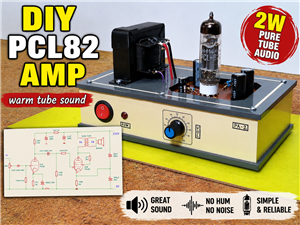 DIY PCL82 Tube Amplifier, Single-Ended Amp with Amazing Sound
The idea for this project came from a local electronics magazine called EMITER, issue 12/13 from 20...
DIY PCL82 Tube Amplifier, Single-Ended Amp with Amazing Sound
The idea for this project came from a local electronics magazine called EMITER, issue 12/13 from 20...
-
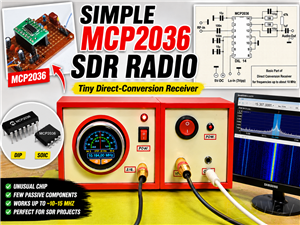 Simple MCP2036 SDR Radio - The Most Unusual Software Defined Radio
SDR (Software Defined Radio) is a radio communication system where many of the key electronic compo...
Simple MCP2036 SDR Radio - The Most Unusual Software Defined Radio
SDR (Software Defined Radio) is a radio communication system where many of the key electronic compo...
-
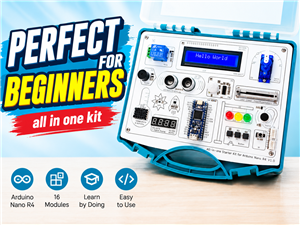 Elecrow All-in-One Arduino Starter Kit Review - 20 Projects & 16 Modules
This time I will describe a simple and practical way to enter the world of microcontrollers, specif...
Elecrow All-in-One Arduino Starter Kit Review - 20 Projects & 16 Modules
This time I will describe a simple and practical way to enter the world of microcontrollers, specif...
-
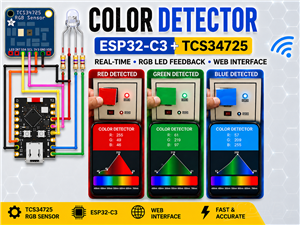 ESP32-C3 Color Detector with TCS34725, Real-Time RGB Detection & Web Interface
Color detection is a fundamental task in many embedded systems – from industrial sorting machines t...
ESP32-C3 Color Detector with TCS34725, Real-Time RGB Detection & Web Interface
Color detection is a fundamental task in many embedded systems – from industrial sorting machines t...
-
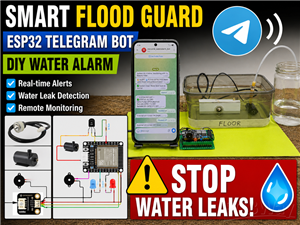 DIY ESP32 Telegram Flood Protection System - Smart Home Automation
Recently I had an unpleasant experience in my home, specifically my ground floor was flooded as a r...
DIY ESP32 Telegram Flood Protection System - Smart Home Automation
Recently I had an unpleasant experience in my home, specifically my ground floor was flooded as a r...
-
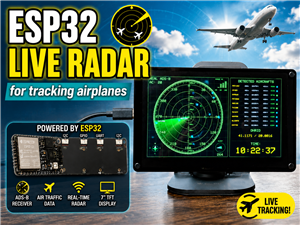 Real-Time Air Traffic Radar using ESP32 + ADS-B Data
ADS-B, which stands for Automatic Dependent Surveillance-Broadcast, is the modern standard for trac...
Real-Time Air Traffic Radar using ESP32 + ADS-B Data
ADS-B, which stands for Automatic Dependent Surveillance-Broadcast, is the modern standard for trac...
-
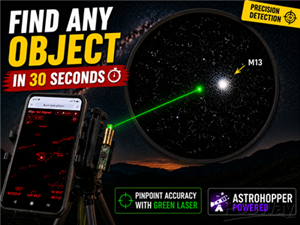 DIY Green Laser Night Sky Object Finder - Find Stars & Galaxies Instantly with great accuracy
As an amateur astronomer, especially at the beginning, the most difficult part of observing the nig...
DIY Green Laser Night Sky Object Finder - Find Stars & Galaxies Instantly with great accuracy
As an amateur astronomer, especially at the beginning, the most difficult part of observing the nig...
-
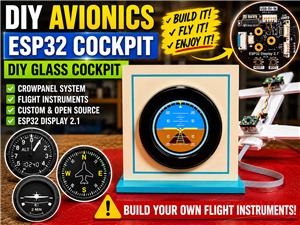 DIY Avionics Simulator with ESP32 - Artificial Horizon, Compass & Altimeter
The inspiration for this project comes from classical aircraft cockpit instruments used for navigat...
DIY Avionics Simulator with ESP32 - Artificial Horizon, Compass & Altimeter
The inspiration for this project comes from classical aircraft cockpit instruments used for navigat...
-
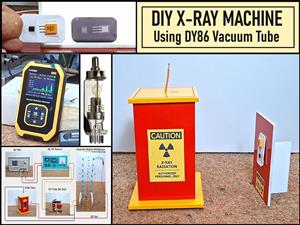 DIY Miniature X-Ray Machine using a TV Vacuum Tube DY86
An X-ray machine (or radiograph) is a quick, painless medical test that produces images of the struc...
DIY Miniature X-Ray Machine using a TV Vacuum Tube DY86
An X-ray machine (or radiograph) is a quick, painless medical test that produces images of the struc...
-
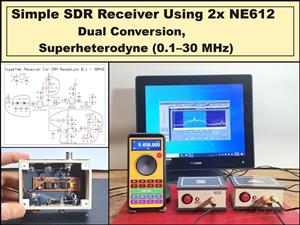 Simple SDR Receiver Using 2x NE612 - Dual Conversion, Superheterodyne (0.1–30 MHz)
SDR (Software Defined Radio) is a radio system in which most of the functions of a classic radio (f...
Simple SDR Receiver Using 2x NE612 - Dual Conversion, Superheterodyne (0.1–30 MHz)
SDR (Software Defined Radio) is a radio system in which most of the functions of a classic radio (f...
-
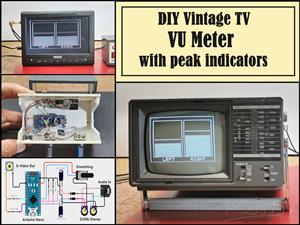 DIY Vintage TV VU Meter with peak indicators
Some time ago in one of my projects I presented you a way to turn a black and white old mini TV int...
DIY Vintage TV VU Meter with peak indicators
Some time ago in one of my projects I presented you a way to turn a black and white old mini TV int...
-
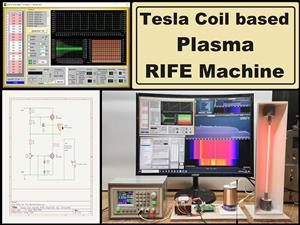 DIY Tesla Coil based Plasma Rife Machine
In several of my previous videos, I presented you with different ways to make a Rife Machine, from ...
DIY Tesla Coil based Plasma Rife Machine
In several of my previous videos, I presented you with different ways to make a Rife Machine, from ...
-
Programmable Mist Maker - XIAO / QT PY Extension
2197 2 2 -
RadioHAT - Raspberry Pi radio development platform
1891 0 4 -
-
-
-
ARPS-2 – Arduino-Compatible Robot Project Shield for Arduino UNO
4080 0 6 -
A Compact Charging Breakout Board For Waveshare ESP32-C3
4839 3 8 -
AI-driven LoRa & LLM-enabled Kiosk & Food Delivery System
5632 2 2 -