|
|
Arduino Nano R3 |
x 1 | |
|
|
SG90 Micro-servo motor |
x 1 | |
|
|
Ultrasonic Sensor - HC-SR04 |
x 1 | |
|
|
TFT display 240 x 320 ILI9341 driver chip |
x 1 | |
|
|
Resistor, 2.2 kohm |
x 5 | |
|
|
Resistor, 3.3 kohm |
x 5 |

|
Soldering Iron Kit |
|

|
arduino IDEArduino
|
DIY Arduino ultrasonic Sonar - Radar on TFT display
Ultrasonic sonar is devices that use sound waves with frequencies higher than the upper audible limit of human hearing (typically above 20 kHz) to measure distances to objects. They work on the principle of sending out a sound wave, and then measuring the time it takes for the sound wave to bounce back after hitting an object. By calculating the time difference between sending and receiving the sound wave, the distance to the object can be determined using the speed of sound in air. In some of my previous videos, you can see several different builds of such a device with special functionalities. All of them display the result on a PC monitor using an additional program written in the Processing application.
This time I will describe to you a simple way how to make an independent Sonar, where the results are displayed on a TFT color display in the form of a radar image, which is why it is often mistakenly called radar instead of sonar.
I got the idea quite by accident from a picture on the internet, and then after a little research I found that project on Github. The original project was made on a 1.8 inch display which is really a very small surface for this purpose. So I reworked the code for a larger 3.2 inch TFT display, where the image is much clearer.

The device is really simple to make and consists of only a few components
- Arduino Nano microcontroller board
- TFT display with a resolution of 240 x 320 pixels and an ILI9341 driver chip
- Ultrasonic sensor type HC-SR04
- small 9G Servo
- and several resistors that serve to shift the display signal from 5V to 3.3V level
The servo and ultrasonic sensor are housed in a separate box, which I used from a previous project, and connected to the main box with flat cables.

Now let's see how the device works in real conditions:
At the beginning, I separated the ultrasonic sensor from the servo in order to calibrate the graphic presentation with the real distance of the object. As you can see, the real distance fully corresponds to the distance shown on the display.

Now we mount the sensor on the servo and place the obstacles to be detected. At power on, the servo is tested first, then the Radar like screen is drawn on the display and scanning begins.

Obstacles are marked with red dots. In the lower left corner, the scanning area is displayed, and on the right, the distance between the sensor and the obstacle in centimeters. The three green arcs with marked distances serve us for easier visibility and an idea of the real distance. If the nearest obstacle is greater than 1 meter, yellow dots are drawn on the last arc, indicating an out of range condition. Scanning is performed first from 180 to 0 degrees, and then vice versa, from 0 to 180 degrees.

For the sake of stability during operation, the device is preferably powered by an external power source, but it also works via USB on the Arduino. All display colors can be easily changed in the code according to the user's preference.
And finally a short conclusion. Most such devices show the scan result on a PC monitor which requires an additional application and code. This is a very simple, easy to make, visually effective, and self-contained device intended for both beginners and more advanced DIYers. I've used cases from previous projects, but it's desirable to have it all in one case with a slanted front display to visually simulate a real radar system.

#include <Servo.h>
#include <SPI.h>
#include "Ucglib.h"


#define  trigPin   6
#define  echoPin   5
#define  ServoPin  3
int Ymax = 240;
int Xmax = 320;

int Xcent = Xmax / 2;
int base = 210;
int scanline = 185;

Servo baseServo;
//Ucglib_ILI9341_18x240x320_SWSPI ucg(/*sclk=*/ 13, /*data=*/ 11, /*cd=*/ 9, /*cs=*/ 10, /*reset=*/ 8);
Ucglib_ILI9341_18x240x320_HWSPI ucg(/*cd=*/ 9, /*cs=*/ 10, /*reset=*/ 8);

void setup(void)
{

      ucg.begin(UCG_FONT_MODE_SOLID);
      ucg.setRotate90();

      pinMode(trigPin, OUTPUT);
      pinMode(echoPin, INPUT);
      Serial.begin(115200);
      baseServo.attach(ServoPin);


      ucg.setFontMode(UCG_FONT_MODE_TRANSPARENT);
      ucg.setColor(0, 0, 100, 0);
      ucg.setColor(1, 0, 100, 0);
      ucg.setColor(2, 20, 20,20);
      ucg.setColor(3, 20, 20, 20);
      ucg.drawGradientBox(0, 0, 320, 240);
      ucg.setPrintDir(0);
      ucg.setColor(0, 5, 0);
      ucg.setPrintPos(70,120);
      ucg.setFont(ucg_font_logisoso32_tf);
      ucg.print("Mini Radar");
      ucg.setColor(0, 255, 0);
      ucg.setPrintPos(70,120);
      ucg.print("Mini Radar");
      ucg.setFont(ucg_font_courB14_tf);
      ucg.setColor(20, 255, 20);
      ucg.setPrintPos(90,200);
      ucg.print("Testing...");
      baseServo.write(90);


      for(int x=0;x<180;x+=5)
          { baseServo.write(x);
            delay(50);
           }
      ucg.print("OK!");
      delay(500);
      ucg.setColor(0,0, 0, 0);
      ucg.setColor(1,0, 0, 0);
      ucg.setColor(2,0, 0, 0);
      ucg.setColor(3,0, 0, 0);
      ucg.drawGradientBox(0, 0, 320, 240);
      delay(10);


      //ucg.clearScreen();
      cls();
      ucg.setFontMode(UCG_FONT_MODE_SOLID);
      ucg.setFont(ucg_font_helvR08_hr);   // or freedoomr10_tr

}


void cls()
{

  ucg.setColor(0, 0, 0, 0);
  for(int s=0;s<240;s++)
  {
    ucg.drawHLine(0,s,320);
    delay(1);
  }

  //ucg.drawBox(0, 0, 160, 60);

}


int calculateDistance()
{
      long duration;

      digitalWrite(trigPin, LOW);
      delayMicroseconds(2);

      digitalWrite(trigPin, HIGH);
      delayMicroseconds(10);
      digitalWrite(trigPin, LOW);

      duration = pulseIn(echoPin, HIGH);

      return duration*0.034/2;
}

void fix_font()
{
      ucg.setColor(0, 180, 0);
      ucg.setPrintPos(144,44);
      ucg.print("1.00");
      ucg.setPrintPos(144,100);
      ucg.print("0.60");
      ucg.setPrintPos(144,165);
      ucg.print("0.30");
}

void fix()
{

      ucg.setColor(0, 180, 0);

      ucg.drawDisc(Xcent, base+1, 3, UCG_DRAW_ALL);
      ucg.drawCircle(Xcent, base+1, 210, UCG_DRAW_UPPER_LEFT);
      ucg.drawCircle(Xcent, base+1, 210, UCG_DRAW_UPPER_RIGHT);
      ucg.drawCircle(Xcent, base+1, 135, UCG_DRAW_UPPER_LEFT);
      ucg.drawCircle(Xcent, base+1, 135, UCG_DRAW_UPPER_RIGHT);
      ucg.drawCircle(Xcent, base+1, 70, UCG_DRAW_UPPER_LEFT);
      ucg.drawCircle(Xcent, base+1, 70, UCG_DRAW_UPPER_RIGHT);
      ucg.drawLine(0, base+1, Xmax,base+1);

      ucg.setColor(0, 180, 0);

       for(int i= 40;i < 300; i+=2)
       {

        if (i % 10 == 0)
          ucg.drawLine(185*cos(radians(i))+Xcent,base - 185*sin(radians(i)) , 205*cos(radians(i))+Xcent,base - 205*sin(radians(i)));

        else

         ucg.drawLine(195*cos(radians(i))+Xcent,base - 195*sin(radians(i)) , 205*cos(radians(i))+Xcent,base - 205*sin(radians(i)));

       }


       ucg.setColor(0,200,0);
       ucg.drawLine(0,0,0,36);
       for(int i= 0;i < 5; i++)
       {
          ucg.setColor(0,random(200)+50,0);
          ucg.drawBox(2,i*8,random(28)+3,6);
       }

       ucg.setColor(0,180,0);
       ucg.drawFrame(292,0,28,28);
       ucg.setColor(0,60,0);
       ucg.drawHLine(296,0,20);
       ucg.drawVLine(292,4,20);
       ucg.drawHLine(296,52,20);
       ucg.drawVLine(318,4,20);

       ucg.setColor(0,220,0);
       ucg.drawBox(296,4,8,8);
       ucg.drawBox(296,16,8,8);
       ucg.drawBox(308,16,8,8);
       ucg.setColor(0,100,0);
       ucg.drawBox(308,4,8,8);

       ucg.setColor(0,90,0);
       ucg.drawTetragon(124,220,116,230,196,230,204,220);
       ucg.setColor(0,160,0);
       ucg.drawTetragon(134,220,126,230,186,230,194,220);
       ucg.setColor(0,210,0);
       ucg.drawTetragon(144,220,136,230,176,230,184,220);
}


void loop(void)
{

  int distance;

  fix();
  fix_font();

  for (int x=180; x > 4; x-=2){

      baseServo.write(x);


      int f = x - 4;
      ucg.setColor(0, 255, 0);
      ucg.drawLine(Xcent, base, scanline*cos(radians(f))+Xcent,base - scanline*sin(radians(f)));
      f+=2;
      ucg.setColor(0, 128, 0);
      ucg.drawLine(Xcent, base, scanline*cos(radians(f))+Xcent,base - scanline*sin(radians(f)));
      f+=2;
      ucg.setColor(0, 0, 0);
      ucg.drawLine(Xcent, base, scanline*cos(radians(f))+Xcent,base - scanline*sin(radians(f)));
      ucg.setColor(0,200, 0);

      distance = calculateDistance();


      if (distance < 100)
      {
        ucg.setColor(255,0,0);
        ucg.drawDisc(2.2*distance*cos(radians(x))+ Xcent,-2.2*distance*sin(radians(x))+base, 1, UCG_DRAW_ALL);
      }
      else
      {
        ucg.setColor(255,255,0);
        ucg.drawDisc(208*cos(radians(x))+Xcent,-208*sin(radians(x))+base, 1, UCG_DRAW_ALL);
      }


      Serial.print(x);
      Serial.print("    ,   ");
      Serial.println(distance);


      if (x > 70 and x < 110)  fix_font();


      ucg.setColor(255,255,  0);
      ucg.setPrintPos(20,230);
      ucg.print("DEG: ");
      ucg.setPrintPos(54,230);
      ucg.print(x);
      ucg.print("  ");
      ucg.setPrintPos(240,230);
      ucg.print("     ");
      ucg.print(distance);
      ucg.print(" cm    ");

  }
  //ucg.clearScreen();
  delay(50);
  cls();

  fix();
  fix_font();

  for (int  x=1; x < 176; x+=2){
      baseServo.write(x);


      int f = x + 4;
      ucg.setColor(0, 255, 0);
      ucg.drawLine(Xcent, base, scanline*cos(radians(f))+Xcent,base - scanline*sin(radians(f)));
      f-=2;
      ucg.setColor(0, 128, 0);
      ucg.drawLine(Xcent, base, scanline*cos(radians(f))+Xcent,base - scanline*sin(radians(f)));
      f-=2;
      ucg.setColor(0, 0, 0);
      ucg.drawLine(Xcent, base, scanline*cos(radians(f))+Xcent,base - scanline*sin(radians(f)));
      ucg.setColor(0, 200, 0);

      distance = calculateDistance();


      if (distance < 100)
      {
        ucg.setColor(255,0,0);
        ucg.drawDisc(2.2*distance*cos(radians(x))+Xcent,-2.2*distance*sin(radians(x))+base, 1, UCG_DRAW_ALL);
      }
      else
      {
        ucg.setColor(255,255,0);
        ucg.drawDisc(208*cos(radians(x))+Xcent,-208*sin(radians(x))+base, 1, UCG_DRAW_ALL);
      }


      Serial.print(x);
      Serial.print("    ,   ");
      Serial.println(distance);

      if (x > 70 and x < 110)  fix_font();

      ucg.setColor(255,255,  0);
      ucg.setPrintPos(20,230);
      ucg.print("DEG: ");
      ucg.setPrintPos(54,230);
      ucg.print(x);
      ucg.print("  ");
      ucg.setPrintPos(240,230);
      ucg.print("     ");
      ucg.print(distance);
      ucg.print(" cm    ");

  }
 //ucg.clearScreen(); //
 delay(50);
 cls();


}
DIY Arduino ultrasonic Sonar - Radar on TFT display









Raspberry Pi 5 7 Inch Touch Screen IPS 1024x600 HD LCD HDMI-compatible Display for RPI 4B 3B+ OPI 5 AIDA64 PC Secondary Screen(Without Speaker)
BUY NOW


- Comments(0)
- Likes(0)
More by Mirko Pavleski
-
 Arduino 3D Printed self Balancing Cube
Self-balancing devices are electronic devices that use sensors and motors to keep themselves balanc...
Arduino 3D Printed self Balancing Cube
Self-balancing devices are electronic devices that use sensors and motors to keep themselves balanc...
-
 Building a Mini Fostex Horn Speaker with a 2-Inch Full-Range Driver
A back-loaded horn speaker is a loudspeaker design that channels the rear sound wave of a driver th...
Building a Mini Fostex Horn Speaker with a 2-Inch Full-Range Driver
A back-loaded horn speaker is a loudspeaker design that channels the rear sound wave of a driver th...
-
 ESP32 Moon Lamp That Shows the Real Moon Phase on Crowpanel Round Dispaly
Recently on the Hackaday portal I came across a very interesting project called Moon Display by aut...
ESP32 Moon Lamp That Shows the Real Moon Phase on Crowpanel Round Dispaly
Recently on the Hackaday portal I came across a very interesting project called Moon Display by aut...
-
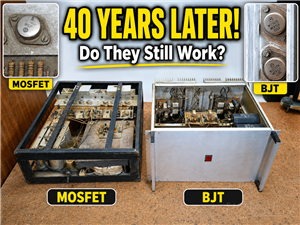 40-Year-Old DIY Power Amplifiers – Do They Still Work - 500W MOSFET & Transistor Amps
This time I want to describe my two DIY super powerful audio amplifiers that I made about 40 years ...
40-Year-Old DIY Power Amplifiers – Do They Still Work - 500W MOSFET & Transistor Amps
This time I want to describe my two DIY super powerful audio amplifiers that I made about 40 years ...
-
 Wi-Fi HaLow Explained! Long-Range Camera Test up to 300m (ESP32 + ThinkNode G4 from ELECROW)
I recently needed to install a security camera at a relatively large distance from my home, more pre...
Wi-Fi HaLow Explained! Long-Range Camera Test up to 300m (ESP32 + ThinkNode G4 from ELECROW)
I recently needed to install a security camera at a relatively large distance from my home, more pre...
-
 Simple Object Recognition with the UNIHIKER K10 – No TensorFlow, No Internet, No Cloud AI
Object recognition has become one of the most popular applications of artificial intelligence and em...
Simple Object Recognition with the UNIHIKER K10 – No TensorFlow, No Internet, No Cloud AI
Object recognition has become one of the most popular applications of artificial intelligence and em...
-
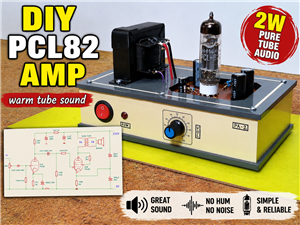 DIY PCL82 Tube Amplifier, Single-Ended Amp with Amazing Sound
The idea for this project came from a local electronics magazine called EMITER, issue 12/13 from 20...
DIY PCL82 Tube Amplifier, Single-Ended Amp with Amazing Sound
The idea for this project came from a local electronics magazine called EMITER, issue 12/13 from 20...
-
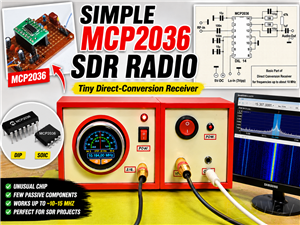 Simple MCP2036 SDR Radio - The Most Unusual Software Defined Radio
SDR (Software Defined Radio) is a radio communication system where many of the key electronic compo...
Simple MCP2036 SDR Radio - The Most Unusual Software Defined Radio
SDR (Software Defined Radio) is a radio communication system where many of the key electronic compo...
-
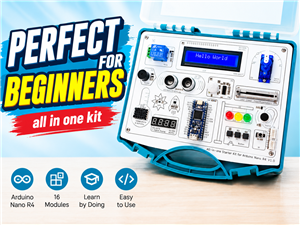 Elecrow All-in-One Arduino Starter Kit Review - 20 Projects & 16 Modules
This time I will describe a simple and practical way to enter the world of microcontrollers, specif...
Elecrow All-in-One Arduino Starter Kit Review - 20 Projects & 16 Modules
This time I will describe a simple and practical way to enter the world of microcontrollers, specif...
-
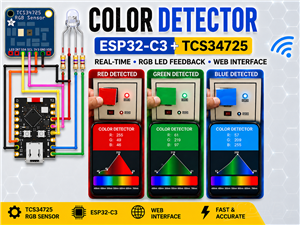 ESP32-C3 Color Detector with TCS34725, Real-Time RGB Detection & Web Interface
Color detection is a fundamental task in many embedded systems – from industrial sorting machines t...
ESP32-C3 Color Detector with TCS34725, Real-Time RGB Detection & Web Interface
Color detection is a fundamental task in many embedded systems – from industrial sorting machines t...
-
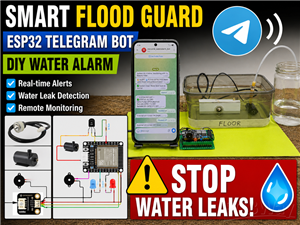 DIY ESP32 Telegram Flood Protection System - Smart Home Automation
Recently I had an unpleasant experience in my home, specifically my ground floor was flooded as a r...
DIY ESP32 Telegram Flood Protection System - Smart Home Automation
Recently I had an unpleasant experience in my home, specifically my ground floor was flooded as a r...
-
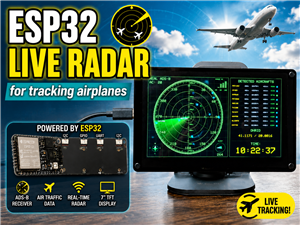 Real-Time Air Traffic Radar using ESP32 + ADS-B Data
ADS-B, which stands for Automatic Dependent Surveillance-Broadcast, is the modern standard for trac...
Real-Time Air Traffic Radar using ESP32 + ADS-B Data
ADS-B, which stands for Automatic Dependent Surveillance-Broadcast, is the modern standard for trac...
-
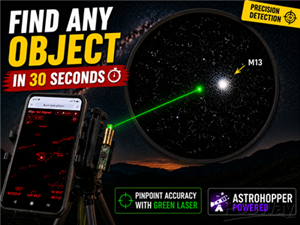 DIY Green Laser Night Sky Object Finder - Find Stars & Galaxies Instantly with great accuracy
As an amateur astronomer, especially at the beginning, the most difficult part of observing the nig...
DIY Green Laser Night Sky Object Finder - Find Stars & Galaxies Instantly with great accuracy
As an amateur astronomer, especially at the beginning, the most difficult part of observing the nig...
-
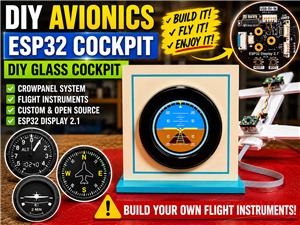 DIY Avionics Simulator with ESP32 - Artificial Horizon, Compass & Altimeter
The inspiration for this project comes from classical aircraft cockpit instruments used for navigat...
DIY Avionics Simulator with ESP32 - Artificial Horizon, Compass & Altimeter
The inspiration for this project comes from classical aircraft cockpit instruments used for navigat...
-
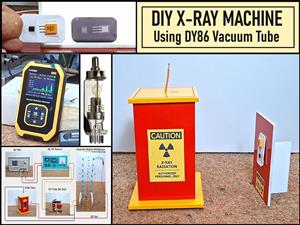 DIY Miniature X-Ray Machine using a TV Vacuum Tube DY86
An X-ray machine (or radiograph) is a quick, painless medical test that produces images of the struc...
DIY Miniature X-Ray Machine using a TV Vacuum Tube DY86
An X-ray machine (or radiograph) is a quick, painless medical test that produces images of the struc...
-
 Simple SDR Receiver Using 2x NE612 - Dual Conversion, Superheterodyne (0.1–30 MHz)
SDR (Software Defined Radio) is a radio system in which most of the functions of a classic radio (f...
Simple SDR Receiver Using 2x NE612 - Dual Conversion, Superheterodyne (0.1–30 MHz)
SDR (Software Defined Radio) is a radio system in which most of the functions of a classic radio (f...
-
 DIY Vintage TV VU Meter with peak indicators
Some time ago in one of my projects I presented you a way to turn a black and white old mini TV int...
DIY Vintage TV VU Meter with peak indicators
Some time ago in one of my projects I presented you a way to turn a black and white old mini TV int...
-
 DIY Tesla Coil based Plasma Rife Machine
In several of my previous videos, I presented you with different ways to make a Rife Machine, from ...
DIY Tesla Coil based Plasma Rife Machine
In several of my previous videos, I presented you with different ways to make a Rife Machine, from ...
-
Programmable Mist Maker - XIAO / QT PY Extension
2119 2 2 -
RadioHAT - Raspberry Pi radio development platform
1801 0 4 -
-
-
-
ARPS-2 – Arduino-Compatible Robot Project Shield for Arduino UNO
4013 0 6 -
A Compact Charging Breakout Board For Waveshare ESP32-C3
4750 3 8 -
AI-driven LoRa & LLM-enabled Kiosk & Food Delivery System
5564 2 2 -