|
|
Arduino_Nano_v3.x |
x 1 | |
|
|
16x4 LCD Display |
x 1 | |
|
|
button |
x 1 | |
|
|
BME280 sensor board |
x 1 |

|
Soldering iron |
|

|
Soldering Iron Wire Welding Lead Roll |
Arduino Barometer + Barograph with BME280 Sensor
A barograph is a barometer that records the barometric pressure over time in graphical form. This instrument is also used to make a continuous recording of atmospheric pressure.
The former Barographs use the pressure-sensitive element, which is linked to a pen arm in such a way that the vertical displacement of the pen is proportional to the changes in the atmospheric pressure. This pen marks pressure changes on specially marked paper that is placed on a disc that rotates 360 degrees over 24 hours. In the picture below you can see what a Barograph from the last century looks like.

The barometer and the barograph are basic local instruments (independent of the Internet) in Meteorology that serve to predict the weather. This time I will present you a very simple way, using an Arduino microcontroller, you can make an electronic Barometer + Barograph that presents the results in graphic form on a 20x4 LCD display. The basic project is taken from "cxem.net" by the author AMatroskin, in which I modified and now the pressure is displayed in hPa instead of mmHg, and what is much more important, instead of the Absolute, the Relative Atmospheric Pressure for the specific altitude is displayed, which is a common standard in Meteorology.
For this purpose we need to enter the Relative Standard Atmospheric Pressure for the current altitude (As described further in the text), in the line:
#define SEALEVELPRESSURE_HPA (932.17) // for Ohrid, 698m altitude
and we can calculate that, on one of the online calculators, such as:
https://www.mide.com/air-pressure-at-altitude-calculator
Also further down the line
value = round ((bme.seaLevelForAltitude(698, bme.readPressure())/100))
the current altitude in meters should be entered.

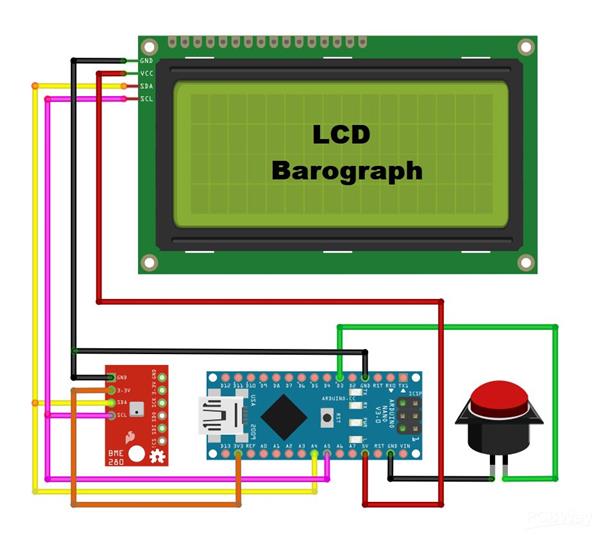
As I mentioned before, the device is very simple to build and contains only a few components:
- Arduino Nano microcontroller
- 20x4 I2C protocol LCD Display
- BME 280 Pressure sensor board
- and one Button
Now let's see how the device works in reality. First of all, it takes 24 hours to draw a complete graph. The display shows the current Relative Atmospheric Pressure, as well as the positive or negative difference in hectopascals, for a given previous time period. This period can be 3,6,12, and 24 hours. Correct interpretation of this difference is the basis for accurate weather prediction. And now a few words about the graph. The maximum number of values on the vertical axis can be 28 (7vertical dots on every of four rows). At the beginning of the code, the range in which the air pressure is read can be changed, i.e. the smallest and the largest value. Depending on these values, the resolution of the graph also changes. For example, if we choose the difference between the minimum and maximum pressure to be 28, then 1 Hectopascal corresponds to one line on the Y axis of the graph. The sixteen values on the X axis represent time, and here the resolution depends on the selected elapsed time value.
Basically, when the pressure rises, an improvement in the weather is expected, and conversely, when it decreases, a worsening of the weather is expected.

And finally, the device is placed in a suitable box made of PVC material with a thickness of 5 mm, and covered with self-adhesive colored wallpaper. Let me mention that the BME280 sensor is placed inside the box, because in this case we measure only the pressure, which is independent of the temperature .
/*
Barometer with digital and graphic display of atmospheric pressure data.
Components: Screen text LCD 2004, platform: arduinio nano/uno (Atmega328 or more), pressure sensor: BME 280.
Amatroskin 2022.
*/

#include <LiquidCrystal_I2C.h>
#include <Wire.h>
#include "GyverButton.h"
#include <Adafruit_Sensor.h>
#include <Adafruit_BME280.h>

#define SEALEVELPRESSURE_HPA (933,17)       // Set the height
#define BTN_PIN 3                            //Button Pin
#define BASE_PERIOD 675000                   //Main array acquisition period 675000ms = 11.25 min (*16 bars = 3 hours) maximum graph resolution
#define MIN_VAL 990                          //The minimum value displayed on the chart
#define MAX_VAL 1035                          //The maximum value displayed on the graph
LiquidCrystal_I2C lcd(0x27, 20, 4);          //We create the necessary objects
GButton butt1(BTN_PIN);
Adafruit_BME280 bme;

uint32_t tmr1, tmr2;                          //timer variables
uint32_t  set_period = BASE_PERIOD;           //Display period, changes in multiples of 3 hours (3, 6, 12, 24)
int16_t plot_array[20];                       //Data array for drawing a chart
uint16_t base_array [128];                    //The base array stores all measurements for the last 24 hours (128 cells * 11.25 minutes = 1440 minutes = 24 hours)
int16_t value, delta;                         //Current (taken) readings, difference in readings for a selected period of time
byte interval = 1;                            //Interval displayed on the screen (time difference between adjacent chart bars)
                                              // 11.25 min * 16 = 3 hours, 22.5 min - 6 hours, 45 min - 12 hours, 90 min - 24 hours
void setup() {
  read_all ();
  //  Serial.begin(9600);
  attachInterrupt(1, isr, CHANGE);
  butt1.setDebounce(80);                      // anti-bounce setting (default 80 ms)
  butt1.setTimeout(300);                      // hold timeout setting (default 500ms)
  lcd.init();
  lcd.backlight();
  lcd.clear();
  if (!bme.begin(0x76)) {                              //Initialization of the BME280 sensor at address 0x76 (default)
    //Serial.println("Could not find a valid BME280!");//Printing an Error Message to the Port Monitor
    lcd.setCursor(3, 1);
    lcd.print(F("No connection"));                     //___________________________or on the screen
    lcd.setCursor(5, 2);
    lcd.print(F("to sensor"));
    while (1);                                          //won't go without a sensor.
  }

  if (!digitalRead(BTN_PIN)) {                          //Reset settings when turned on with the button held down
    for (byte i = 0; i < 128; i++) base_array [i] = 0;  //Erase data
    update_all ();                                      //Save
    lcd.setCursor(5, 1);                                //Report it
    lcd.print(F("Reset data"));
    lcd.setCursor(9, 2);
    lcd.print(F("OK"));
  }
  while (!digitalRead(BTN_PIN));
  lcd.clear();

  initPlot();                                           //Initializing Symbols for Rendering

  value = round ((bme.seaLevelForAltitude(700, bme.readPressure())/100));//We take the current readings, convert to mm Hg.
  base_array[0] = value;
  get_data ();
}

void isr() {                                              //We poll the button in the interrupt to catch the click anyway
   butt1.tick();
}

void loop() {
  butt1.tick();                                           //Poll button
  if (butt1.isClick()) {                                  //When you press:
    interval *= 2;                                        //Switching the chart scale
    if (interval > 8) interval = 1;
    set_period = BASE_PERIOD * interval;                  //Recalculate the interval for updating data from the sensor
    get_data ();                                          //Update information on the display
  }

  if (millis() - tmr1 >= BASE_PERIOD) {                   //We collect the basic array of data
    tmr1 = millis();                                      //Every 11.25 minutes we take readings from the sensor
    for (int i = 126; i >= 0; i--) {                      //Shift the entire array by one point
      base_array[i + 1] = base_array[i];
    }
    value = round ((bme.seaLevelForAltitude(700, bme.readPressure())/100));//Convert to mm/Hg.
    base_array[0] = value;                                 //Write the latest readings to an array
    update_all ();                                         //And remember in EEPROM
  }

  if (millis() - tmr2 >= set_period) {                     //After a period of time set_period (milliseconds)
    tmr2 = millis();                                       //Refreshing the data on the screen
    get_data ();
  }
}

void get_data () {                                          //We draw 16 columns of the diagram on the screen
  for (int i = 15; i >= 0; i--) {
    drawPlot(0, 3, 16, 4, MIN_VAL, MAX_VAL, (base_array[i * interval]));
  }
  delta = ((base_array[0]) - (base_array[15 * interval]));  //We calculate the delta (pressure change) for the selected interval
  screen_data (value, delta, (interval * 3));               //Displaying text information on the screen
}

void screen_data (int value, int delta, byte interval) {    //The function of displaying text information on the screen (everything except for the chart bars)
  lcd.setCursor(16, 0);
  lcd.print(value);
  lcd.setCursor(17, 2);
  if (delta == value) delta = 0;
  if (delta > 0) {
    lcd.print("+");
  } else if (delta < 0) {
    lcd.print("-");
  } else if (delta == 0) {
    lcd.print(" ");
  }
  lcd.setCursor(18, 2);
  lcd.print(abs(delta));
  if (abs(delta) < 10) {
    lcd.setCursor(19, 2);
    lcd.print(" ");
  }
  lcd.setCursor(17, 1);
  lcd.print("hPa");
  lcd.setCursor(17, 3);
  lcd.print(interval);
  (interval < 10) ? lcd.print("h ") : lcd.print("h");
}

void initPlot() {
  // necessary symbols for work
  // created in http://maxpromer.github.io/LCD-Character-Creator/
  byte row8[8] = {0b11111,  0b11111,  0b11111,  0b11111,  0b11111,  0b11111,  0b11111,  0b11111};
  byte row7[8] = {0b00000,  0b11111,  0b11111,  0b11111,  0b11111,  0b11111,  0b11111,  0b11111};
  byte row6[8] = {0b00000,  0b00000,  0b11111,  0b11111,  0b11111,  0b11111,  0b11111,  0b11111};
  byte row5[8] = {0b00000,  0b00000,  0b00000,  0b11111,  0b11111,  0b11111,  0b11111,  0b11111};
  byte row4[8] = {0b00000,  0b00000,  0b00000,  0b00000,  0b11111,  0b11111,  0b11111,  0b11111};
  byte row3[8] = {0b00000,  0b00000,  0b00000,  0b00000,  0b00000,  0b11111,  0b11111,  0b11111};
  byte row2[8] = {0b00000,  0b00000,  0b00000,  0b00000,  0b00000,  0b00000,  0b11111,  0b11111};
  byte row1[8] = {0b00000,  0b00000,  0b00000,  0b00000,  0b00000,  0b00000,  0b00000,  0b11111};
  lcd.createChar(0, row8);
  lcd.createChar(1, row1);
  lcd.createChar(2, row2);
  lcd.createChar(3, row3);
  lcd.createChar(4, row4);
  lcd.createChar(5, row5);
  lcd.createChar(6, row6);
  lcd.createChar(7, row7);
}

                                              //Diagram drawing, code taken from Guyver https://alexgyver.ru/lcd-plots-and-bars/
void drawPlot(byte pos, byte row, byte width, byte height, int min_val, int max_val, int fill_val) {

  for (byte i = 0; i < width; i++) {
    plot_array[i] = plot_array[i + 1];
  }
  fill_val = constrain(fill_val, min_val, max_val);
  plot_array[width - 1] = fill_val;
  for (byte i = 0; i < width; i++) {         // each parameter column
    int infill, fract;

                                             // find the number of whole blocks, taking into account the minimum and maximum, to display on the chart
    infill = floor((float)(plot_array[i] - min_val) / (max_val - min_val) * height * 10);
    fract = (infill % 10) * 8 / 10;                          // find the number of remaining stripes
    infill = infill / 10;
    for (byte n = 0; n < height; n++) {     // for all graph lines
      if (n < infill && infill > 0) {       // while we're below the level
        lcd.setCursor(i, (row - n));        // fill in cells
        lcd.write(0);
      }
      if (n >= infill) {                          // if you reach the level
        lcd.setCursor(i, (row - n));
        if (fract > 0) lcd.write(fract);          // заполняем дробные ячейки
        else lcd.write(16);                       // if fractional == 0, fill empty
        for (byte k = n + 1; k < height; k++) {   // everything that is on top is filled with empty
          lcd.setCursor(i, (row - k));
          lcd.write(16);
        }
        break;
      }
    }
  }
}

void update_all () {                             //Обновляем данные в EEPROM
  eeprom_update_block((void*)&base_array, 0, sizeof(base_array));
}

void read_all () {                              //Reading data from EEPROM
  eeprom_read_block((void*)&base_array, 0, sizeof(base_array));
}
Arduino Barometer + Barograph with BME280 Sensor









Raspberry Pi 5 7 Inch Touch Screen IPS 1024x600 HD LCD HDMI-compatible Display for RPI 4B 3B+ OPI 5 AIDA64 PC Secondary Screen(Without Speaker)
BUY NOW


- Comments(0)
- Likes(1)
More by Mirko Pavleski
-
 Arduino 3D Printed self Balancing Cube
Self-balancing devices are electronic devices that use sensors and motors to keep themselves balanc...
Arduino 3D Printed self Balancing Cube
Self-balancing devices are electronic devices that use sensors and motors to keep themselves balanc...
-
 Building a Mini Fostex Horn Speaker with a 2-Inch Full-Range Driver
A back-loaded horn speaker is a loudspeaker design that channels the rear sound wave of a driver th...
Building a Mini Fostex Horn Speaker with a 2-Inch Full-Range Driver
A back-loaded horn speaker is a loudspeaker design that channels the rear sound wave of a driver th...
-
 ESP32 Moon Lamp That Shows the Real Moon Phase on Crowpanel Round Dispaly
Recently on the Hackaday portal I came across a very interesting project called Moon Display by aut...
ESP32 Moon Lamp That Shows the Real Moon Phase on Crowpanel Round Dispaly
Recently on the Hackaday portal I came across a very interesting project called Moon Display by aut...
-
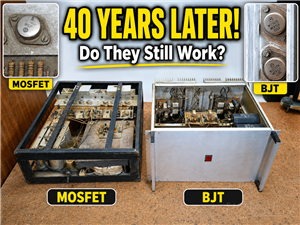 40-Year-Old DIY Power Amplifiers – Do They Still Work - 500W MOSFET & Transistor Amps
This time I want to describe my two DIY super powerful audio amplifiers that I made about 40 years ...
40-Year-Old DIY Power Amplifiers – Do They Still Work - 500W MOSFET & Transistor Amps
This time I want to describe my two DIY super powerful audio amplifiers that I made about 40 years ...
-
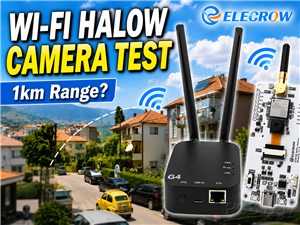 Wi-Fi HaLow Explained! Long-Range Camera Test up to 300m (ESP32 + ThinkNode G4 from ELECROW)
I recently needed to install a security camera at a relatively large distance from my home, more pre...
Wi-Fi HaLow Explained! Long-Range Camera Test up to 300m (ESP32 + ThinkNode G4 from ELECROW)
I recently needed to install a security camera at a relatively large distance from my home, more pre...
-
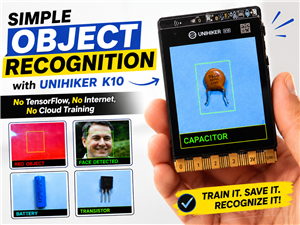 Simple Object Recognition with the UNIHIKER K10 – No TensorFlow, No Internet, No Cloud AI
Object recognition has become one of the most popular applications of artificial intelligence and em...
Simple Object Recognition with the UNIHIKER K10 – No TensorFlow, No Internet, No Cloud AI
Object recognition has become one of the most popular applications of artificial intelligence and em...
-
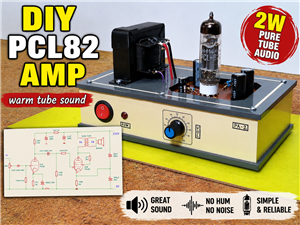 DIY PCL82 Tube Amplifier, Single-Ended Amp with Amazing Sound
The idea for this project came from a local electronics magazine called EMITER, issue 12/13 from 20...
DIY PCL82 Tube Amplifier, Single-Ended Amp with Amazing Sound
The idea for this project came from a local electronics magazine called EMITER, issue 12/13 from 20...
-
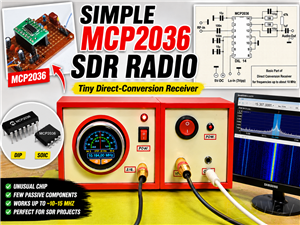 Simple MCP2036 SDR Radio - The Most Unusual Software Defined Radio
SDR (Software Defined Radio) is a radio communication system where many of the key electronic compo...
Simple MCP2036 SDR Radio - The Most Unusual Software Defined Radio
SDR (Software Defined Radio) is a radio communication system where many of the key electronic compo...
-
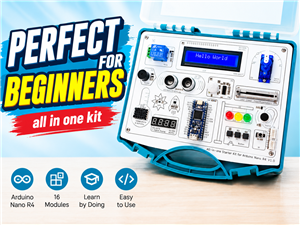 Elecrow All-in-One Arduino Starter Kit Review - 20 Projects & 16 Modules
This time I will describe a simple and practical way to enter the world of microcontrollers, specif...
Elecrow All-in-One Arduino Starter Kit Review - 20 Projects & 16 Modules
This time I will describe a simple and practical way to enter the world of microcontrollers, specif...
-
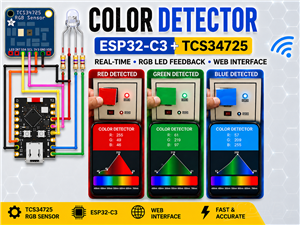 ESP32-C3 Color Detector with TCS34725, Real-Time RGB Detection & Web Interface
Color detection is a fundamental task in many embedded systems – from industrial sorting machines t...
ESP32-C3 Color Detector with TCS34725, Real-Time RGB Detection & Web Interface
Color detection is a fundamental task in many embedded systems – from industrial sorting machines t...
-
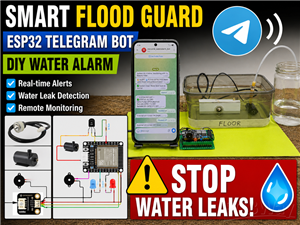 DIY ESP32 Telegram Flood Protection System - Smart Home Automation
Recently I had an unpleasant experience in my home, specifically my ground floor was flooded as a r...
DIY ESP32 Telegram Flood Protection System - Smart Home Automation
Recently I had an unpleasant experience in my home, specifically my ground floor was flooded as a r...
-
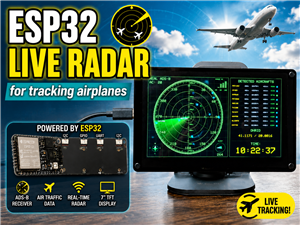 Real-Time Air Traffic Radar using ESP32 + ADS-B Data
ADS-B, which stands for Automatic Dependent Surveillance-Broadcast, is the modern standard for trac...
Real-Time Air Traffic Radar using ESP32 + ADS-B Data
ADS-B, which stands for Automatic Dependent Surveillance-Broadcast, is the modern standard for trac...
-
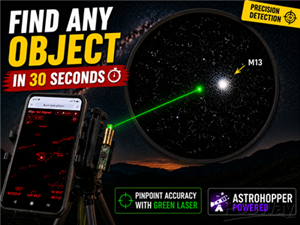 DIY Green Laser Night Sky Object Finder - Find Stars & Galaxies Instantly with great accuracy
As an amateur astronomer, especially at the beginning, the most difficult part of observing the nig...
DIY Green Laser Night Sky Object Finder - Find Stars & Galaxies Instantly with great accuracy
As an amateur astronomer, especially at the beginning, the most difficult part of observing the nig...
-
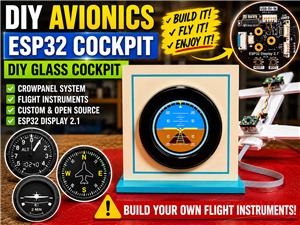 DIY Avionics Simulator with ESP32 - Artificial Horizon, Compass & Altimeter
The inspiration for this project comes from classical aircraft cockpit instruments used for navigat...
DIY Avionics Simulator with ESP32 - Artificial Horizon, Compass & Altimeter
The inspiration for this project comes from classical aircraft cockpit instruments used for navigat...
-
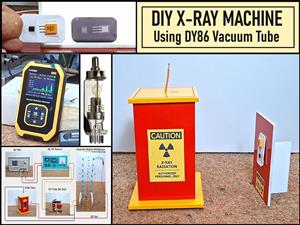 DIY Miniature X-Ray Machine using a TV Vacuum Tube DY86
An X-ray machine (or radiograph) is a quick, painless medical test that produces images of the struc...
DIY Miniature X-Ray Machine using a TV Vacuum Tube DY86
An X-ray machine (or radiograph) is a quick, painless medical test that produces images of the struc...
-
 Simple SDR Receiver Using 2x NE612 - Dual Conversion, Superheterodyne (0.1–30 MHz)
SDR (Software Defined Radio) is a radio system in which most of the functions of a classic radio (f...
Simple SDR Receiver Using 2x NE612 - Dual Conversion, Superheterodyne (0.1–30 MHz)
SDR (Software Defined Radio) is a radio system in which most of the functions of a classic radio (f...
-
 DIY Vintage TV VU Meter with peak indicators
Some time ago in one of my projects I presented you a way to turn a black and white old mini TV int...
DIY Vintage TV VU Meter with peak indicators
Some time ago in one of my projects I presented you a way to turn a black and white old mini TV int...
-
 DIY Tesla Coil based Plasma Rife Machine
In several of my previous videos, I presented you with different ways to make a Rife Machine, from ...
DIY Tesla Coil based Plasma Rife Machine
In several of my previous videos, I presented you with different ways to make a Rife Machine, from ...
-
Programmable Mist Maker - XIAO / QT PY Extension
2376 2 2 -
RadioHAT - Raspberry Pi radio development platform
2059 0 4 -
-
-
-
ARPS-2 – Arduino-Compatible Robot Project Shield for Arduino UNO
4211 0 6 -
A Compact Charging Breakout Board For Waveshare ESP32-C3
4986 3 8 -
AI-driven LoRa & LLM-enabled Kiosk & Food Delivery System
5754 2 2 -