|
|
CrowPanel 2.8 |
x 1 | |
|
|
Battery, 3.7 V |
x 1 | |
|
|
Speaker: 0.25W, 8 ohms |
x 1 | |
|
|
Switch |
x 1 |

|
arduino IDEArduino
|
|

|
Soldering Iron Kit |
How to make Simplest and Cheapest compact Internet Radio - Yoradio
Internet radio is a digital audio service that streams music, news, and other forms of audio content over the internet, rather than being transmitted through traditional radio waves. Unlike traditional radio, which is limited by geographic range, internet radio can be accessed from anywhere in the world with an internet connection.

Unfortunately, the price of such devices is still relatively high compared to the classic radio, so if we have some knowledge in the field of electronics, we can make it ourselves for a very low price. The basic idea when planning for the making of this device was that it should be as simple as possible so that it could be made even by beginners and self-builders with less experience.
For those reasons I will try to explain all the steps in order and in detail. For this purpose I chose "ELECROW Crow Panel 2.8" ESP32 HMI Display" so that there is no need to study circuit diagrams, precise soldering, and making a suitable quality case.

This practical and inexpensive module contains almost all the necessary components for such a radio including microcontroller, battery charger circuit, and even audio amplifier, and we only need to add a speaker and a 3.7 volt Lithium battery, which are connected with a suitable connector directly to the module. Control of the main functions is done through the touch panel, and more advanced options are set through a beautiful web interface.
The brain of this radio is the well-known "Yoradio" web radio project and all the credit goes to them.

On the given GitHub page you can find detailed instructions for deploying the code on many different hardware platforms. This project is sponsored by PCBWay . This year PCBWay is celebrating the 10th anniversary of its successful existence. On the occasion of this event, PCBWay provided its users with more conveniences such as big savings for certain products, as well as discounts of up to 80%. From July 1st to August 31st, log in to the PCBWay site, and start the PCBway 10th Anniversary Tour, where you will enjoy Coupons, Lucky Draw, Exclusive Badges, unboxing blind boxes, and many other surprises. PCBWay is always your great choice.

And now I will explain step by step how to implement the code that is modified specifically for this display module, without dwelling on the way that it is customized, for the sake of simplification.
First we need to enable display module in the Arduino environment. For this purpose we go to Arduino IDE - File - Preferences - where we add the ESP32 URL to "Board Manager URLs" as follows:
(https://raw.githubusercontent.com/espressif/arduino-esp32/gh-pages/package_esp32_index.json)

Now click "Tool-->Board-->Board Manager", and search for "esp32". It is recommended to
install version 2.0.3 ESP32 package.

Next, on Arduino IDE -> Tools -> Boards manager -> ESP32 Arduino we choose: ESP32 Dev Module Module, and set the parameters as given in the image

With this, the procedure for entering support for the specific Display Мodule in the Arduino IDE is completed. Just to note that the Arduino IDE software version should be lower than 2.0.0. I specifically used version 1.8.15. At the end of the text there is a link where you can download the code and libraries modified specifically for this project.
First, we install the attached libraries, and if they were previously installed, we replace them with these. In my case the libraries folder is located in Documents - arduino - libraries.
Next you need to Install ESP32 Filesystem Uploader. For this purpose we go to Documents - Arduino - Tools and here we copy the "ESP32FS" folder given below.

To check if the plugin was successfully installed, open your Arduino IDE. Select your ESP32 board, go to Tools and check that you have the option “ESP32 Sketch Data Upload“.

Now let's explain how to install the code:
In the given folder "yoradio" we start the yoradio sketch.
Now we need to connect the display module and select the appropriate COM port.

Next we go to Tools - ESP32 Sketch data upload.

When this step is finished we upload the code and with that this procedure is finished.
Now we turn on the module for the first time and a message appears on the screen that an access point with the address 192.168.4.1 has been started.

Connect to yoRadioAP access point with password 12345987, and go to http://192.168.4.1/ Here we put the credentials of our local network. We can actually set information for multiple local networks so depending on where we are, the device would connect to the appropriate Wi-Fi network.

After this, by restarting the device, it connects to our local network, and the user interface of the Internet radio is launched for the first time. The IP address associated with our device is represented in the lower part of the screen with small numbers. In my case this adress is 192.168.100.240. We write this address in the web browser and enter a web interface where we can set many options of this internet radio.

The web interface contains several options:
- Play button
- Volume up and volume down buttons
- equalizer
next i system settings
- we can update firmware
- control screen options
- Controls
- our Timezone
- wi-fi networks
- and openweathermaps weather data for our location
- at the end we press done button
- We can also import internet radios playlist
And as I mentioned at the beginning, in order to get a complete portable Internet radio, we only need to connect a speaker and a lithium battery to the display module. I also added a small on/off switch to turn the device on and off.

I did the assembly of these elements in the simplest way using double-sided adhesive tape. The speaker was taken from an old defective laptop, and the battery from an also defective phone.
And now let's see how this little internet radio works in real life. Due to copyright restrictions, I will broadcast the stations very briefly or with reduced sound intensity. Immediately after switching on, the device connects to the available Wi-Fi network and starts broadcasting the last internet radio station that we listened to before. The screen shows the name of the station, the method of compression of the sound signal, the name of the song or program that is currently being broadcast, then the real time, as well as a meteorological report for the selected location.

The lower part of the screen shows the volume of the sound and Wi-Fi signal, as well as the IP address received by the device from the local network.


By moving the screen left and right it decreases, and increases the sound volume, and by swiping down or up we enter the screen where we can choose one of the previously entered internet stations.
And finally a short conclusion.
This is certainly the cheapest and simplest Internet radio that you can make yourself if you have minimal knowledge in the field of electronics, and all thanks to this universal and practical display module. Despite the simplicity, it does not lag behind in terms of quality, as well as the many options compared to commercial such devices.


How to make Simplest and Cheapest compact Internet Radio - Yoradio









Raspberry Pi 5 7 Inch Touch Screen IPS 1024x600 HD LCD HDMI-compatible Display for RPI 4B 3B+ OPI 5 AIDA64 PC Secondary Screen(Without Speaker)
BUY NOW


- Comments(1)
- Likes(3)
More by Mirko Pavleski
-
 Arduino 3D Printed self Balancing Cube
Self-balancing devices are electronic devices that use sensors and motors to keep themselves balanc...
Arduino 3D Printed self Balancing Cube
Self-balancing devices are electronic devices that use sensors and motors to keep themselves balanc...
-
 Building a Mini Fostex Horn Speaker with a 2-Inch Full-Range Driver
A back-loaded horn speaker is a loudspeaker design that channels the rear sound wave of a driver th...
Building a Mini Fostex Horn Speaker with a 2-Inch Full-Range Driver
A back-loaded horn speaker is a loudspeaker design that channels the rear sound wave of a driver th...
-
 ESP32 Moon Lamp That Shows the Real Moon Phase on Crowpanel Round Dispaly
Recently on the Hackaday portal I came across a very interesting project called Moon Display by aut...
ESP32 Moon Lamp That Shows the Real Moon Phase on Crowpanel Round Dispaly
Recently on the Hackaday portal I came across a very interesting project called Moon Display by aut...
-
 40-Year-Old DIY Power Amplifiers – Do They Still Work - 500W MOSFET & Transistor Amps
This time I want to describe my two DIY super powerful audio amplifiers that I made about 40 years ...
40-Year-Old DIY Power Amplifiers – Do They Still Work - 500W MOSFET & Transistor Amps
This time I want to describe my two DIY super powerful audio amplifiers that I made about 40 years ...
-
 Wi-Fi HaLow Explained! Long-Range Camera Test up to 300m (ESP32 + ThinkNode G4 from ELECROW)
I recently needed to install a security camera at a relatively large distance from my home, more pre...
Wi-Fi HaLow Explained! Long-Range Camera Test up to 300m (ESP32 + ThinkNode G4 from ELECROW)
I recently needed to install a security camera at a relatively large distance from my home, more pre...
-
 Simple Object Recognition with the UNIHIKER K10 – No TensorFlow, No Internet, No Cloud AI
Object recognition has become one of the most popular applications of artificial intelligence and em...
Simple Object Recognition with the UNIHIKER K10 – No TensorFlow, No Internet, No Cloud AI
Object recognition has become one of the most popular applications of artificial intelligence and em...
-
 DIY PCL82 Tube Amplifier, Single-Ended Amp with Amazing Sound
The idea for this project came from a local electronics magazine called EMITER, issue 12/13 from 20...
DIY PCL82 Tube Amplifier, Single-Ended Amp with Amazing Sound
The idea for this project came from a local electronics magazine called EMITER, issue 12/13 from 20...
-
 Simple MCP2036 SDR Radio - The Most Unusual Software Defined Radio
SDR (Software Defined Radio) is a radio communication system where many of the key electronic compo...
Simple MCP2036 SDR Radio - The Most Unusual Software Defined Radio
SDR (Software Defined Radio) is a radio communication system where many of the key electronic compo...
-
 Elecrow All-in-One Arduino Starter Kit Review - 20 Projects & 16 Modules
This time I will describe a simple and practical way to enter the world of microcontrollers, specif...
Elecrow All-in-One Arduino Starter Kit Review - 20 Projects & 16 Modules
This time I will describe a simple and practical way to enter the world of microcontrollers, specif...
-
 ESP32-C3 Color Detector with TCS34725, Real-Time RGB Detection & Web Interface
Color detection is a fundamental task in many embedded systems – from industrial sorting machines t...
ESP32-C3 Color Detector with TCS34725, Real-Time RGB Detection & Web Interface
Color detection is a fundamental task in many embedded systems – from industrial sorting machines t...
-
 DIY ESP32 Telegram Flood Protection System - Smart Home Automation
Recently I had an unpleasant experience in my home, specifically my ground floor was flooded as a r...
DIY ESP32 Telegram Flood Protection System - Smart Home Automation
Recently I had an unpleasant experience in my home, specifically my ground floor was flooded as a r...
-
 Real-Time Air Traffic Radar using ESP32 + ADS-B Data
ADS-B, which stands for Automatic Dependent Surveillance-Broadcast, is the modern standard for trac...
Real-Time Air Traffic Radar using ESP32 + ADS-B Data
ADS-B, which stands for Automatic Dependent Surveillance-Broadcast, is the modern standard for trac...
-
 DIY Green Laser Night Sky Object Finder - Find Stars & Galaxies Instantly with great accuracy
As an amateur astronomer, especially at the beginning, the most difficult part of observing the nig...
DIY Green Laser Night Sky Object Finder - Find Stars & Galaxies Instantly with great accuracy
As an amateur astronomer, especially at the beginning, the most difficult part of observing the nig...
-
 DIY Avionics Simulator with ESP32 - Artificial Horizon, Compass & Altimeter
The inspiration for this project comes from classical aircraft cockpit instruments used for navigat...
DIY Avionics Simulator with ESP32 - Artificial Horizon, Compass & Altimeter
The inspiration for this project comes from classical aircraft cockpit instruments used for navigat...
-
 DIY Miniature X-Ray Machine using a TV Vacuum Tube DY86
An X-ray machine (or radiograph) is a quick, painless medical test that produces images of the struc...
DIY Miniature X-Ray Machine using a TV Vacuum Tube DY86
An X-ray machine (or radiograph) is a quick, painless medical test that produces images of the struc...
-
 Simple SDR Receiver Using 2x NE612 - Dual Conversion, Superheterodyne (0.1–30 MHz)
SDR (Software Defined Radio) is a radio system in which most of the functions of a classic radio (f...
Simple SDR Receiver Using 2x NE612 - Dual Conversion, Superheterodyne (0.1–30 MHz)
SDR (Software Defined Radio) is a radio system in which most of the functions of a classic radio (f...
-
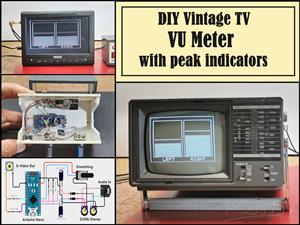 DIY Vintage TV VU Meter with peak indicators
Some time ago in one of my projects I presented you a way to turn a black and white old mini TV int...
DIY Vintage TV VU Meter with peak indicators
Some time ago in one of my projects I presented you a way to turn a black and white old mini TV int...
-
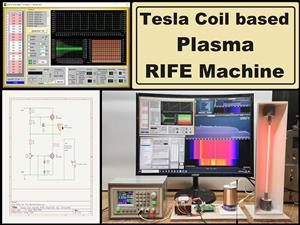 DIY Tesla Coil based Plasma Rife Machine
In several of my previous videos, I presented you with different ways to make a Rife Machine, from ...
DIY Tesla Coil based Plasma Rife Machine
In several of my previous videos, I presented you with different ways to make a Rife Machine, from ...
-
Programmable Mist Maker - XIAO / QT PY Extension
2118 2 2 -
RadioHAT - Raspberry Pi radio development platform
1798 0 4 -
-
-
-
ARPS-2 – Arduino-Compatible Robot Project Shield for Arduino UNO
4012 0 6 -
A Compact Charging Breakout Board For Waveshare ESP32-C3
4749 3 8 -
AI-driven LoRa & LLM-enabled Kiosk & Food Delivery System
5562 2 2 -