|
|
CrowPanel 2.8 |
x 1 | |
|
|
Battery, 3.7 V |
x 1 | |
|
|
Speaker: 0.25W, 8 ohms |
x 1 | |
|
|
Switch |
x 1 |

|
Soldering Iron Kit |
|

|
arduino IDEArduino
|
DIY simple Advanced Weather station (5day forecast) and Internet Radio
ELECROW crow panel 2.8 inch esp32 display module is ideal for making simple but also relatively complex projects, where no soldering of components is required. In addition to the ESP32 microcontroller and Touch display, this module also contains an audio amplifier, an SD card reader, and even a lithium battery charger circuit.

If necessary, a large number of external modules can be connected to this module because it contains UART, I2C and GPIO ports, which makes this inexpensive device universal. Recently, in one of my videos , I presented you an Internet Radio project where eigh of these modules only needed a speaker, a battery and a switch.

For the device that I will present to you this time, we will only need one more button.
Building an internet weather station is a popular project among electronics enthusiasts. To display the local weather conditions, no sensors are used, but the requested information is received via the Internet. In particular, we will use the data from the OpenWeatherMap project which has an API that enables users to request weather data for your location. For this purpose, we need to create an API key on the OpenWeatherMap page that allows us 1,000 API calls per day for free.
This project is sponsored by PCBWay. This year, PCBWay organizes the Seventh Project Design Contest where, in addition to Electronic and Mechanical Project, also has been added a new category: STM32 Project. For the best selected projects are provided rich prizes in cash, coupons and special gifts. Submit your project for participation in this Contest from 2nd, Sep, 2024 to 19th, Jan, 2025. For more details and instructions visit the given page. Let PCBway always be your first choice

The author of the original project is Andrey Ushakov , and all credits go to him. He was also provide a link to the code. However, the archive is full of many different versions, and other data. In addition, the code is relatively complex and has too many options, such as the type of microcontroller used, MP3 player, FM radio, support for external sensors, different types of displays, the option of two displays for greater visibility, infrared control, calendar, and many others. It was really hard to navigate through all the code versions, options, and information. That's why I decided to modify the code so that it would completely match the previously mentioned Display module. I will try to explain all the steps in detail, so that even those with less experience in this field can make the device. After all, this is the biggest advantage of this compact Display module.
- First we need to enable display module in the Arduino environment. For this purpose we go to Arduino IDE - File - Preferences - where we add the ESP32 URL to "Board Manager URLs" as follows:
(https://raw.githubusercontent.com/espressif/arduino-esp32/gh-pages/package_esp32_index.json).

Now click "Tool-->Board-->Board Manager", and search for "esp32". This project requires it to be installed version 1.0.6 ESP32 package.

Next, on Arduino IDE -> Tools -> Boards manager -> ESP32 Arduino we choose: ESP32 Dev Module Module, and set the parameters as given in the image

With this, the procedure for entering support for the specific Display Мodule in the Arduino IDE is completed.
Next you need to Install ESP32 Filesystem Uploader. For this purpose we go to Documents - Arduino - Tools and here we copy the "ESP32FS" folder given below.

To check if the plugin was successfully installed, open your Arduino IDE. Select your ESP32 board, go to Tools and check that you have the option “ESP32 Sketch Data Upload“.

To check if the plugin was successfully installed, open your Arduino IDE. Select your ESP32 board, go to Tools and check that you have the option “ESP32 Sketch Data Upload“.

Before starting the installation, we first need to modify the "Config.txt" file, which is located in the meteo - data folder. Here we need to enter API key, timezone, as well as latitude and longitude for the given location. We need to enter the same data in the code in the appropriate place.

Next we open the "meteo.ino" file which is located in the folder of the same name. We go to Tools, select the appropriate COM port associated with the module and then press "ESP32 sketch data Upload"

After this, we press the upload button and with that the installation of the code will be finished.
When the device is started for the first time, a message appears on the screen that a Wi-fi access point with the name ESPMeteo and a corresponding password (password: 11111111) has been generated.

Now we need to connect to this access point and enter the address 192.168.11.11 in a web browser. Here we enter the credentials of our local Wi-Fi network.

After this, we turn on the device and the screen first shows data about the IP address and Wi-Fi signal strength, and after a few moments the main screen with a basic informations appears. It contains a medium-sized clock, date, current weather with UV index, wind speed and direction and air pressure, sunrise and sunset time, forecast for the next 3 and 6 hours, as well as for the next four days. Really a lot of useful weather information on one screen.

By pressing the button, we move through several screens containing different weather informations and graphs.

As I mentioned before, this module also contains an audio amplifier, so this time I also activated the Internet Radio part of the code, which uses the I2S protocol and there is no need to use an external audio decoder. The Internet radio menu is entered and exited with a double cl

As you can see, here we have a small analog clock and a list of Internet stations that can be activated in sequence with the click of a button. It is important to note that multiple groups of Internet stations with different genres can be formed, and groups can be accessed by triple clicking.
The streaming addresses as well as the names of the internet radios are entered in the meteo - data - i_stat.txt folder. These are the different groups of internet stations

And finally a short conclusion.
I think this is the most advanced internet weather station that you can easily make yourself thanks to the Elecrow display module. Internet radio is also a bonus, which does not have many options due to only one button used in the project, but is therefore fully functional and easy to set up.
This small, practical and inexpensive display module is ideal for making audiovisual applications with ESP32 quickly, without soldering, and without much knowledge if the code is previously prepared specifically for it.

DIY simple Advanced Weather station (5day forecast) and Internet Radio









Raspberry Pi 5 7 Inch Touch Screen IPS 1024x600 HD LCD HDMI-compatible Display for RPI 4B 3B+ OPI 5 AIDA64 PC Secondary Screen(Without Speaker)
BUY NOW


- Comments(1)
- Likes(3)
More by Mirko Pavleski
-
 Arduino 3D Printed self Balancing Cube
Self-balancing devices are electronic devices that use sensors and motors to keep themselves balanc...
Arduino 3D Printed self Balancing Cube
Self-balancing devices are electronic devices that use sensors and motors to keep themselves balanc...
-
 Building a Mini Fostex Horn Speaker with a 2-Inch Full-Range Driver
A back-loaded horn speaker is a loudspeaker design that channels the rear sound wave of a driver th...
Building a Mini Fostex Horn Speaker with a 2-Inch Full-Range Driver
A back-loaded horn speaker is a loudspeaker design that channels the rear sound wave of a driver th...
-
 ESP32 Moon Lamp That Shows the Real Moon Phase on Crowpanel Round Dispaly
Recently on the Hackaday portal I came across a very interesting project called Moon Display by aut...
ESP32 Moon Lamp That Shows the Real Moon Phase on Crowpanel Round Dispaly
Recently on the Hackaday portal I came across a very interesting project called Moon Display by aut...
-
 40-Year-Old DIY Power Amplifiers – Do They Still Work - 500W MOSFET & Transistor Amps
This time I want to describe my two DIY super powerful audio amplifiers that I made about 40 years ...
40-Year-Old DIY Power Amplifiers – Do They Still Work - 500W MOSFET & Transistor Amps
This time I want to describe my two DIY super powerful audio amplifiers that I made about 40 years ...
-
 Wi-Fi HaLow Explained! Long-Range Camera Test up to 300m (ESP32 + ThinkNode G4 from ELECROW)
I recently needed to install a security camera at a relatively large distance from my home, more pre...
Wi-Fi HaLow Explained! Long-Range Camera Test up to 300m (ESP32 + ThinkNode G4 from ELECROW)
I recently needed to install a security camera at a relatively large distance from my home, more pre...
-
 Simple Object Recognition with the UNIHIKER K10 – No TensorFlow, No Internet, No Cloud AI
Object recognition has become one of the most popular applications of artificial intelligence and em...
Simple Object Recognition with the UNIHIKER K10 – No TensorFlow, No Internet, No Cloud AI
Object recognition has become one of the most popular applications of artificial intelligence and em...
-
 DIY PCL82 Tube Amplifier, Single-Ended Amp with Amazing Sound
The idea for this project came from a local electronics magazine called EMITER, issue 12/13 from 20...
DIY PCL82 Tube Amplifier, Single-Ended Amp with Amazing Sound
The idea for this project came from a local electronics magazine called EMITER, issue 12/13 from 20...
-
 Simple MCP2036 SDR Radio - The Most Unusual Software Defined Radio
SDR (Software Defined Radio) is a radio communication system where many of the key electronic compo...
Simple MCP2036 SDR Radio - The Most Unusual Software Defined Radio
SDR (Software Defined Radio) is a radio communication system where many of the key electronic compo...
-
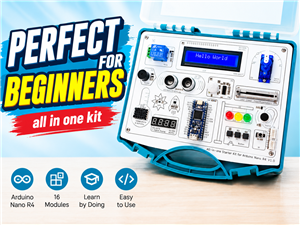 Elecrow All-in-One Arduino Starter Kit Review - 20 Projects & 16 Modules
This time I will describe a simple and practical way to enter the world of microcontrollers, specif...
Elecrow All-in-One Arduino Starter Kit Review - 20 Projects & 16 Modules
This time I will describe a simple and practical way to enter the world of microcontrollers, specif...
-
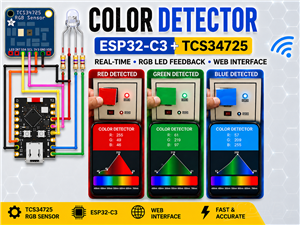 ESP32-C3 Color Detector with TCS34725, Real-Time RGB Detection & Web Interface
Color detection is a fundamental task in many embedded systems – from industrial sorting machines t...
ESP32-C3 Color Detector with TCS34725, Real-Time RGB Detection & Web Interface
Color detection is a fundamental task in many embedded systems – from industrial sorting machines t...
-
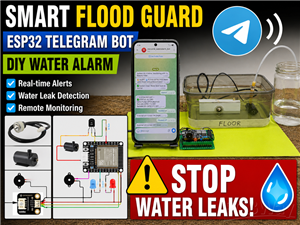 DIY ESP32 Telegram Flood Protection System - Smart Home Automation
Recently I had an unpleasant experience in my home, specifically my ground floor was flooded as a r...
DIY ESP32 Telegram Flood Protection System - Smart Home Automation
Recently I had an unpleasant experience in my home, specifically my ground floor was flooded as a r...
-
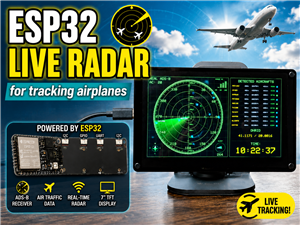 Real-Time Air Traffic Radar using ESP32 + ADS-B Data
ADS-B, which stands for Automatic Dependent Surveillance-Broadcast, is the modern standard for trac...
Real-Time Air Traffic Radar using ESP32 + ADS-B Data
ADS-B, which stands for Automatic Dependent Surveillance-Broadcast, is the modern standard for trac...
-
 DIY Green Laser Night Sky Object Finder - Find Stars & Galaxies Instantly with great accuracy
As an amateur astronomer, especially at the beginning, the most difficult part of observing the nig...
DIY Green Laser Night Sky Object Finder - Find Stars & Galaxies Instantly with great accuracy
As an amateur astronomer, especially at the beginning, the most difficult part of observing the nig...
-
 DIY Avionics Simulator with ESP32 - Artificial Horizon, Compass & Altimeter
The inspiration for this project comes from classical aircraft cockpit instruments used for navigat...
DIY Avionics Simulator with ESP32 - Artificial Horizon, Compass & Altimeter
The inspiration for this project comes from classical aircraft cockpit instruments used for navigat...
-
 DIY Miniature X-Ray Machine using a TV Vacuum Tube DY86
An X-ray machine (or radiograph) is a quick, painless medical test that produces images of the struc...
DIY Miniature X-Ray Machine using a TV Vacuum Tube DY86
An X-ray machine (or radiograph) is a quick, painless medical test that produces images of the struc...
-
 Simple SDR Receiver Using 2x NE612 - Dual Conversion, Superheterodyne (0.1–30 MHz)
SDR (Software Defined Radio) is a radio system in which most of the functions of a classic radio (f...
Simple SDR Receiver Using 2x NE612 - Dual Conversion, Superheterodyne (0.1–30 MHz)
SDR (Software Defined Radio) is a radio system in which most of the functions of a classic radio (f...
-
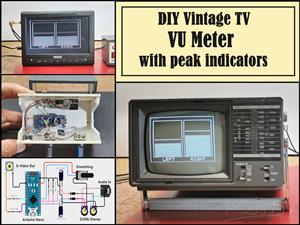 DIY Vintage TV VU Meter with peak indicators
Some time ago in one of my projects I presented you a way to turn a black and white old mini TV int...
DIY Vintage TV VU Meter with peak indicators
Some time ago in one of my projects I presented you a way to turn a black and white old mini TV int...
-
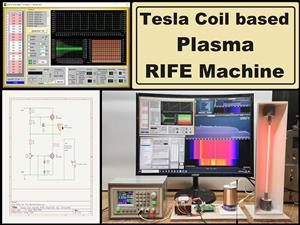 DIY Tesla Coil based Plasma Rife Machine
In several of my previous videos, I presented you with different ways to make a Rife Machine, from ...
DIY Tesla Coil based Plasma Rife Machine
In several of my previous videos, I presented you with different ways to make a Rife Machine, from ...
-
Programmable Mist Maker - XIAO / QT PY Extension
2158 2 2 -
RadioHAT - Raspberry Pi radio development platform
1836 0 4 -
-
-
-
ARPS-2 – Arduino-Compatible Robot Project Shield for Arduino UNO
4040 0 6 -
A Compact Charging Breakout Board For Waveshare ESP32-C3
4780 3 8 -
AI-driven LoRa & LLM-enabled Kiosk & Food Delivery System
5596 2 2 -