



|
KiCADKicad
|
Modular 7 Segment Display
Intro
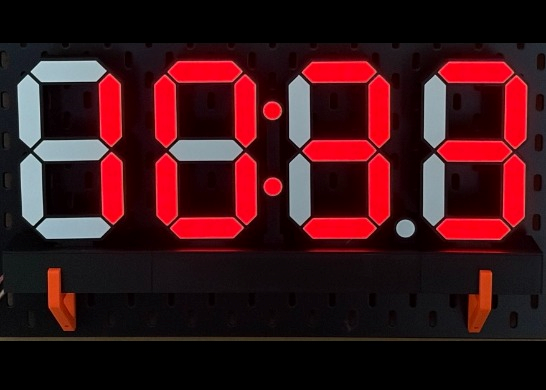
My take on a huge 17x10 cm, modular 7 segment display to show the time as well as sensor readings if my "Env Station"
This project is part of my "Benksterini's Lab" project:
https://www.hackster.io/Benksterini/7-segment-display-modular-hw-sw-97ad2f
The idea to have a custom-made 7 segment display is not new and there a quite some good ones already out there.
So, you might ask: "Hey Benksterini - why should I take a look at your project"
Oh glad you asked. I tried a couple of others and pretty much every one had something I did not like:
- Super gluing diffusers into a 3D-printed mask... Not my thing I not accurate enough and it takes too much time
- Soldering Neopixel/LED stripes in a tiny 3D printed enclosure without burning marks everywhere... Not with these big hands
- Pixels/LEDs shining through the Diffuser... that looks not nice to my eye
- PCBs keeping under the 10 x 10 cm prototype dimension... Cheaper and nice enough but I wanted big ones without soldering multiple together
- Layout mainly fixed on clock layout... I wanted to show sensor data and maybe more than 4 digits
- Software mainly single task... I wanted modular and easy to include/extend
- a lot of them do not really care about the currents that might get involved...
So, I think it is fair to say I tried quite some designs...

So, started to build my own with some self-set goals:
Modular design in Hardware and easy to extend
easy to assemble but sturdy enough to survive in my lab
Modular software that will support simple counters over clocks to Home Assistant/MQTT enabled Edge Device/Display
At least 15 cm tall (I ended up with approx. 17 cm / 10 cm digits)
And here a short demo of my, using my SmartPi with a Home Assistant Dashboard to switch between Clock and my CO2 Sensor in my room and adjusting some settings. CO2 is retrieved via an MQTT subscription:
Your way, you decide to have...
The first decision it is...:
What pixels you want to work with
and this implies e.g. how much do you want to solder.

For me it came down to:
Use WS2812B single pixel chips
LED Strips
go full custom PCB
As you can see my clumsy hands can somewhat solder, but I do not enjoy it much.
The main focus is on the version with the custom PCB.
In this project PCBway was so kind to sponsor the prototype!
The Custom PCB
The Custom PCB is the heart of this build. Let me explain a bit how it is designed,
I use KiCAD to design my PCBs.
Schematics
Schematics of a chain of neopixels is nothing much to write home about. Once you understand how they get wired you just have to pay attention not to mix up the data wire. Here is a typical schematic of one

It starts with a 100nF Capacitor between 5V and ground close to the VDD (5V) pin. Main purpose of this cap is to counter high frequency noise (EMI/RF).
Note: The WS2812B usually already has a build in cap in its package. But not the WS2812. I used the newer type of pixels but nevertheless the additional small ceramic cap will do no harm
These neopixels have 4 pins:
VDD - 5V power in
DIN - Data IN
DOUT - Data OUT
VSS - GND /ground
I use local Net Labels, so I do not drown in wire spaghetti...
Then it is only duplicating this template n-times and adjusting the DIN/DOUT nets

At the beginning of the chain I placed a 4pin-header so I get nice through holes and a bulk capacitor

the bulk capacitor is a 220uF ceramic capacitor. It acts as a reservoir if the pixels turn on quickly
In e.g. the Adafruit Neopixel guides the rule of thumb is to add a 1000uF capacitor to protect the strip from inrush spikes.
This is part of my modular design. You do not have to mind if or how big a bulk capacitor you have to add to your display. Every digit has a dedicated bulk cap on PCB
PCB Layout
The PCB layout took me some time to figure out how to run the traces so you can even understand them when you look at the finished PCB.
If you are not yet into PCB design here a short simplified explanation to help you understand what follows:
My design is a 2 layered PCB with a solid copper bottom layer.
the "wires" between the components are also called traces and most of them run on the top
The traces are also made of copper and you cannot just cross them on the same layer
You can use "VIAS" to jump from one layer to another. It is basically only a tiny, drilled hole that is conductive.
You can run traces on the ground layer as well. There are some dependencies you need to consider but for such a simple setup it just means you remove some of the solid copper plan and route a trace trough.
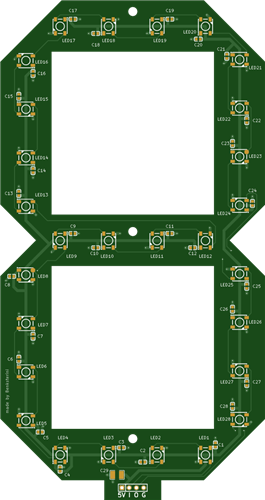
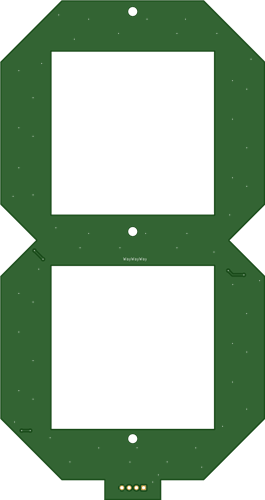
First here is the full PCB layout

Maybe it can be done better but this is the cleanest way I could came up with.
Let's start with the header where the module begins and ends

Per Module Power
Left is where the 5V will be connected parallel to the central power spine. This implies that the power supply between digits is not chained.
This has imho several advantages:
Voltage drops on multiple digit setups - or easier said on long nexpixel chains - usually needs correction via additional power entry points on a long strip. This is naturally done in the way the modules are connected
thinner wires can run to the module. Heavy lifting (thick wires) is done on the central power spine
The power traces on the PCB can be thinner as well
Current is limited to pixels on module not to the current of the whole chain
I am not a native speaker so this may sound a bit clunky ;)
So here a polished AI version - in case it was too wired (done with Gemini)
Per-Module Power: Tapping into the SpineOn the left side of each module, the 5V line connects in parallel directly to a central power spine. This means power isn't daisy-chained from digit to digit—each module gets its own direct feed.
Why build it this way?If you've ever built multi-digit setups or long NeoPixel runs, you've definitely run into cumulative voltage drop (where the last digits turn dim or shift red). Normally, fixing this requires tapping back into the strip with extra power injection lines. Wiring the modules in parallel to a central spine solves this naturally—built-in power injection comes standard simply by plugging the digits together!
Bulk Capacitor and on board power spine
C29 is the bulk capacitor connected to the 5V net - for PCB noobies more power (current more precisely) flows on the trace so it needs to be thicker. Since it is a ceramic cap (220 µF 1210 MLCC (Samsung CL32A227MQVNNNE)) polarity does not matter here. The 2 lines with the yellow dots are "VIAS to ground". This is a good practice to reduce the traces on the top - remember we have a solid ground plane.
DIN/DOUT - pins 2/3
This is where the data line is connected. While power runs in parallel the data line is a daisy chain. On multiple modules DOUT of the previous module connects to DIN to the next module.
GND/Ground
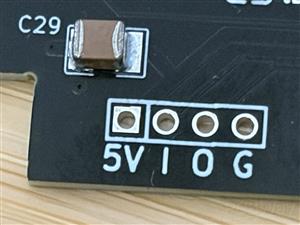
This is where ground connects to the ground of the power spine. You may have heard that neopixels need a common ground with the MCU board. So as long as the MCU board is in parallel to the power spine as well - common ground is assured. The other through-holes (1-3) are insulated and do not connect the top and bottom layer of the PCB - GND does - establishing connection with the full copper ground layer.
In this macro shot you can see the section on the physical PCB

Routing
Maybe you have seen it on the schematics already - the DIN and DOUT on the pixel are on alternating sides (e.g. enters right - leaves left) on schematics this is not an issue but in the physical world this means you have to cross the data line with power and other problems.
After trying and thinking a lot. I suddenly realized that for a square neopixel (they are 5x5mm) the orientation does not really matter and instead of jumping between layers to somewhat connect the data lines. I can run power under the pixel and by rotating every pixel the data line can be nicely routed.
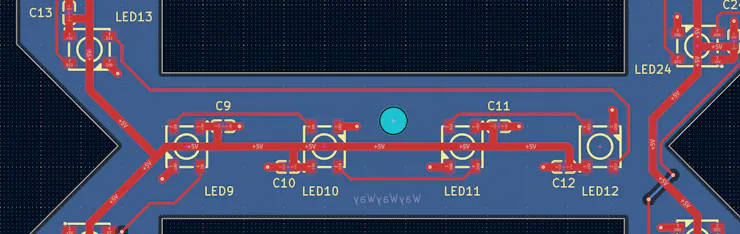
A picture tells more than 1000 words.
Note that every pixel has a "yellow nose" on the silkscreen. This is the GND pin. On the diagonal other side there is the 5V pin with the tiny cap next to it. The logic is if you go clockwise
GND - DOUT - 5V - DIN
IMHO this makes a smooth trace with only short connections and almost no jumps to ground plane. One the lower right, you can see a blue line under a red line. this is where I had to "cross" the data line with power. So the thin data line drops to the bottom layer with a VIA crosses power under and goes up via another VIA ( ;-) ) back to the top.
The power is also not daisy-chained on the module it spits into 2 seperate power branches on-board to minimize voltage drops and currents again.
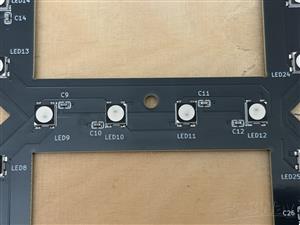
In "real real" it looks like this:

Since the silkscreen is under the pixel you cannot see the nose there, but every pixel has the "nose" as a marking for ground as well. I opted for PCB Assembly in my PCBway order, so I did not have to care about this. But if you would go doing the surface mounting yourself - this is what to pay attention for!
Segment Naming
There seems to be a standard naming for the segments on a 7 segment digit

I find this not very intuitive so do not wonder if you do not see this naming in the code later on. My mapping is:
TOP -> Segment A (Top)
TOP_RIGHT -> Segment B (Upper Right)
BOTTOM_RIGHT -> Segment C (Lower Right)
BOTTOM -> Segment D (Bottom)
BOTTOM_LEFT -> Segment E (Lower Left)
TOP_LEFT -> Segment F (Upper Left)
MIDDLE -> Segment G (Center)
Power draw
Peak current for a WS2812B is round about 60 mA at 5v
This PCB has 28 pixels
Maximum Current Draw:
Total Current = 28 pixels x 0.06 A/pixel = 1.68 A
Maximum Power Draw:
Total Power = 1.68 A x 5V = 8.4 W
How much the display actually draws depends on how many segments are on, what color is shown and how bright are the pixels
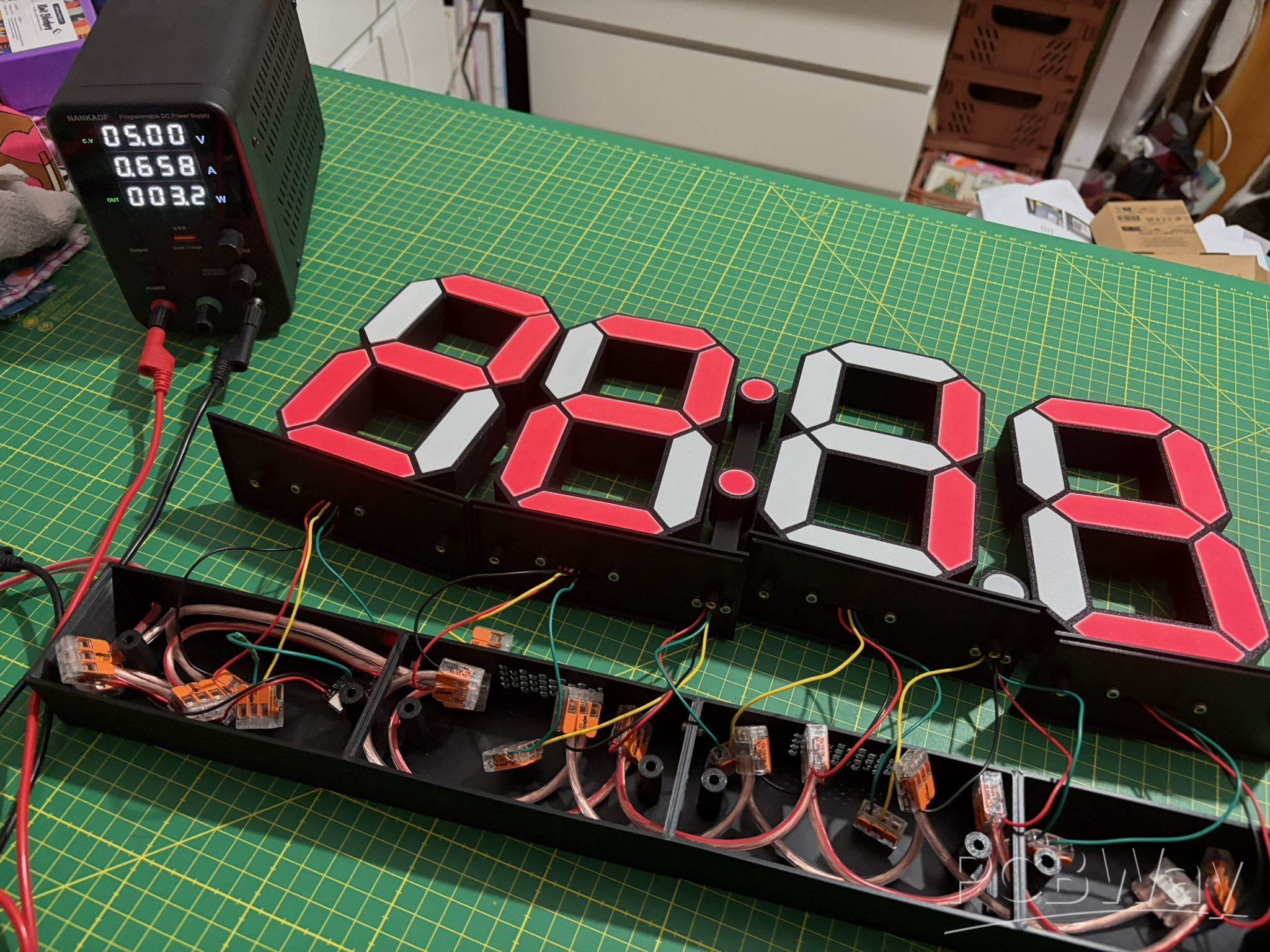
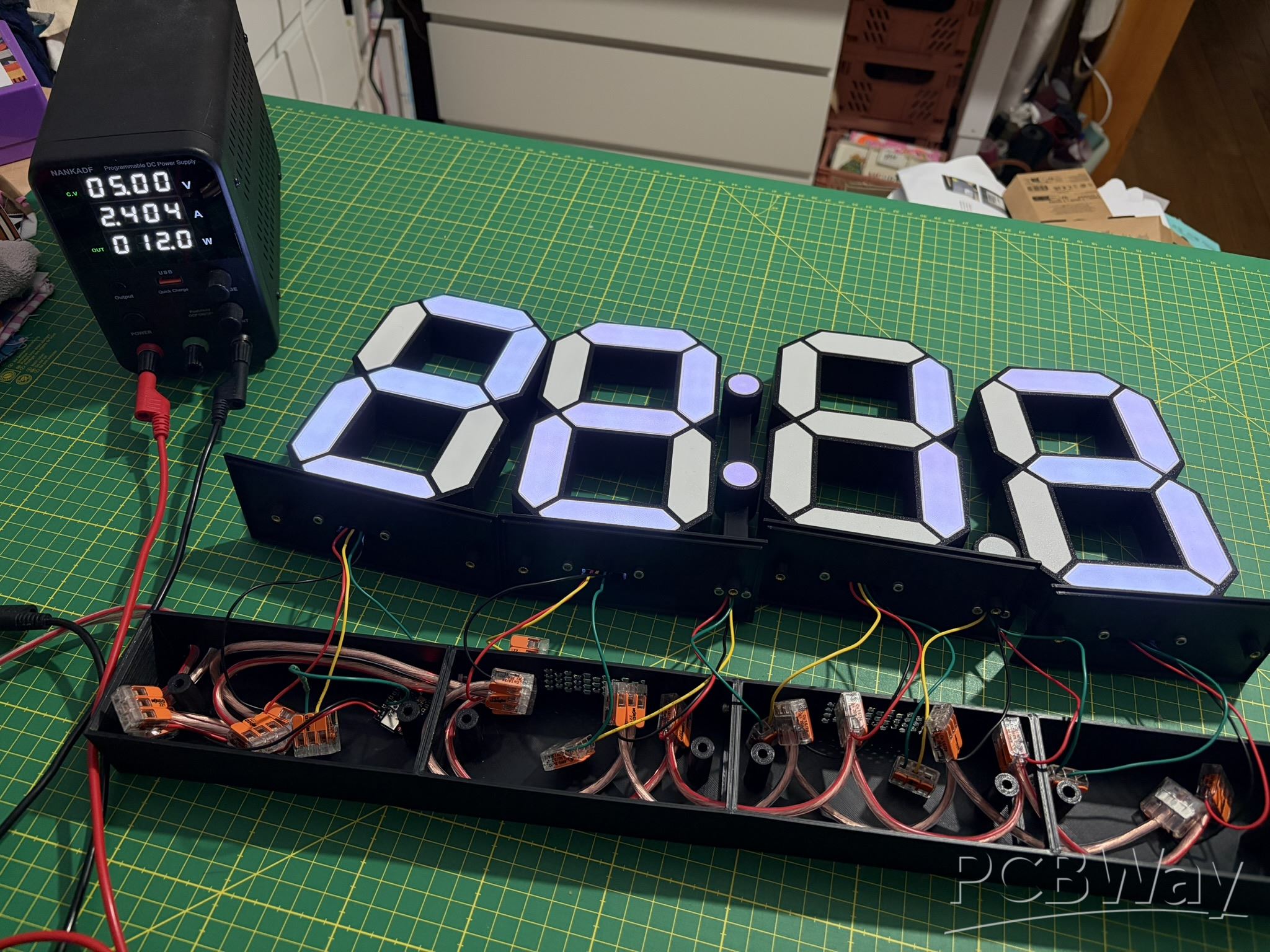
Modular 7 Segment Display
Project images are for reference only. Actual production is based on the manufacturing files on the project page.
Please review the designer's notes (e.g., PCB thickness) and select the appropriate options.
PCBWay is not responsible
for issues caused by unsuitable parameter selections.
For more important ordering information, please refer to
Read More


Raspberry Pi 5 7 Inch Touch Screen IPS 1024x600 HD LCD HDMI-compatible Display for RPI 4B 3B+ OPI 5 AIDA64 PC Secondary Screen(Without Speaker)
BUY NOW


- Comments(0)
- Likes(0)
More by Janster Benksterini
-
Émetteur Récepteur Optique Expérimental (communication UART ATtiny + fibre optique)
153 0 1 -
SmallOLED - Live PC Stats, Animated Clocks & Audio Visualizer
1006 0 3 -
"Talking Multimeter": Arduino-Based Speech Add-on for Multimeters with SCPI Protocol
575 0 1 -
Programmable Mist Maker - XIAO / QT PY Extension
3045 2 3 -
RadioHAT - Raspberry Pi radio development platform
2593 0 4 -
-
-