


|
Fusion 360Autodesk
|
Narsil from LOTR
Greetings, everyone, and welcome back!
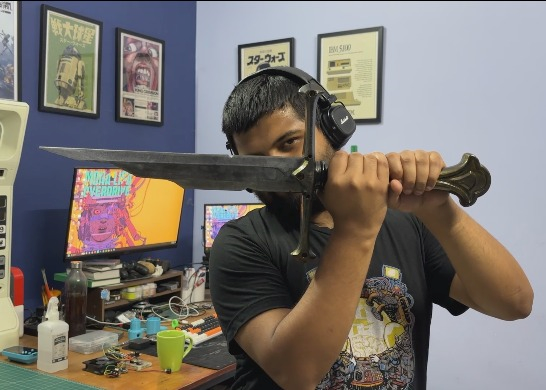
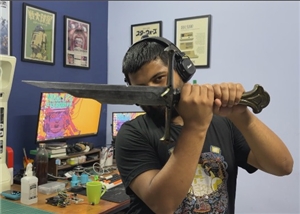
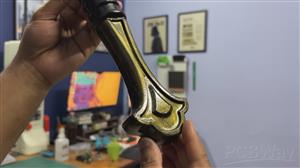
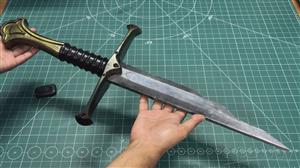
Today, I've got something strange but totally awesome to show you: Narsil, the legendary sword from The Lord of the Rings, except this one is 3D-printed, packed with electronics, and actually reacts when you swing it!
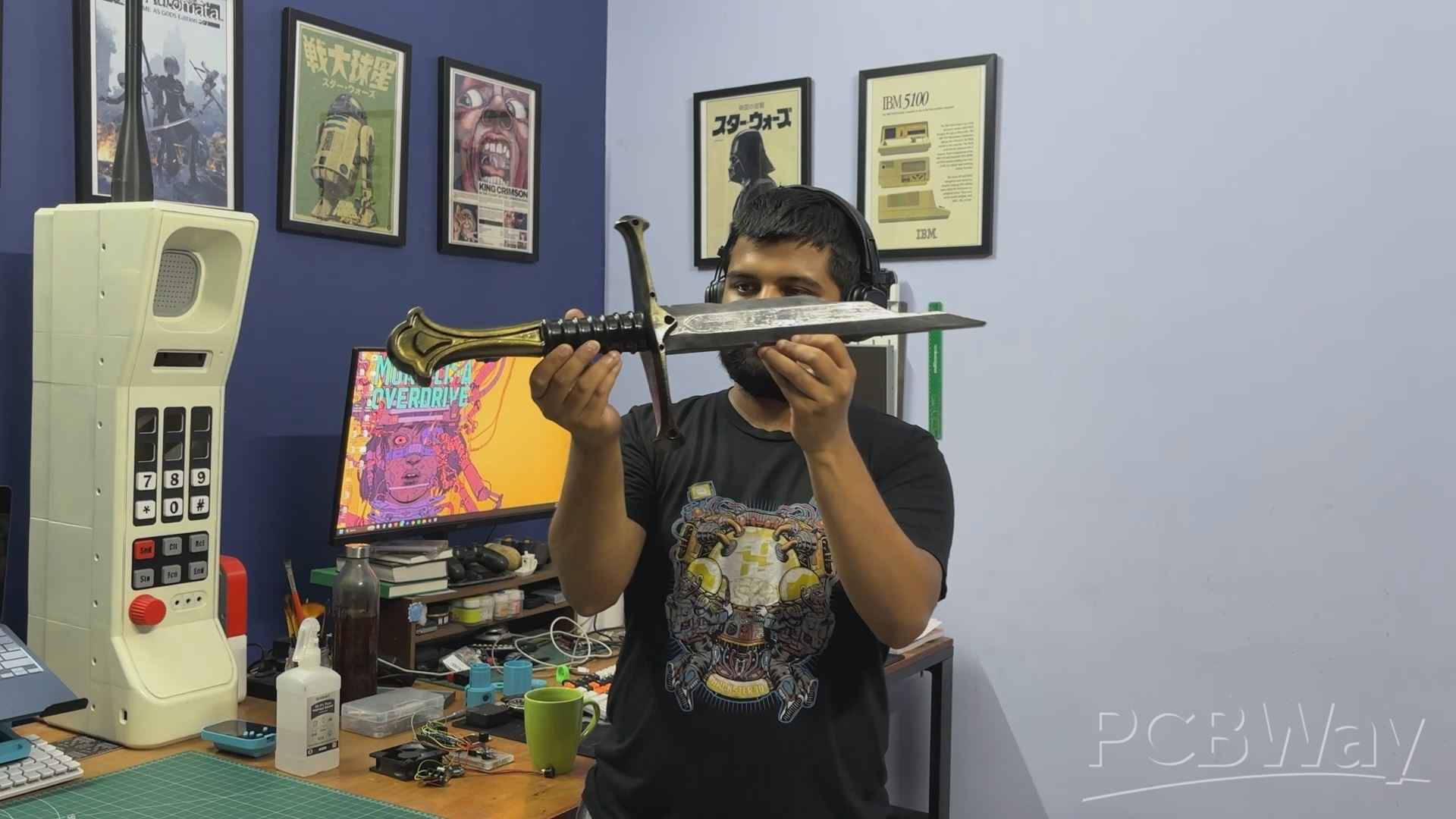
As a massive fan of the fantasy genre, I have always wanted a legendary artifact to hang on my room wall. But a static display piece just wasn’t enough. I like building things that react, interact, and feel alive.
So, I created an exact, 1:1 replica of Narsil from The Lord of the Rings and engineered a custom circuit inside the hilt to give it actual presence.
When you power this sword on, it immediately begins playing the epic Aragorn theme. But the best part is the motion sensing: when you pick it up and swing it, the blade detects the motion and blasts heavy, metallic slash and clash sound effects.
To make the sword interactive without ruining its aesthetic, the entire circuit had to be compact enough to hide completely inside the pommel.
The brain of this project is the Waveshare RP2040-Tiny development board, which is paired with the DFPlayer Mini module. This reads the MP3 files from a MicroSD card and features a built-in amplifier to drive a small speaker hidden in the sword. For motion sensing, we have used the MPU6050 accelerometer and gyroscope. This tracks the physical orientation and G-forces acting on the sword in real time.
This article covers the complete build process of this project, so let's get started with the build.
MATERIALS REQUIRED
These are the components used in this build.
- Custom PCBs (Provided by PCBWAY)
- Waveshare RP2040 TINY
- MPU6050
- DF MINI PLAYER
- SD CARD- Loaded with MP3 files
- 3D PRINTED PARTS
- Metal Hollow Pipe 13mm DIA, Length 200mm
- IP5306 IC
- 10uF 1206 Capacitors
- 10k 0805 Resistor
- Type-C Vertical Port
- Push Button
- Indicator LED 0805 Package
- 1uH Inductor
- Lithium Cell 14500 3.7V 500mAh Cell
NARSIL
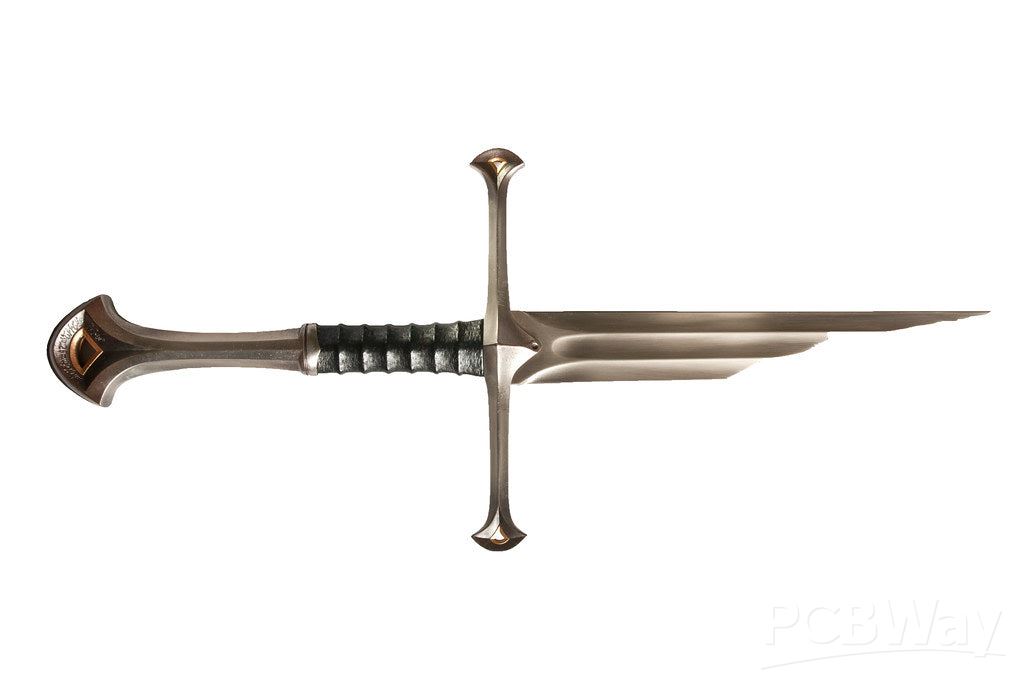
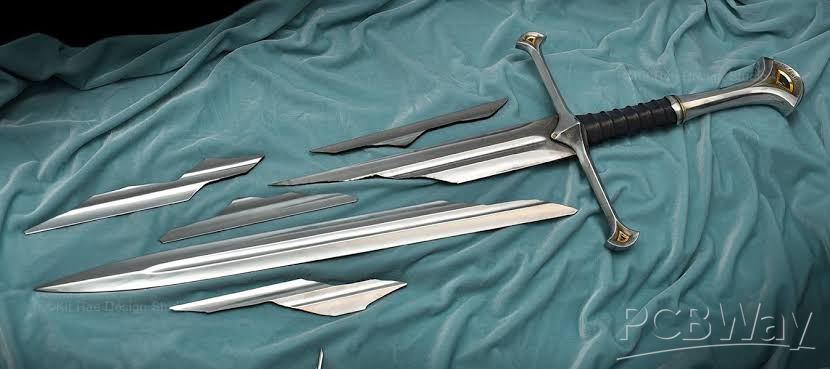
If you are familiar with LOTR, you know Narsil is one of the most famous weapons in fantasy history. Originally the sword of King Elendil, it was a symbol of the kingdom of Gondor.
During the War of the Last Alliance, Elendil fell in combat against Sauron, and Narsil shattered beneath him. His son, Isildur, took up the broken hilt and used the remaining jagged shard of the blade to slice the One Ring directly off Sauron’s hand, defeating the Dark Lord and ending the war. For thousands of years, the shards were kept as a treasured heirloom in Rivendell, symbolizing the broken line of kings, until they were eventually reforged into Andúril for Aragorn.
3D MODEL
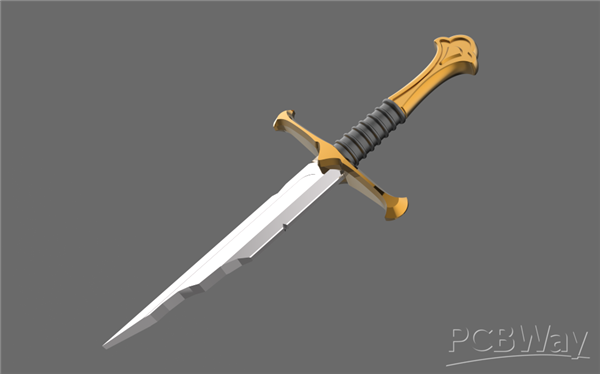
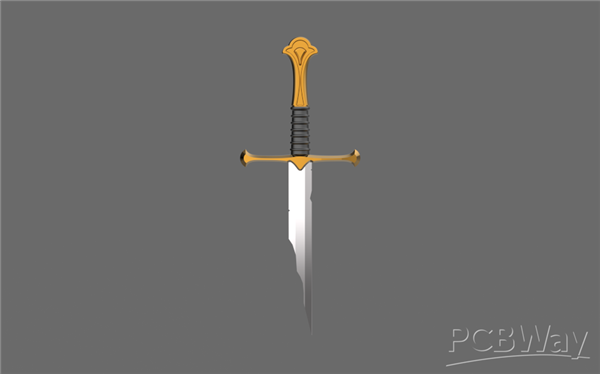
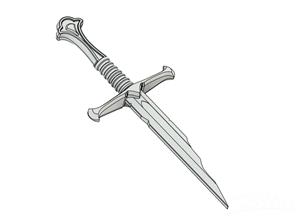
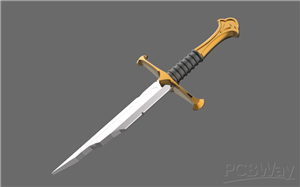
To create the 3D model of Narsil, I first searched for a front-view image of the sword and imported it into Fusion 360 using the Canvas feature. I then traced the image to recreate the overall shape of the sword, including the blade, fuller, crossguard, hilt, and pommel, while keeping the design as close to the original as possible.
I divided the model into three main sections to make the design and assembly easier. For the finer details, I referred to additional reference images and recreated the design elements directly in Fusion 360.
Since this isn't just a display piece but an interactive prop with electronics inside, I had to adjust the dimensions. The sword is slightly thicker than a regular sword to accommodate the internal electronics, with most of the circuitry housed inside the pommel.
The battery was another challenge. I wanted to keep the electronics hidden without compromising the sword's appearance, so I decided to house the battery inside the fuller of the blade. I'm using a 14500 lithium-ion cell, which has a diameter of approximately 14 mm. Since the fuller section is roughly 16 mm thick, there was just enough space to fit the cell inside.
The main challenge was balancing the internal space required for the electronics with the original aesthetics of Narsil. I wanted the finished sword to look as close to the original design as possible, while still having enough room to bring it to life with the electronics.
FULLER ASSEMBLY
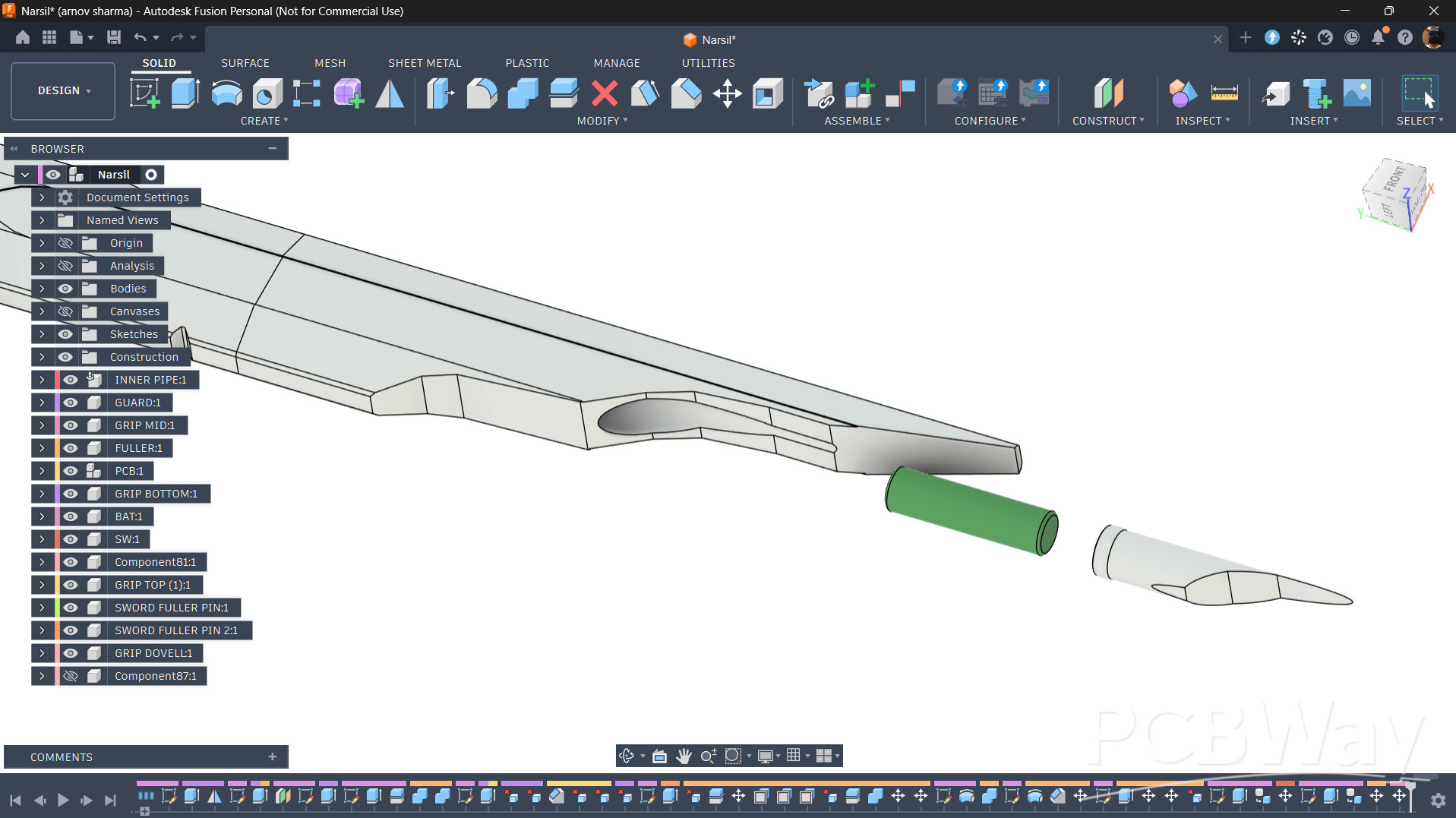
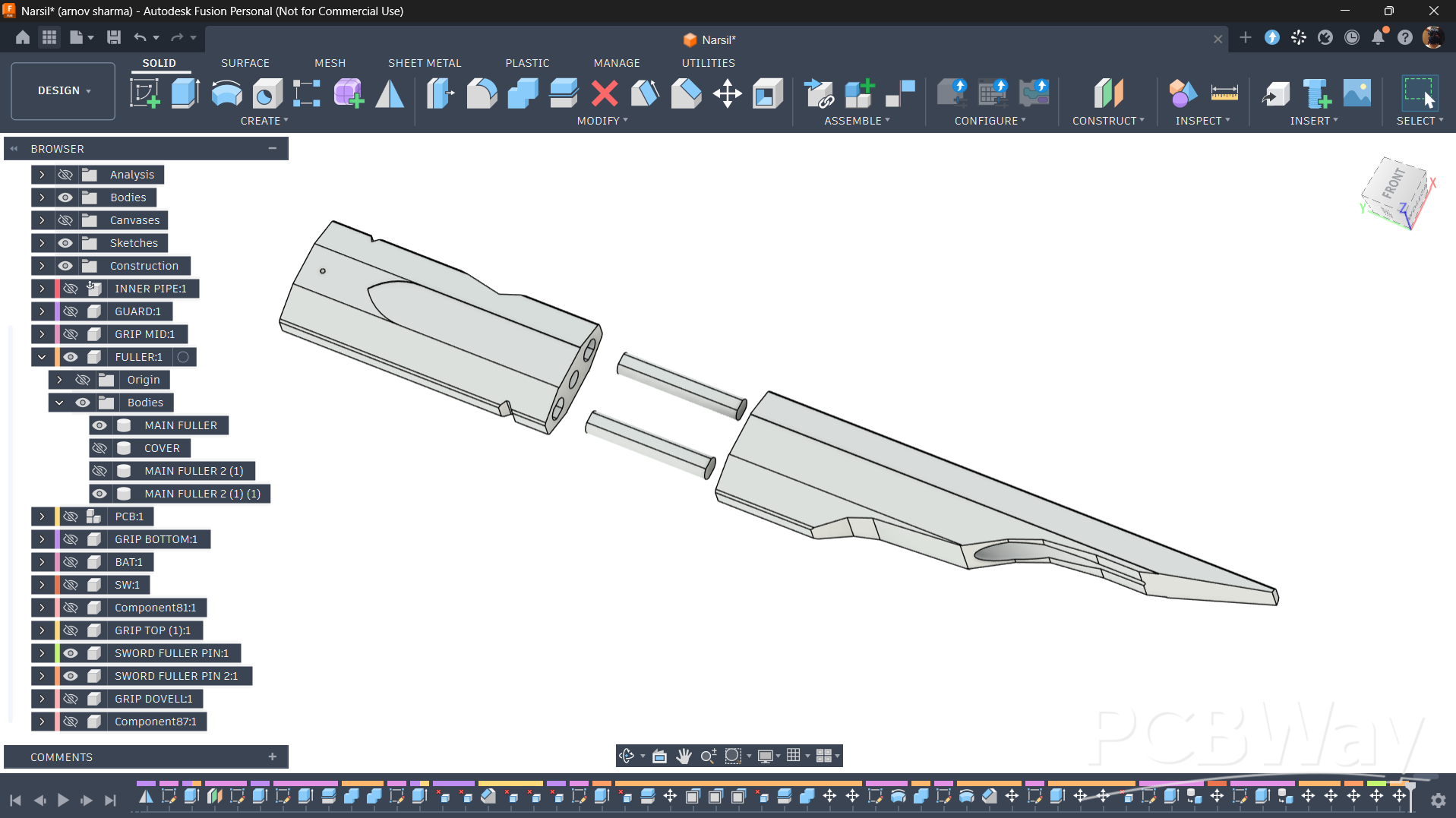
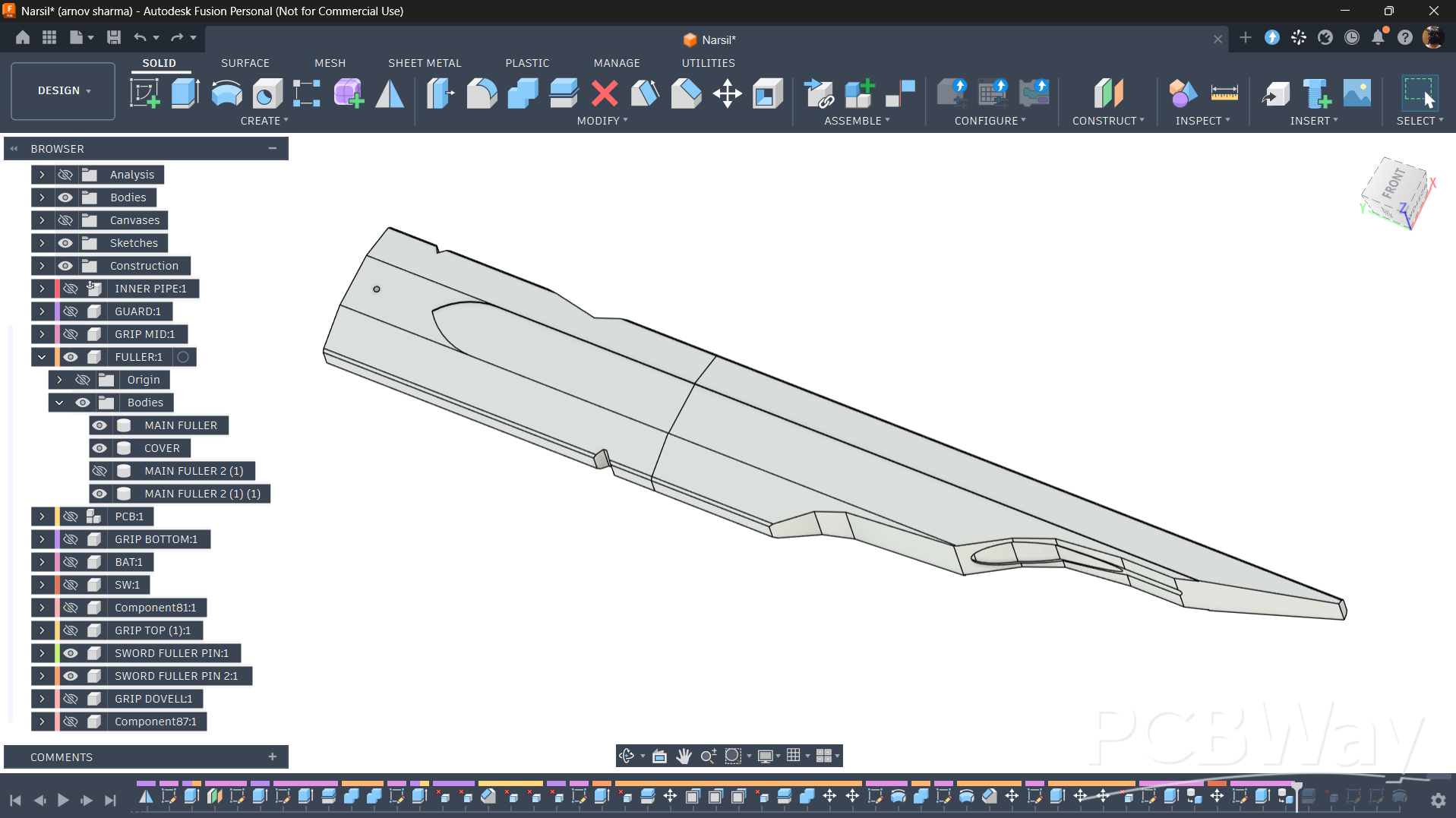
The fuller section of the sword is divided into two parts: the top and bottom sections, which are joined together using two dowel pins for alignment.
The top section houses the 14500 lithium-ion battery, keeping it completely hidden inside the blade. To accommodate the battery, I designed a cutout that can be accessed from the top. I also created a separate lid that fits over the opening to secure the battery in place. The battery wires pass through the fuller sections and connect to the electronics housed inside the hilt.
This arrangement keeps the battery neatly concealed while maintaining the sword's overall appearance without any visible battery compartment.
HANDLE ASSEMBLY
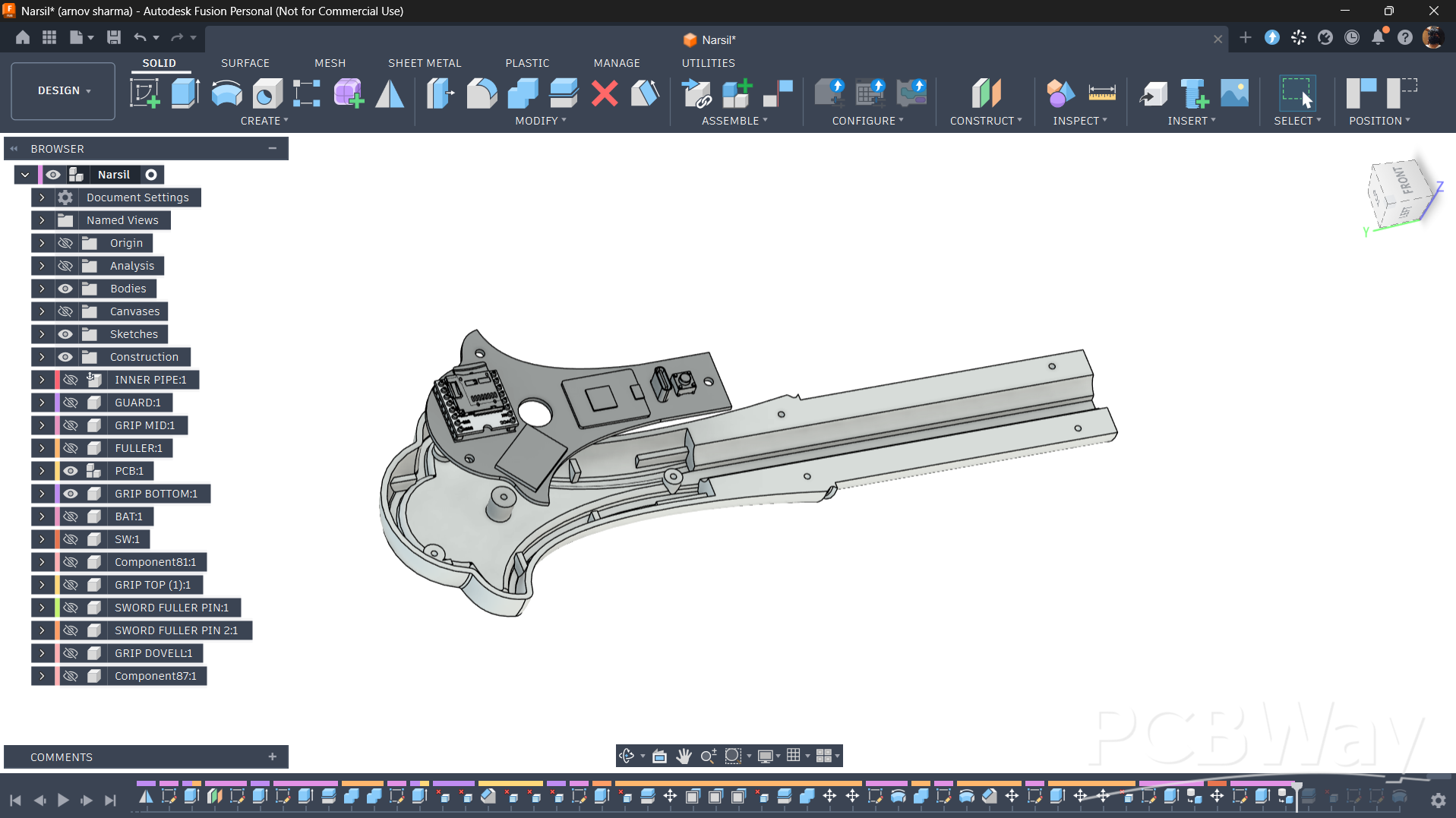
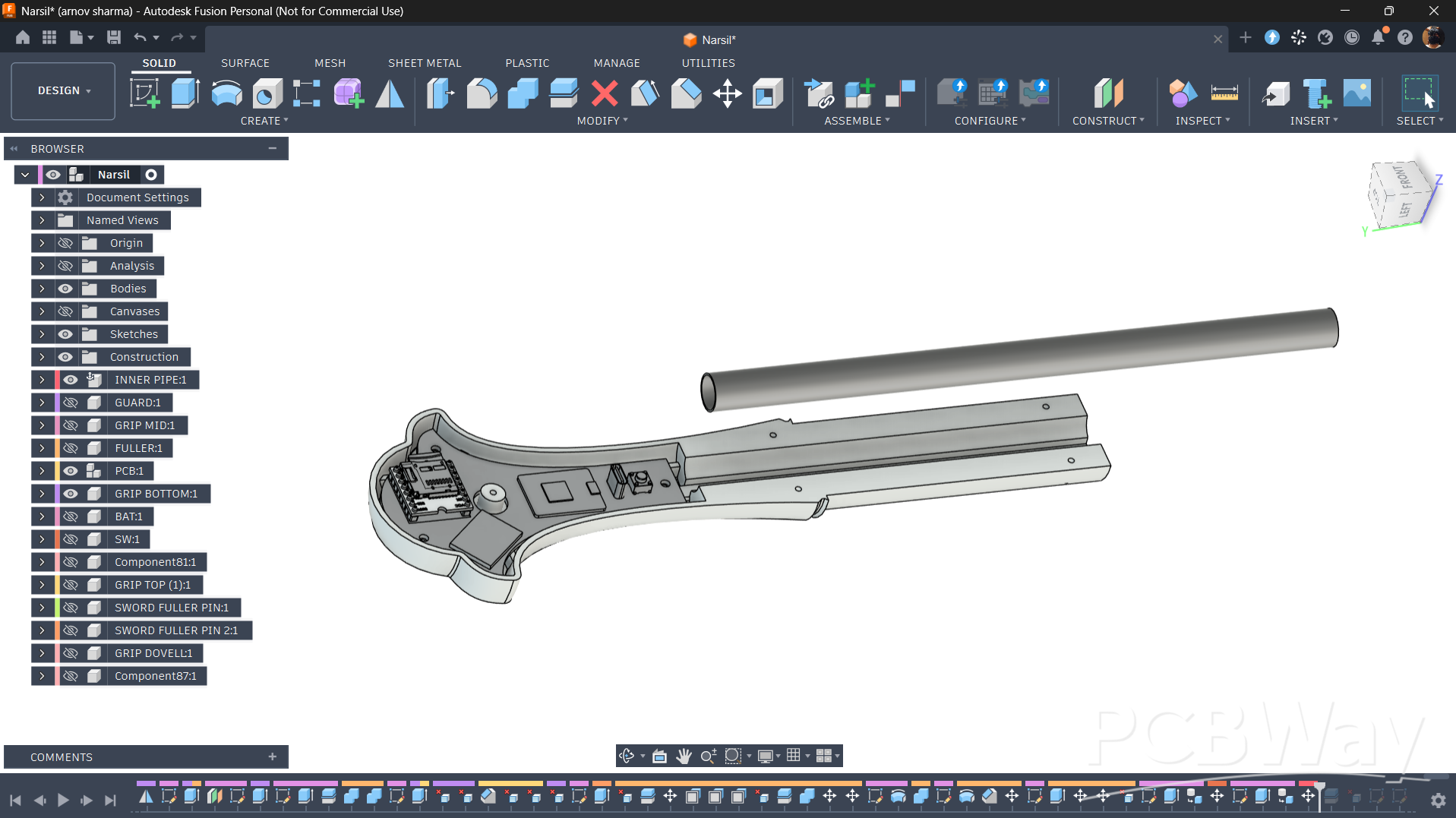
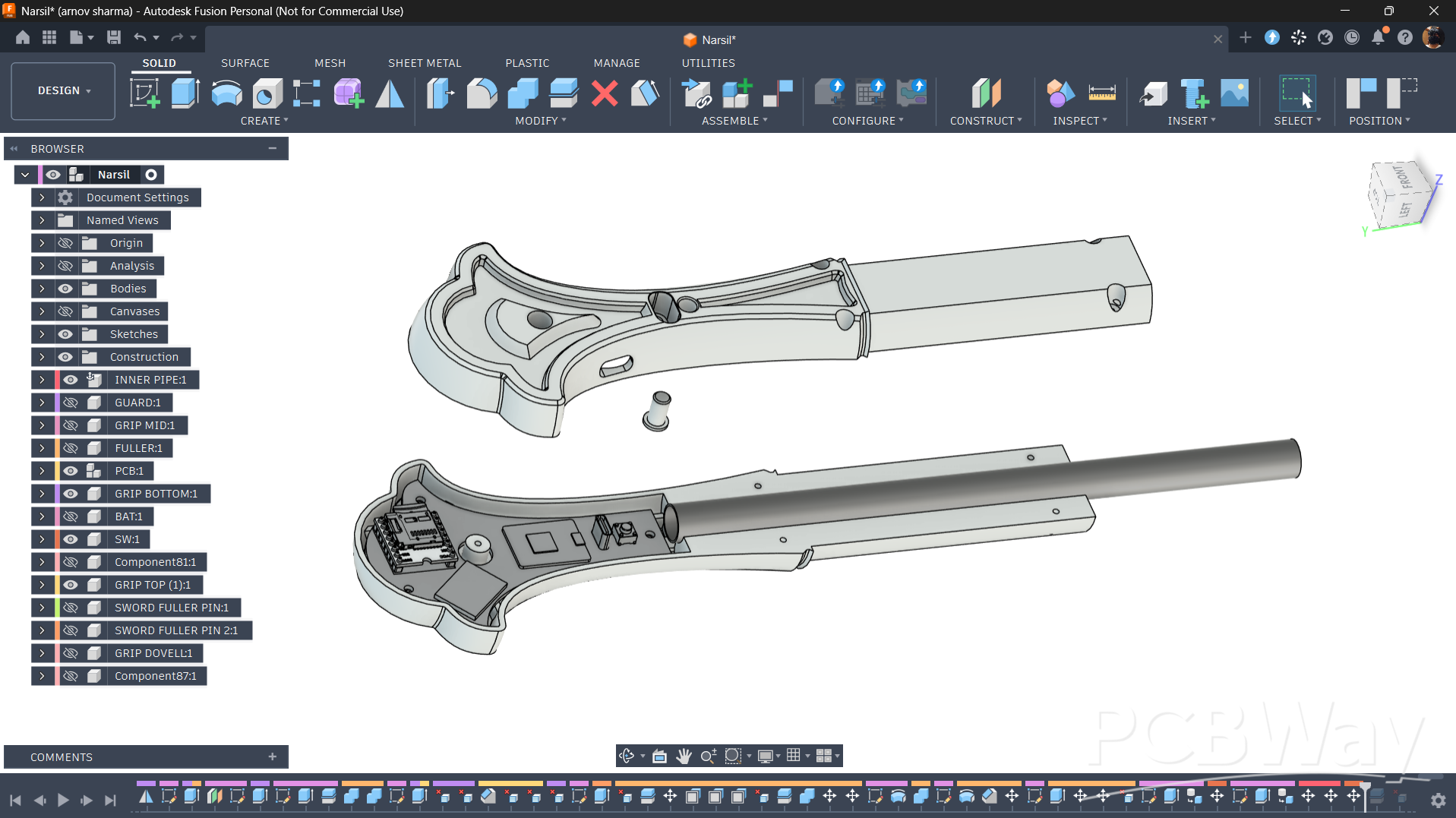
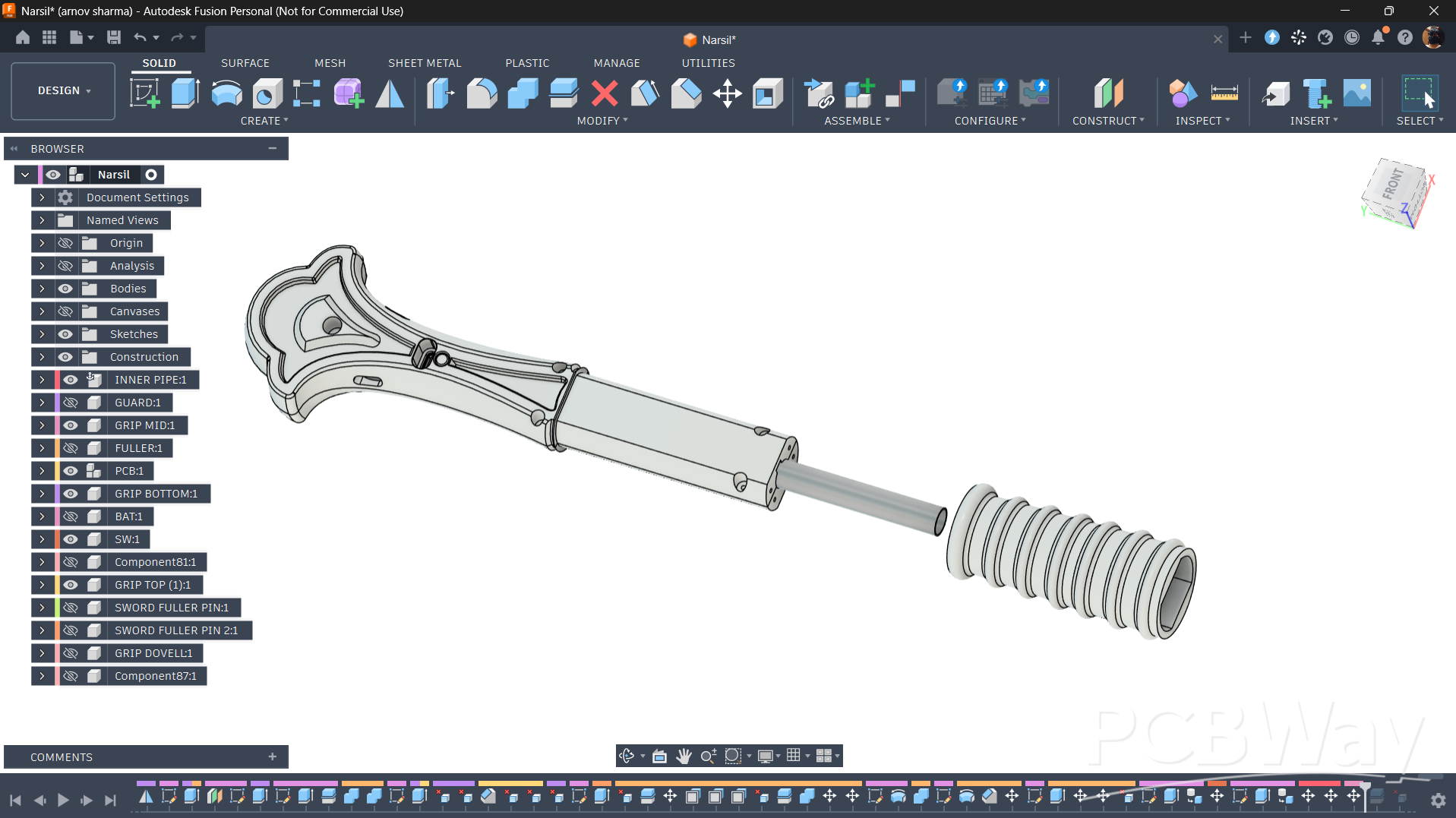
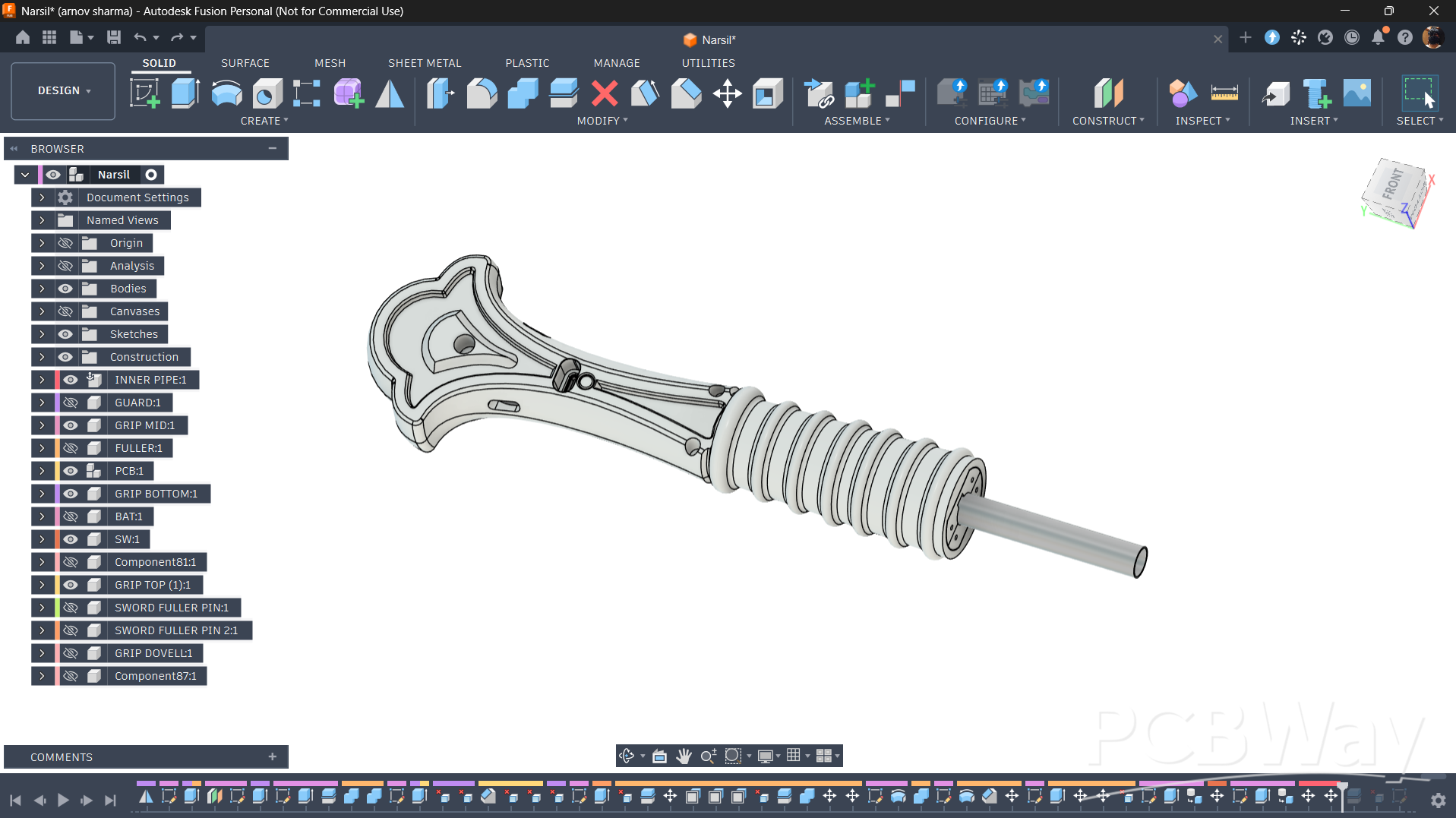
The handle section is divided into two halves, with the main circuit housed between them. I designed openings on one side to provide access to the USB Type-C charging port and the push-button switch, which is used to turn the circuit on and off.
For added structural integrity, I also incorporated a hollow metal pipe between the two halves. This pipe reinforces the handle, making the sword more rigid, while also serving as a passage for the battery wires running from the fuller to the main circuit inside the handle.
Once the two halves, metal pipe, and internal electronics are in position, everything is secured using M2 screws. Finally, I slide a separate sleeve over the grip area to cover the assembly and give the handle a clean, finished appearance.
GUARD & HANDLE ASSEMBLY
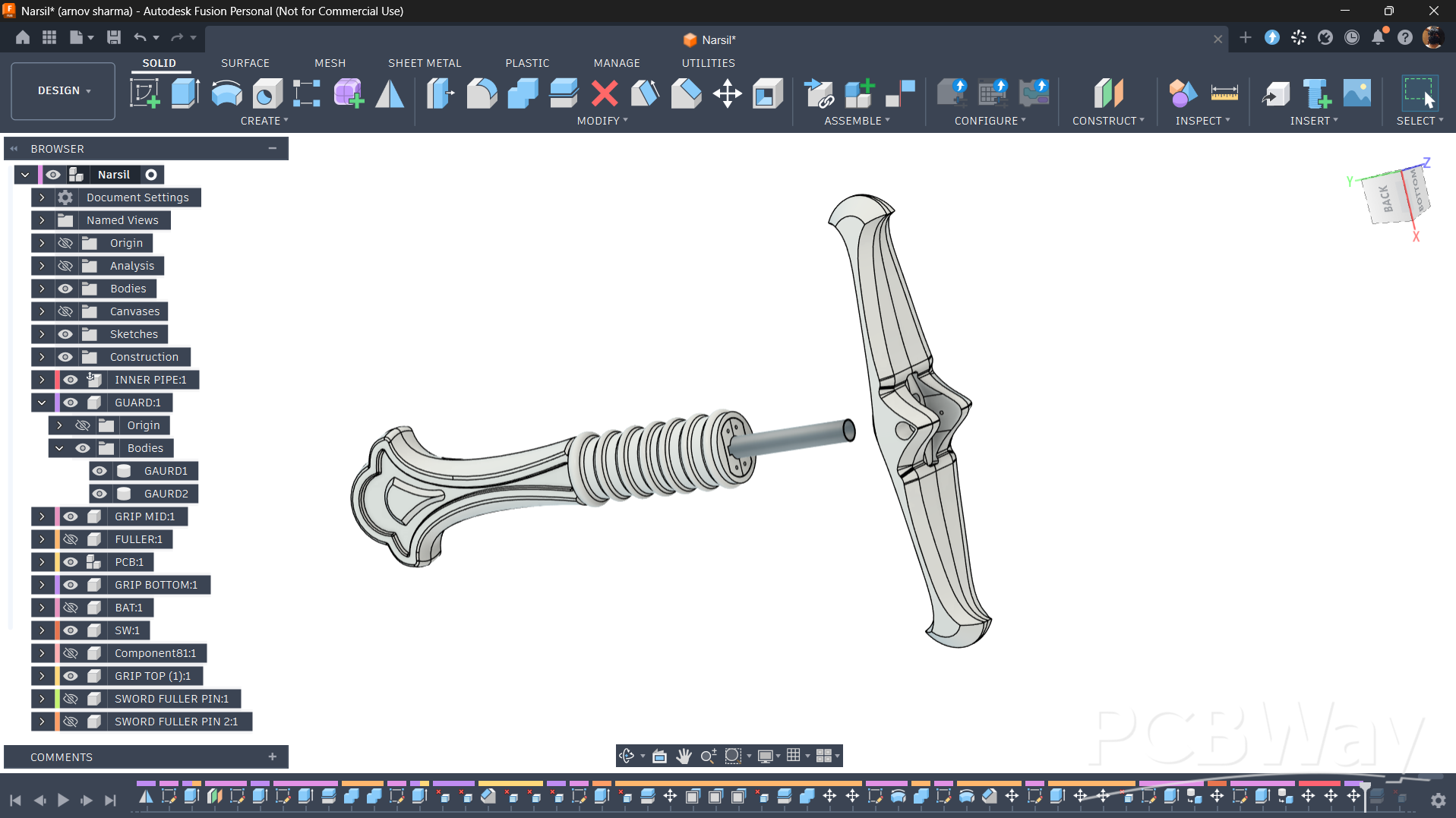
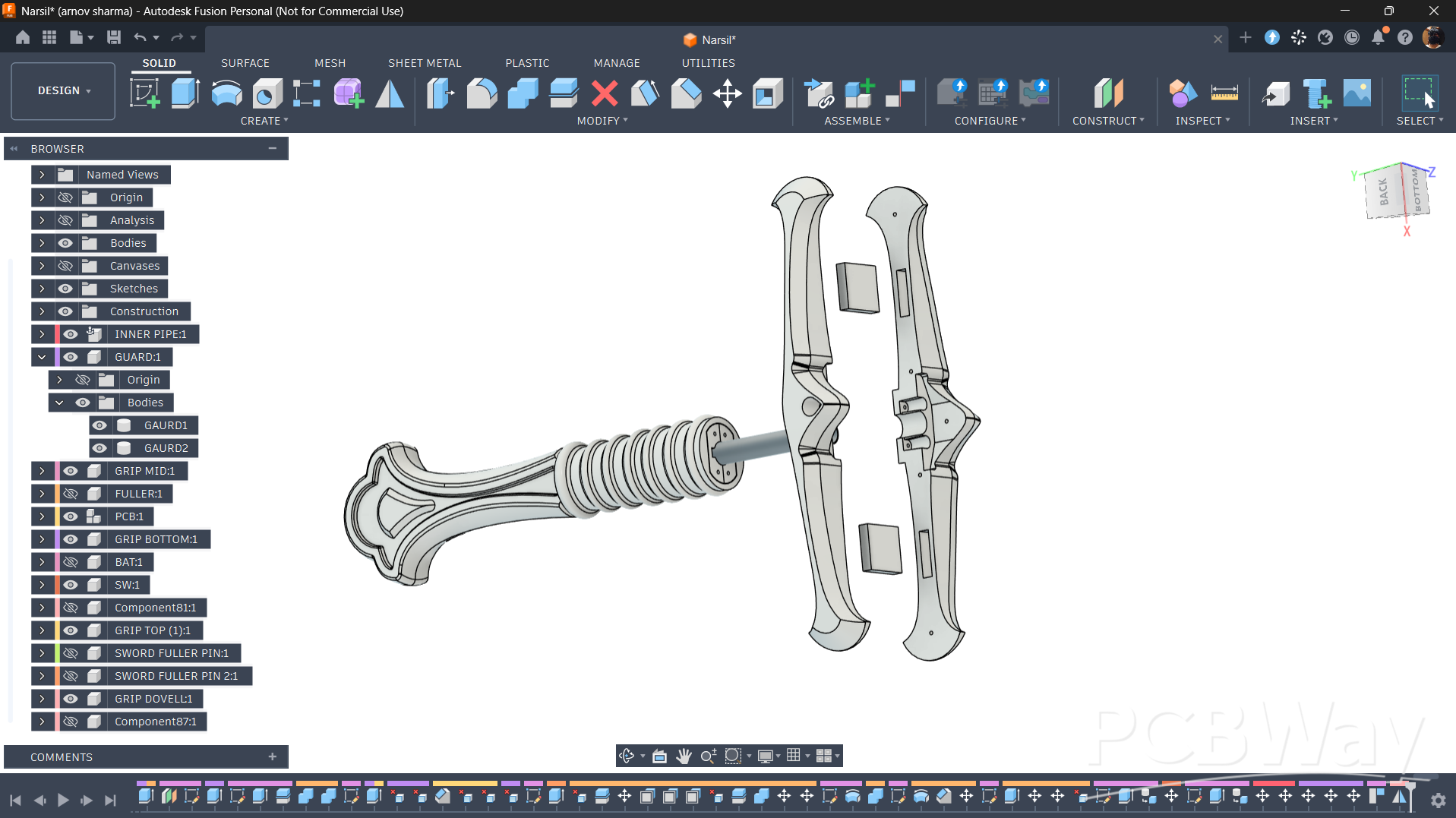
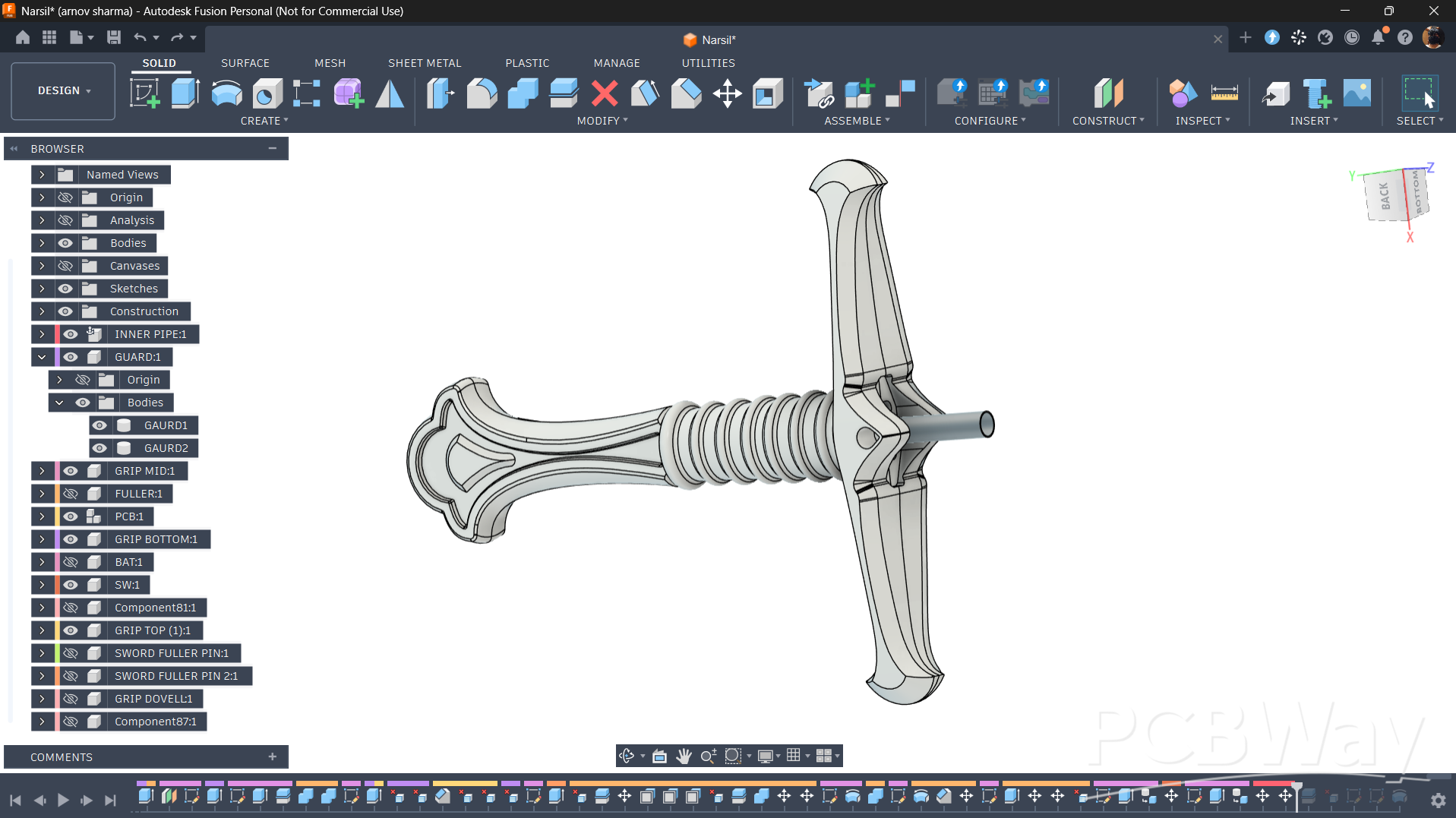
The crossguard is divided into two halves, with two rectangular pieces positioned between them to act as dowel pins for alignment. Once both halves are joined together, the crossguard is assembled with the lower handle section, with the hollow metal pipe passing through the guard.
The crossguard has four mounting holes, which are used to secure it to the lower handle assembly using four M2 screws. This arrangement keeps the parts aligned and firmly attached while maintaining the overall structure of the sword.
FULLER & LOWER SECTION ASSEMBLY
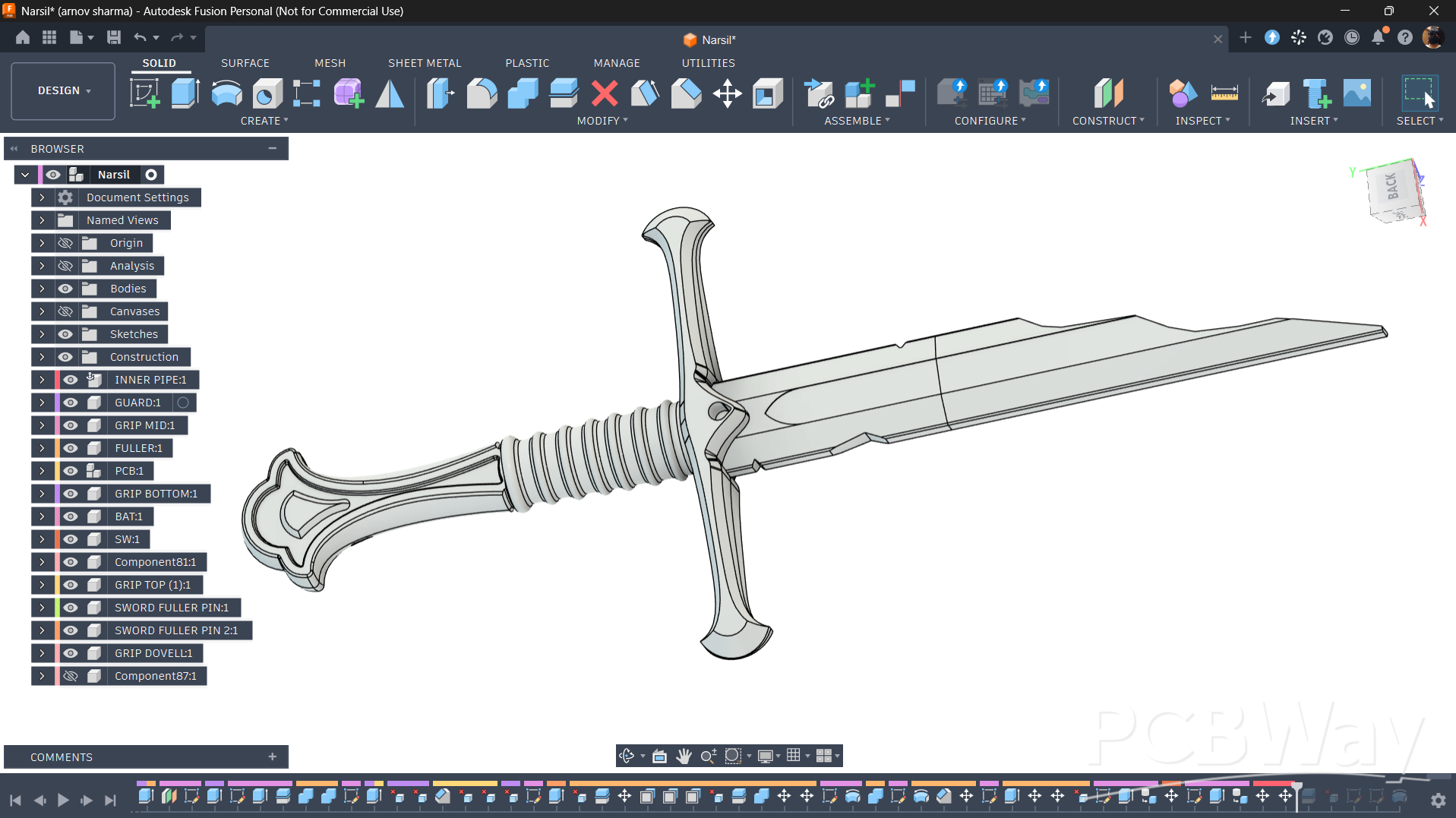
The crossguard is then positioned over the grip section, aligning it with the lower handle assembly. Two mounting holes are provided on either side of the grip, where M2 screws are used to secure the crossguard and handle together.
With all the sections firmly assembled, the build is complete, resulting in a fully assembled Narsil replica!
3D PRINTED PARTS
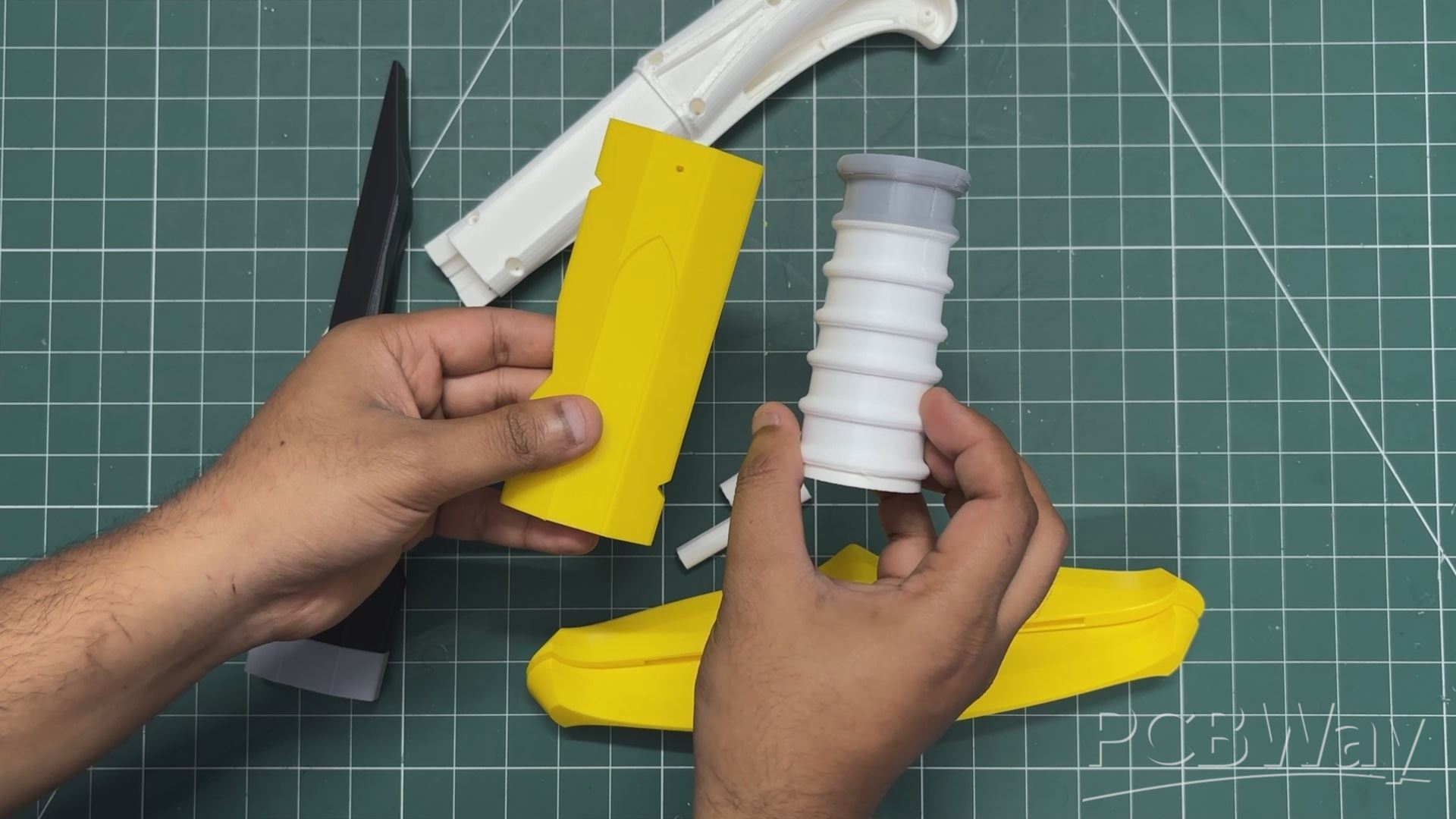
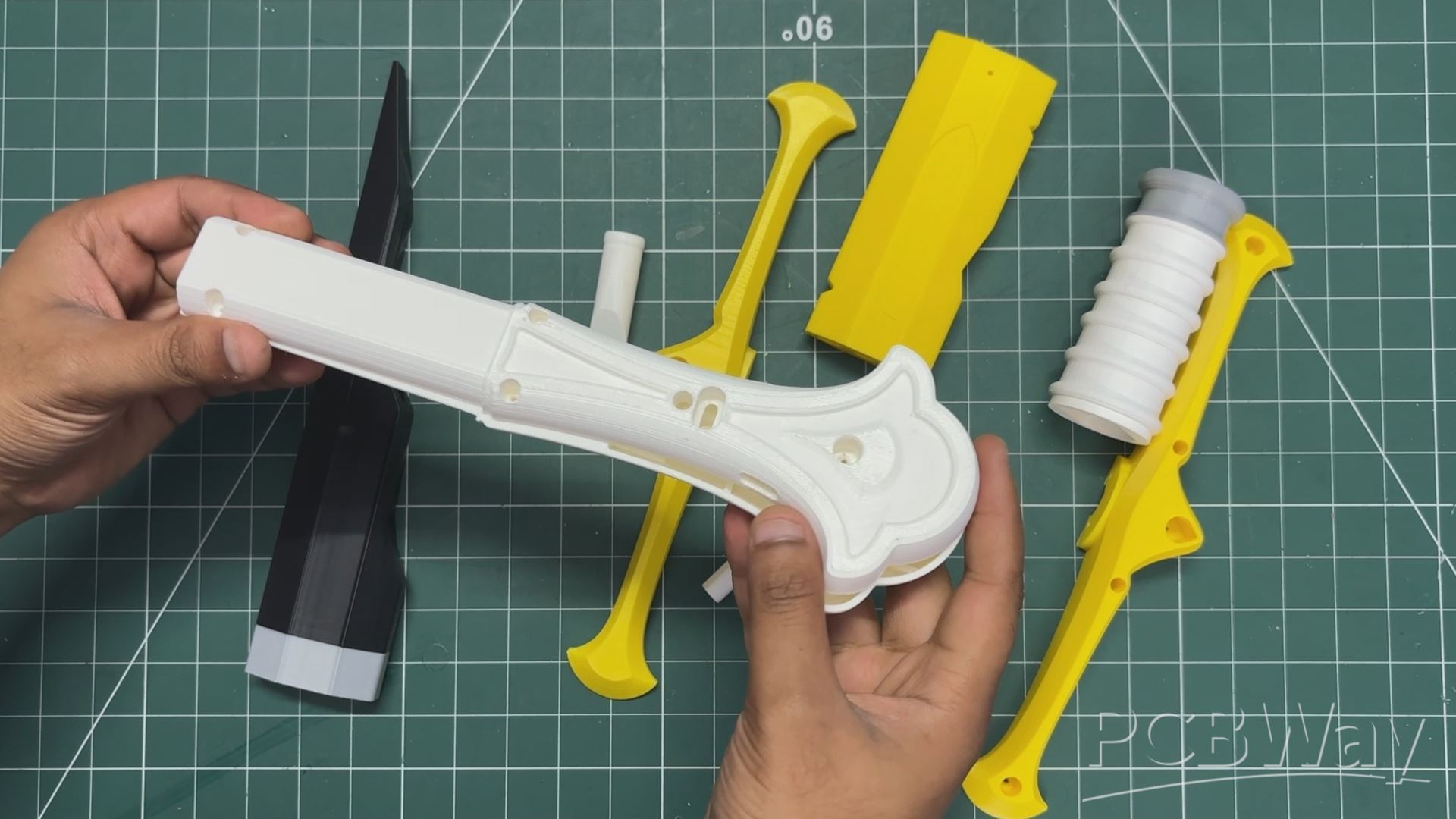
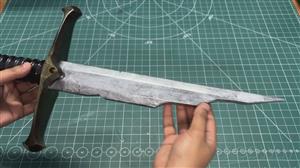
The sword model consists of 13 individual parts, which were exported as mesh files and prepared for 3D printing. All the parts were printed using Hyper PLA with the following slicer settings.
- Nozzle Diameter- 0.4 mm
- Layer Height—0.08 mm
- Supports—Tree Supports
- Top Z Distance—0.3 mm
- Support Interface Spacing—5 Layers
- Infill Pattern—Gyroid
- Infill Density—25%
I used a 0.3 mm top Z distance to make removing the supports easier after printing. The 25% gyroid infill provides a good balance between strength and material usage, which is important for a prop of this size.
As for the filament colors, the printed parts use three different filament colors: black, white, and yellow. There's no particular reason behind this choice; I simply used whatever filament I had available.
Since the entire sword was going to receive a proper paint job anyway, the original filament color wasn't particularly important. The plan was to paint the printed parts to give the finished sword a metallic appearance, with silver and gold detailing to match Narsil's design.
CIRCUIT DESIGN
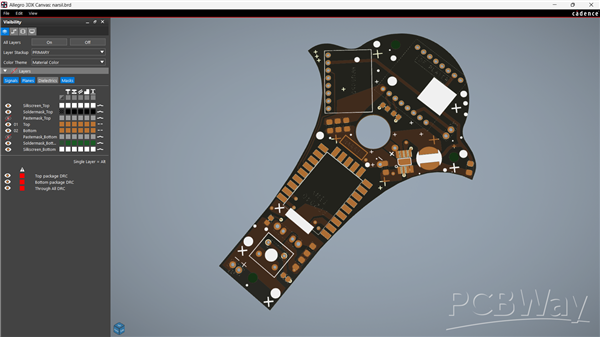
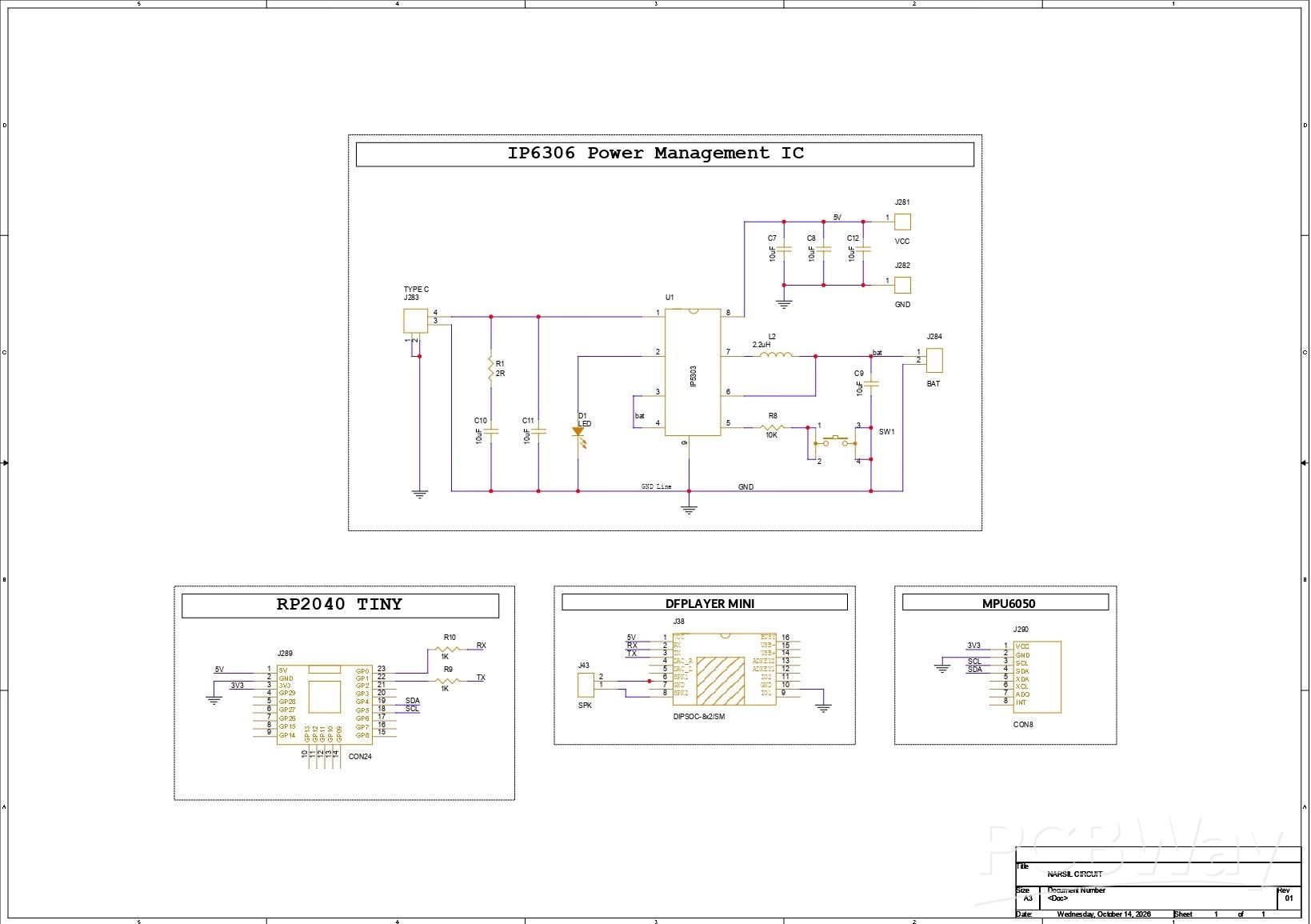
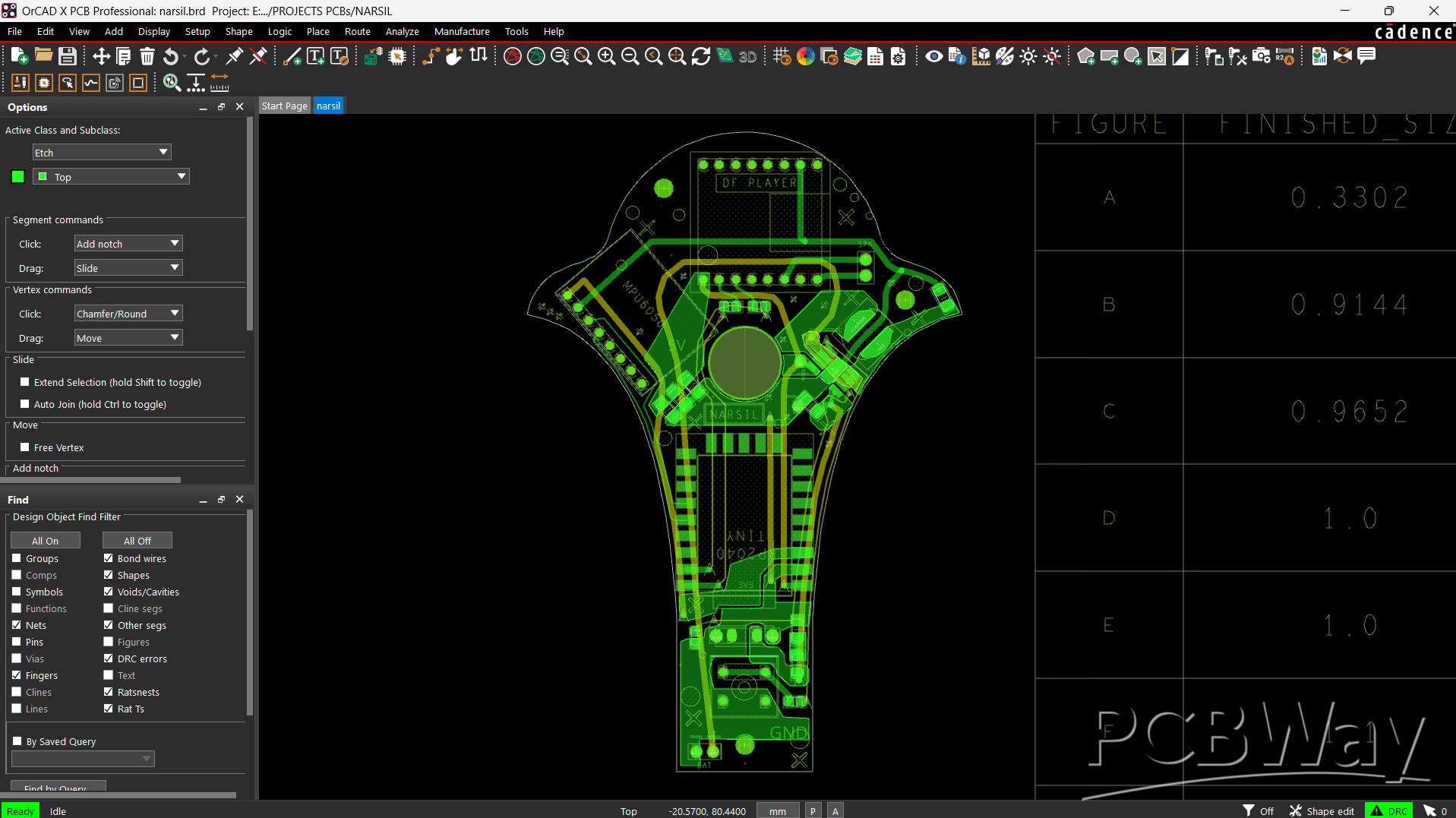
The circuit for the sword is fairly simple. It consists of a Waveshare RP2040 Tiny board, an MPU6050 motion sensor, and a DFPlayer Mini for audio playback.
To power the entire setup, I incorporated an IP5306 power management IC, along with a vertically mounted USB Type-C port, as specified in my CAD design.
Even the PCB itself has a custom shape. Instead of going with a regular rectangular board, I designed it to resemble the pommel of a sword. This wasn't just for aesthetics; the PCB is designed to fit inside the pommel area of the sword's hilt, making the most of the limited space available.
PCBWAY SERVICE
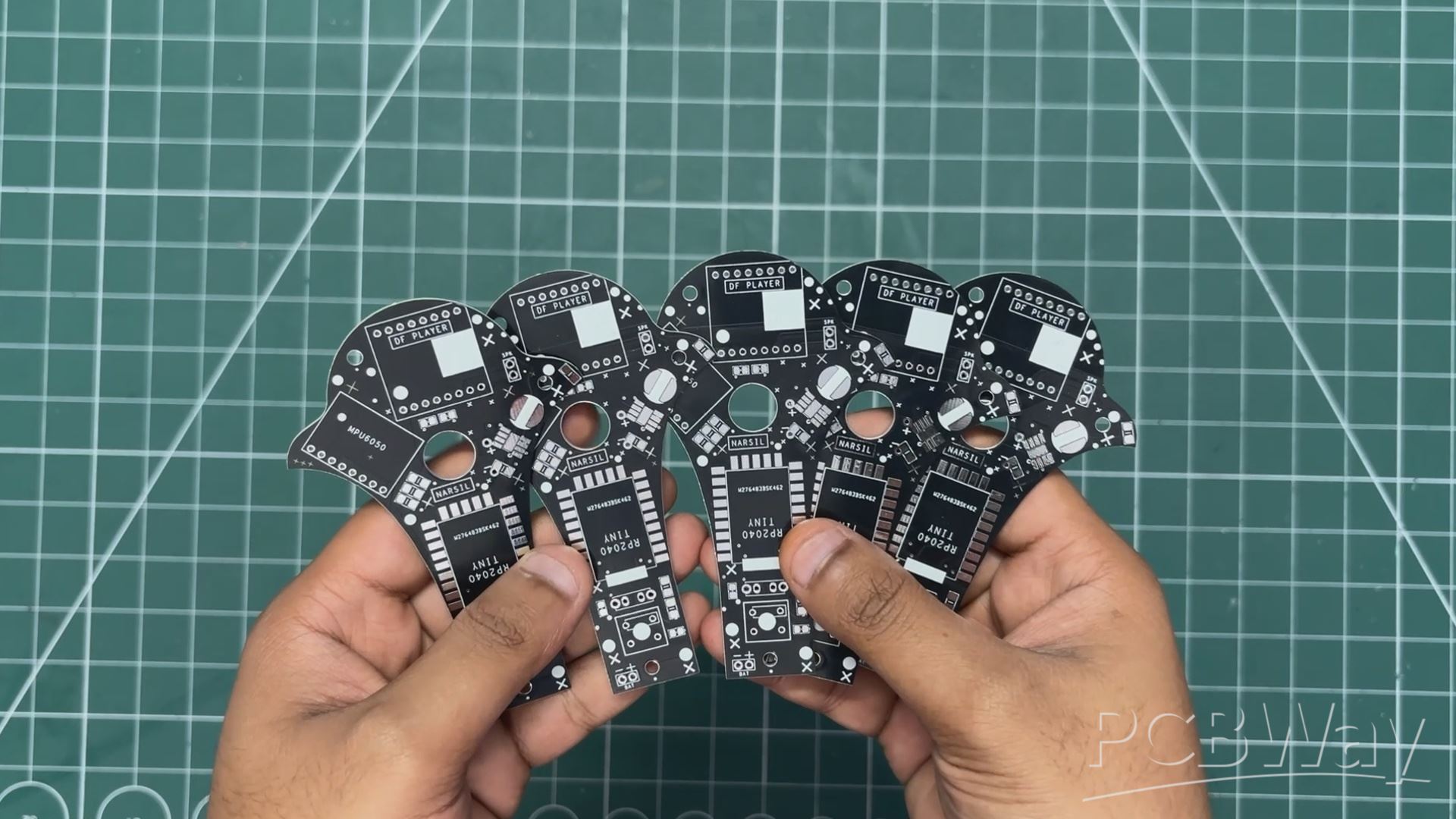
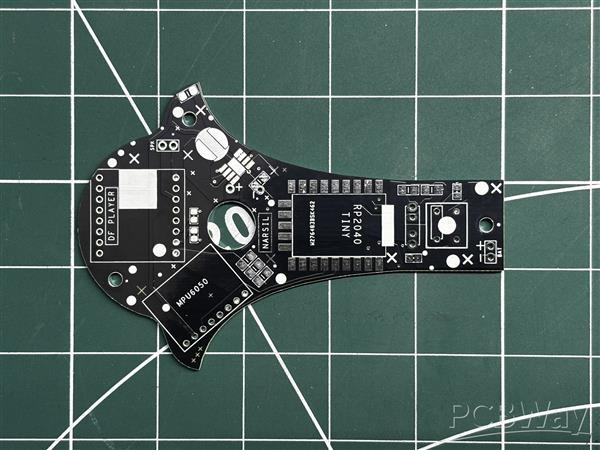
After finalizing the PCB design, I uploaded the Gerber files to PCBWay’s quote page and placed an order for PCBs with a black solder mask and white silkscreen.
The PCBs arrived within a week, and the build quality was top-notch!
And if you're someone who enjoys building and showcasing projects, PCBWay is also currently hosting its 9th Project Design Contest. It's a global competition where makers, engineers, students, and innovators can submit their projects, showcase their designs, and compete for prizes, with projects being evaluated by a panel of judges.
So if you have a project you've been working on, this could be a good opportunity to put it out there and have it seen by the maker community.
You guys can check out PCBWAY if you want great PCB service at an affordable rate.
CIRCUIT ASSEMBLY
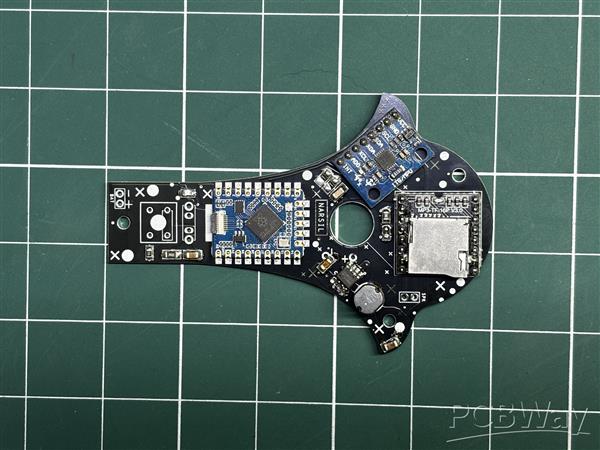
- The assembly process begins with applying solder paste to the pads of each SMD component using a solder paste dispenser syringe. I'm using SnPb 63/37 solder paste for this build.
- Next, using ESD tweezers, I carefully pick and place each SMD component in its designated position. This includes passive components such as resistors and capacitors, the IP5306 power management IC, and the Waveshare RP2040 Tiny board.
- Once all the SMD components are in place, the PCB goes onto a reflow hotplate, which heats the board from below until the solder paste reaches its melting temperature. The solder paste melts and forms electrical and mechanical connections, securing the components to the PCB.
TESTING THE BOARD
Before moving on to the through-hole components, I wanted to make sure the board was working correctly.
I connected a bench power supply set to 5V to the board's charging input. The LED on the IP5306 power management IC started blinking, indicating that the power management circuit was responding. The RP2040 also booted up and ran its default demo code, which cycles through different RGB LED colours.
With the initial testing complete, it was time to move on to the through-hole assembly.
- The next step was to place all the through-hole components, including the DFPlayer Mini, USB Type-C port, rocker switch, and MPU6050 module.
- After positioning all the components, I flipped the PCB over and soldered their leads using a soldering iron.
- Finally, I trimmed the excess leads from all the through-hole components. This is particularly important for this project because the PCB needs to fit inside the 3D-printed sword, where space is limited.
CIRCUIT TEST—DF MINI PLAYER
#include "Arduino.h" #include "DFRobotDFPlayerMini.h" // Create the DFPlayer object DFRobotDFPlayerMini myDFPlayer; void setup() { // Initialize hardware serial for RP2040 on GP0 (TX) and GP1 (RX) Serial1.begin(9600); Serial.begin(115200); // Give the DFPlayer 2 seconds to boot and mount the SD card delay(2000); Serial.println("Starting DFPlayer Mini..."); // Initialize the DFPlayer and bind it to Serial1if (!myDFPlayer.begin(Serial1)) { Serial.println("DFPlayer error! Check RX/TX wiring."); while(true); // Stop here if it fails } Serial.println("DFPlayer Online."); // 1. Set volume (0 to 30) - Set to 20 for testing myDFPlayer.volume(20); delay(500); // 2. Play Track 1 (The Slash - 0001.mp3) Serial.println("Playing Track 1..."); myDFPlayer.play(1); // 3. Wait exactly 2 seconds delay(2000); // 4. Play Track 2 (Aragorn Theme - 0002.mp3) Serial.println("Playing Track 2..."); myDFPlayer.play(2); delay(500); // Give the chip a moment to load the new track // 5. Turn on looping for the theme Serial.println("Looping Track 2..."); myDFPlayer.enableLoop(); } void loop() { // Empty! The DFPlayer handles the audio looping completely on its own. }
For this test, I used two MP3 files stored on the microSD card: 0001.mp3, which contains the metallic sword-clash sound effect, and 0002.mp3, which plays the Aragorn theme.
The demo sketch initializes the DFPlayer Mini over UART using the RP2040 Tiny's Serial1 interface, sets the playback volume to 20 out of 30, and starts playing the first track. After two seconds, it switches to the second track and enables looping so the Aragorn theme continues playing.
To test the setup, I connected power to the Waveshare RP2040 Tiny board. Once the DFPlayer Mini initialized and the SD card was ready, playback started automatically. This confirmed that the audio module, speaker, and serial communication were working correctly.
CIRCUIT TEST—MPU6050
#include <Wire.h> #include <Adafruit_MPU6050.h> #include <Adafruit_Sensor.h> Adafruit_MPU6050 mpu; void setup() { Serial.begin(115200); // Initialize I2C on the RP2040-Tiny specific pins Wire.setSDA(4); Wire.setSCL(5); Wire.begin(); Serial.println("Searching for MPU6050..."); // Try to initialize the sensorif (!mpu.begin()) { Serial.println("Failed to find MPU6050 chip! Check GP4/GP5 wiring."); while (1) { delay(10); // Halt here if sensor isn't found } } Serial.println("MPU6050 Found!"); // Set the accelerometer range to 8G (perfect for detecting sword swings) mpu.setAccelerometerRange(MPU6050_RANGE_8_G); // Print the legend for the Serial Plotter Serial.println("Accel_X,Accel_Y,Accel_Z,Total_Force"); } void loop() { // Get fresh data from the sensorsensors_event_t a, g, temp; mpu.getEvent(&a, &g, &temp); // Read the individual axes (in m/s^2)float x = a.acceleration.x; float y = a.acceleration.y; float z = a.acceleration.z; // Calculate the total force magnitude (this is what we will use to trigger the woosh)float total_force = sqrt((x * x) + (y * y) + (z * z)); // Print the data separated by commas for the Serial Plotter Serial.print(x); Serial.print(","); Serial.print(y); Serial.print(","); Serial.print(z); Serial.print(","); Serial.println(total_force); // A 20ms delay gives a smooth 50Hz graph on the plotter delay(20); }
We use the above demo sketch to test the MPU6050 accelerometer and gyroscope using the Waveshare RP2040 Tiny board.
The code initializes the sensor over I²C using GPIO 4 (SDA) and GPIO 5 (SCL), then continuously reads acceleration data across the X, Y, and Z axes. It also calculates the total acceleration magnitude and sends all four values to the Arduino Serial Plotter at a sampling rate of approximately 50 Hz.
By moving and swinging the circuit like a sword, I could observe how the acceleration values change in real time. This helped verify that the sensor was working correctly and gave me a better idea of how to detect sword swings for triggering the metallic sound effects.
Once the sensor was verified, the next step was to use these readings to trigger different audio tracks through the DFPlayer Mini, depending on the intensity of the swing.
POWER SOURCE
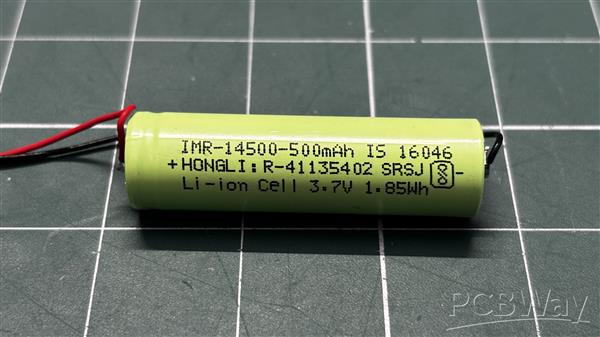
For the power source, I needed something compact enough to fit inside the sword while still providing sufficient power for the electronics and audio setup, which requires at least 1 W of audio output.
A standard 18650 lithium-ion cell was one option, but its 18 mm diameter would have required making the sword even thicker. Flat LiPo batteries were another possibility, but I wanted to balance the available capacity with the limited space inside the blade.
I eventually settled on a 3.7 V, 500 mAh lithium-ion cell in the 14500 form factor. Measuring just 14 mm in diameter and 50 mm in length, it fits inside the sword's fuller while leaving enough room for the rest of the electronics.
The capacity is lower than what a typical 18650 cell offers, but the smaller form factor makes it a much better fit for this build. It was a compromise between battery capacity, available space, and keeping the sword's dimensions as close to the original design as possible.
FINAL CODE
Once I was confident that all the components were working correctly, it was time to flash the main firmware onto the Waveshare RP2040 Tiny board.
The next step was to assemble the PCB and fit it inside the 3D-printed sword hilt. Since the board would be enclosed inside the sword, accessing the microcontroller for programming or debugging later would be difficult.
So, I uploaded the final code before assembly to make sure the sword's audio playback, motion detection, and other functions were ready to go.
#include <Wire.h> #include <Adafruit_MPU6050.h> #include <Adafruit_Sensor.h> #include "DFRobotDFPlayerMini.h" // --- OBJECTS --- Adafruit_MPU6050 mpu; DFRobotDFPlayerMini myDFPlayer; // --- TUNING VARIABLES --- // Adjust based on how hard you want to swing (Standard resting gravity is 9.8) const float SWING_THRESHOLD = 25.0; // Prevents a single swing from registering as multiple hits (800 milliseconds) const unsigned long SWING_COOLDOWN = 800; // Time window to land the next slash before the combo resets to zero (3 seconds) const unsigned long COMBO_WINDOW = 3000; // Track lengths in milliseconds (Adjust these to match the exact length of your MP3 files) const unsigned long TRACK_1_LENGTH = 4000; // 0001.mp3 const unsigned long TRACK_3_LENGTH = 5000; // 0003.mp3 // --- STATE TRACKING --- int slashCount = 0; unsigned long lastSwingTime = 0; unsigned long effectEndTime = 0; bool playingEffect = false; void setup() { Serial.begin(115200); // 1. Initialize DFPlayer on RP2040 GP0 (TX) and GP1 (RX) Serial1.begin(9600); // Give DFPlayer time to boot and mount the SD card delay(2000); Serial.println("Initializing DFPlayer..."); if (!myDFPlayer.begin(Serial1)) { Serial.println("DFPlayer error! Check RX/TX wiring."); } else { myDFPlayer.volume(20); // Set volume (0-30) delay(500); // Start the background Aragorn theme Serial.println("Playing Aragorn Theme (Track 2)..."); myDFPlayer.play(2); delay(500); myDFPlayer.enableLoop(); } // 2. Initialize MPU6050 on RP2040 GP4 (SDA) and GP5 (SCL) Wire.setSDA(4); Wire.setSCL(5); Wire.begin(); Serial.println("Initializing MPU6050..."); if (!mpu.begin()) { Serial.println("Failed to find MPU6050! Check I2C wiring."); while (1) { delay(10); } // Halt here if sensor fails } // Set to 8G range for fast sword swings mpu.setAccelerometerRange(MPU6050_RANGE_8_G); mpu.setFilterBandwidth(MPU6050_BAND_21_HZ); Serial.println("Narsil is armed and ready!"); } void loop() { // Get fresh motion datasensors_event_t a, g, temp; mpu.getEvent(&a, &g, &temp); // Calculate the total force vector magnitudefloat x = a.acceleration.x; float y = a.acceleration.y; float z = a.acceleration.z; float magnitude = sqrt((x * x) + (y * y) + (z * z)); unsigned long currentTime = millis(); // --- 1. SWING DETECTION & COMBO LOGIC ---if (magnitude > SWING_THRESHOLD) { // Check if the cooldown has passed so we don't double-trigger on one swingif (currentTime - lastSwingTime > SWING_COOLDOWN) { // If it's been too long since the last swing, break the comboif (currentTime - lastSwingTime > COMBO_WINDOW) { slashCount = 0; } slashCount++; // Add a hit to the combo counter Serial.print("Swing #"); Serial.println(slashCount); if (slashCount >= 3) { Serial.println("COMBO! Playing Track 0003."); myDFPlayer.play(3); // Set the timer for when this specific combo track will finish effectEndTime = currentTime + TRACK_3_LENGTH; slashCount = 0; // Reset combo back to zero } else { Serial.println("Playing standard slash (Track 0001)."); myDFPlayer.play(1); // Set the timer for when the standard slash track will finish effectEndTime = currentTime + TRACK_1_LENGTH; } playingEffect = true; lastSwingTime = currentTime; } } // --- 2. AUDIO RESUME LOGIC ---// Check if a sound effect was playing AND its timer has expiredif (playingEffect && currentTime > effectEndTime) { Serial.println("Sound effect finished. Restarting theme."); // Restart the background theme myDFPlayer.play(2); delay(500); // Tiny pause just to let the SD card safely load Track 2 myDFPlayer.enableLoop(); playingEffect = false; } delay(20); // Small delay for loop stability and I2C pacing }
Libraries and Object Declaration
#include <Wire.h> #include <Adafruit_MPU6050.h> #include <Adafruit_Sensor.h> #include "DFRobotDFPlayerMini.h" Adafruit_MPU6050 mpu; DFRobotDFPlayerMini myDFPlayer;
We begin by including the required libraries. Wire.h handles I²C communication, the Adafruit libraries provide access to the MPU6050 motion sensor, and DFRobotDFPlayerMini.h controls audio playback.
Tuning Variables
const float SWING_THRESHOLD = 25.0; const unsigned long SWING_COOLDOWN = 800; const unsigned long COMBO_WINDOW = 3000; const unsigned long TRACK_1_LENGTH = 4000; const unsigned long TRACK_3_LENGTH = 5000;
These variables control how the sword responds to movement and audio playback.
- SWING_THRESHOLD sets the acceleration magnitude required to register a swing.
- SWING_COOLDOWN prevents repeated triggers within 800 milliseconds.
- COMBO_WINDOW defines the 3-second interval for registering consecutive swings.
- TRACK_1_LENGTH and TRACK_3_LENGTH specify the expected durations of the standard slash and combo sound effects.
These values can be adjusted to fine-tune the sword's behaviour.
State Tracking Variables
int slashCount = 0; unsigned long lastSwingTime = 0; unsigned long effectEndTime = 0; bool playingEffect = false;
These variables keep track of the sword's current state. slashCount records the number of registered swings, while lastSwingTime stores the timestamp of the previous swing. effectEndTime estimates when the current sound effect should finish, and playingEffect indicates whether the program is managing an active sound effect.
Initializing the Audio System
Serial1.begin(9600); Serial.begin(115200); delay(2000); if (!myDFPlayer.begin(Serial1)) { Serial.println("DFPlayer error! Check RX/TX wiring."); } else { myDFPlayer.volume(20); delay(500); myDFPlayer.play(2); delay(500); myDFPlayer.enableLoop(); }
The DFPlayer Mini communicates with the Waveshare RP2040 Tiny over UART using Serial1 at 9600 baud. After allowing the module time to initialize, the code sets the volume to 20 out of 30 and starts playing track 2 (0002.mp3), which contains the Aragorn theme.
The enableLoop() command makes the theme repeat continuously until another track is played. If initialization fails, an error message is printed to the Serial Monitor.
Initializing the MPU6050
Wire.setSDA(4); Wire.setSCL(5); Wire.begin(); if (!mpu.begin()) { Serial.println("Failed to find MPU6050! Check I2C wiring."); while (1) { delay(10); } } mpu.setAccelerometerRange(MPU6050_RANGE_8_G); mpu.setFilterBandwidth(MPU6050_BAND_21_HZ);
Next, we initialize I²C communication using GP4 for SDA and GP5 for SCL, then check whether the MPU6050 is detected.
The accelerometer range is set to ±8g to accommodate the rapid movements expected during sword swings. The 21 Hz filter bandwidth helps reduce some high-frequency noise in the sensor readings.
If the sensor is not detected, the program stops rather than attempting to run the motion-based features without it.
Reading and Processing Motion Data
sensors_event_t a, g, temp; mpu.getEvent(&a, &g, &temp); float x = a.acceleration.x; float y = a.acceleration.y; float z = a.acceleration.z; float magnitude = sqrt((x * x) + (y * y) + (z * z)); unsigned long currentTime = millis();
The program continuously reads acceleration along the X, Y, and Z axes and calculates the combined acceleration magnitude.
Swing Detection and Combo Logic
if (magnitude > SWING_THRESHOLD) { if (currentTime - lastSwingTime > SWING_COOLDOWN) { if (currentTime - lastSwingTime > COMBO_WINDOW) { slashCount = 0; } slashCount++; if (slashCount >= 3) { myDFPlayer.play(3); effectEndTime = currentTime + TRACK_3_LENGTH; slashCount = 0; } else { myDFPlayer.play(1); effectEndTime = currentTime + TRACK_1_LENGTH; } playingEffect = true; lastSwingTime = currentTime; } }
When the acceleration exceeds the threshold, the code checks whether enough time has passed since the previous registered swing.
The first two swings trigger track 1 (0001.mp3), producing the standard metallic sword sound. When the third swing is registered, track 3 (0003.mp3) plays a longer, more dramatic combo sound, and the counter resets.
The code also attempts to reset the combo if too much time has passed between swings. Since the cooldown is 800 ms, a swing must be registered after that interval to count toward the sequence.
Resuming the Background Music
if (playingEffect && currentTime > effectEndTime) { Serial.println("Sound effect finished. Restarting theme."); myDFPlayer.play(2); delay(500); myDFPlayer.enableLoop(); playingEffect = false; }
After a sound effect is triggered, the program uses effectEndTime to estimate when playback should finish. Once that time is reached, it restarts track 2 and enables looping to bring back the Aragorn theme.
The track durations are manually configured, so they should match the actual audio files as closely as possible.
FULLER ASSEMBLY
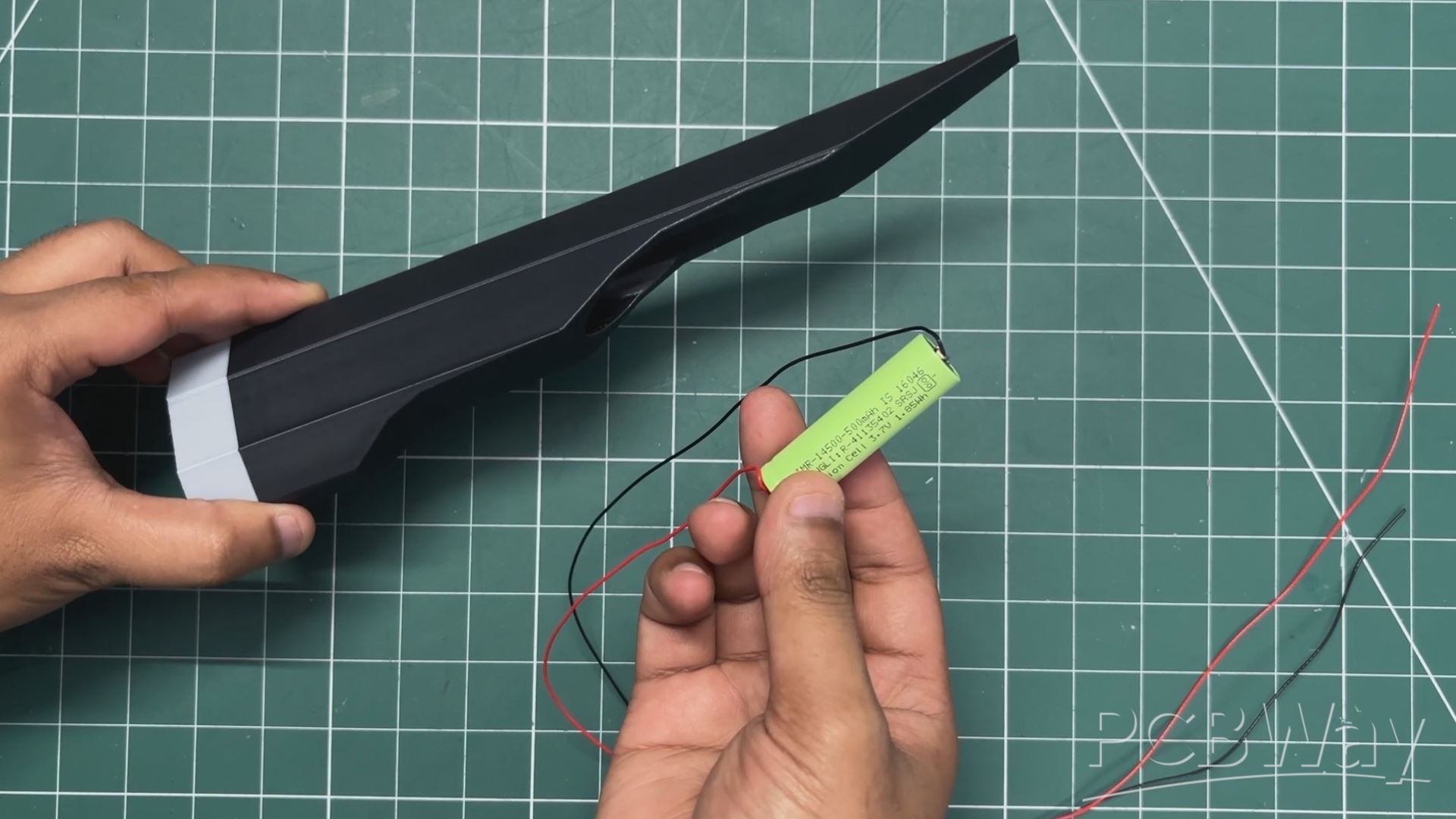
- We begin the fuller assembly by passing the battery wires through the designated opening, then carefully position the cell inside its compartment. The 3D-printed lid is attached to close the opening, keeping the battery securely concealed inside the fuller.
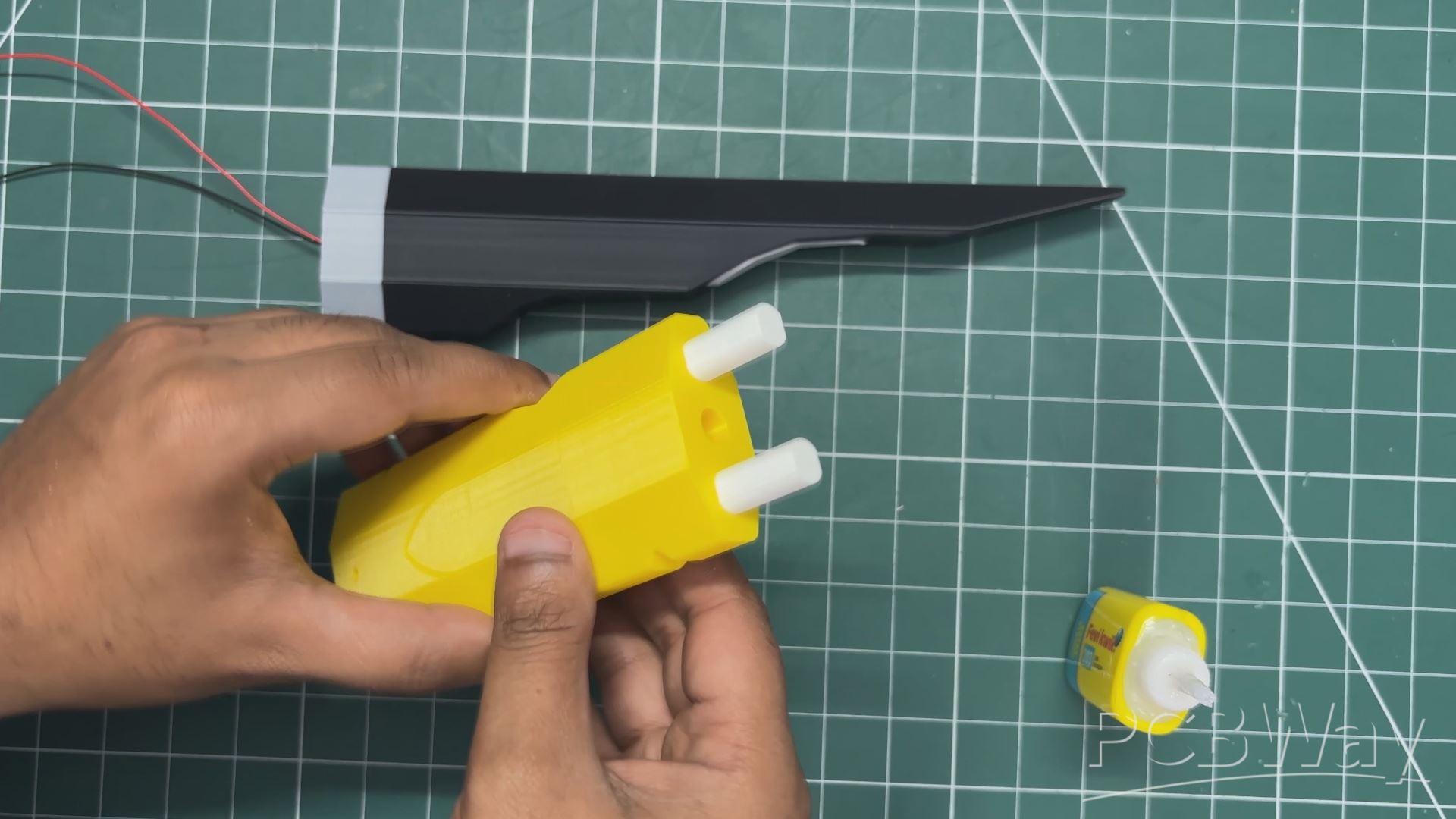
- Next, we prepare the second half of the fuller by applying superglue to both dowel cavities and inserting the 3D-printed dowel pins into position. We then route the battery wires through the opening in this section, ensuring they remain accessible for connecting to the main circuit later.
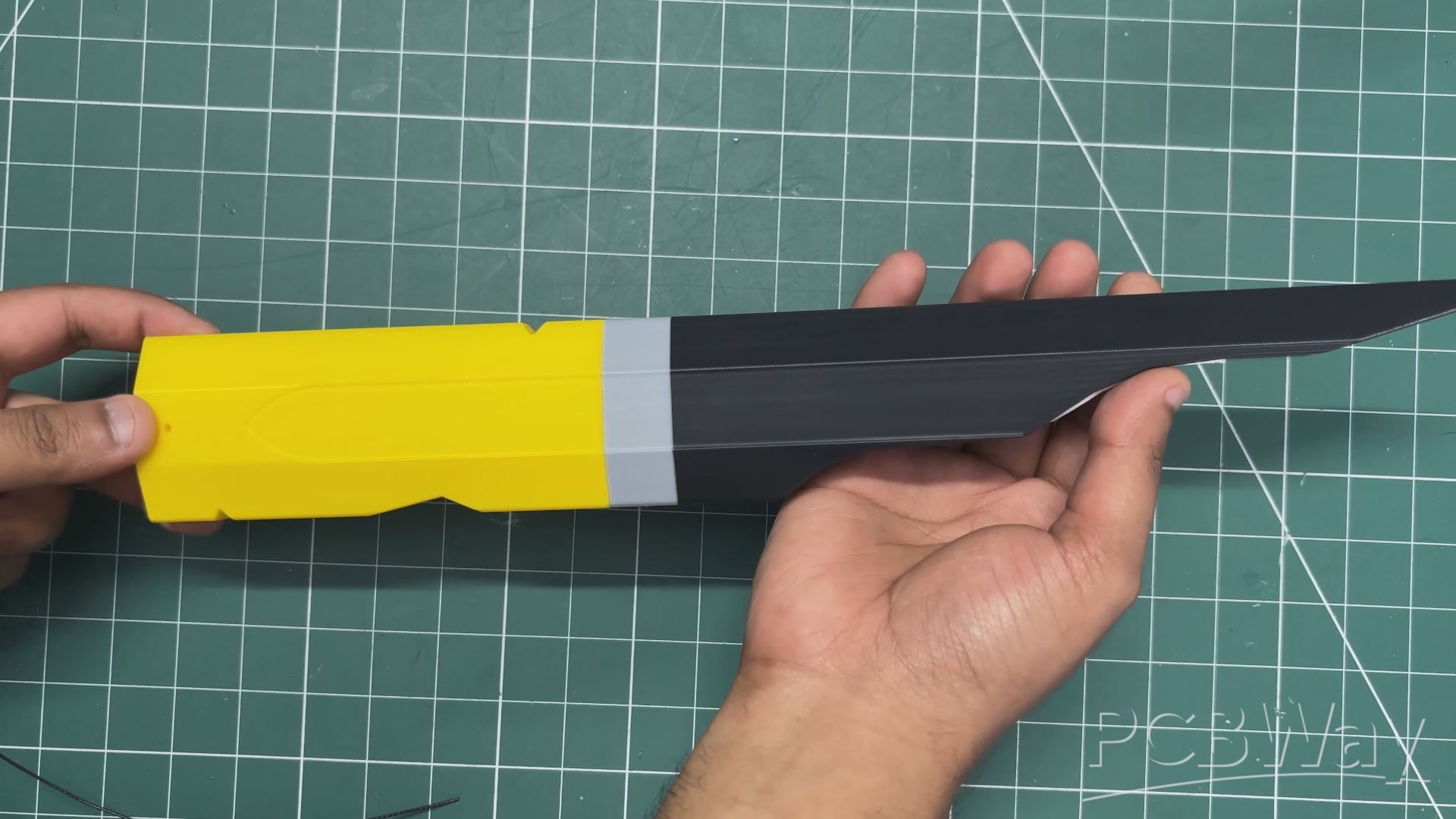
- Finally, we apply superglue to the dowel cavities on the top half and carefully join both sections together, aligning the dowel pins with their corresponding cavities.
With both halves joined, we now have a complete fuller assembly with the lithium-ion cell neatly concealed inside.
GUARD ASSEMBLY
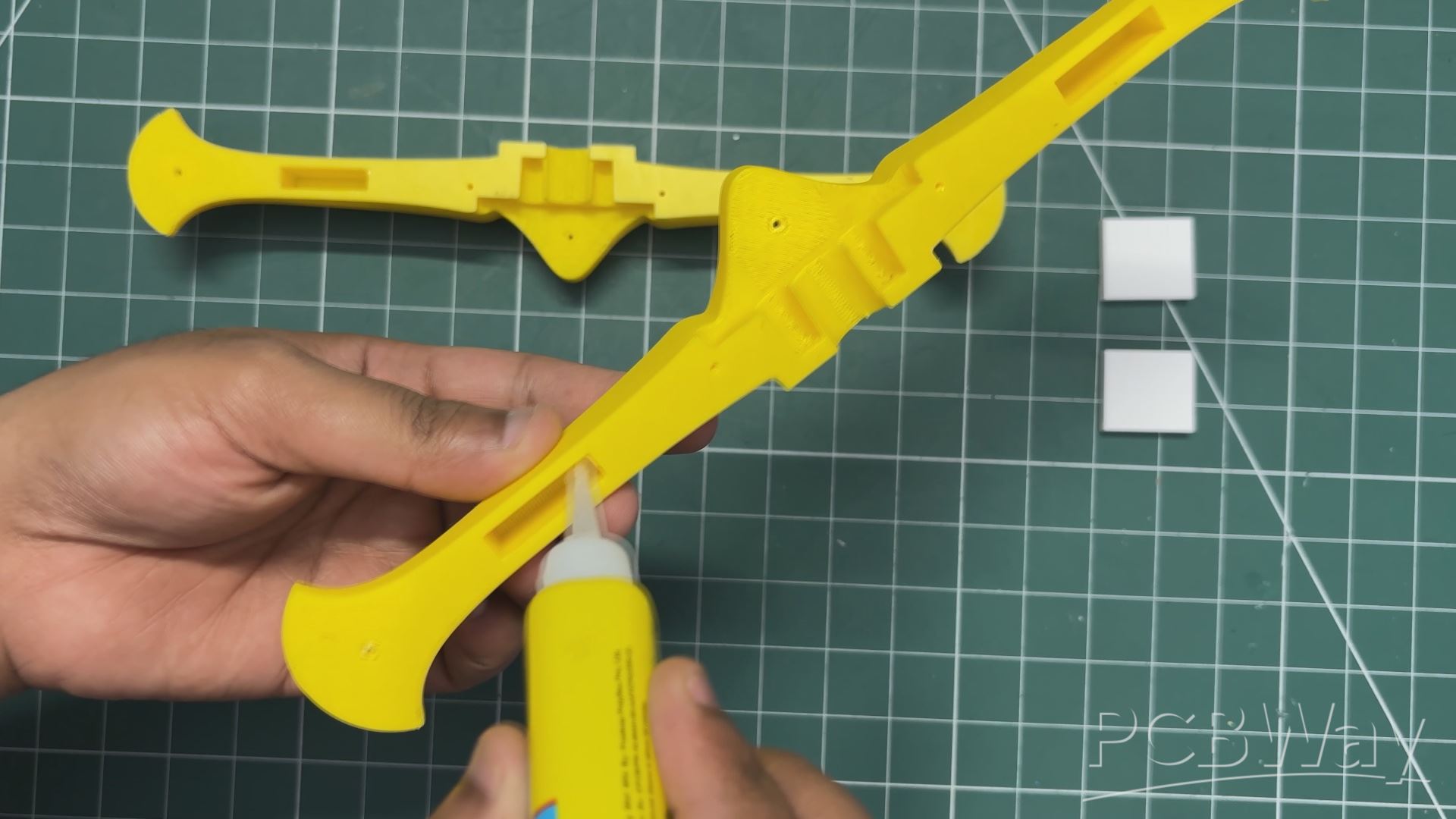
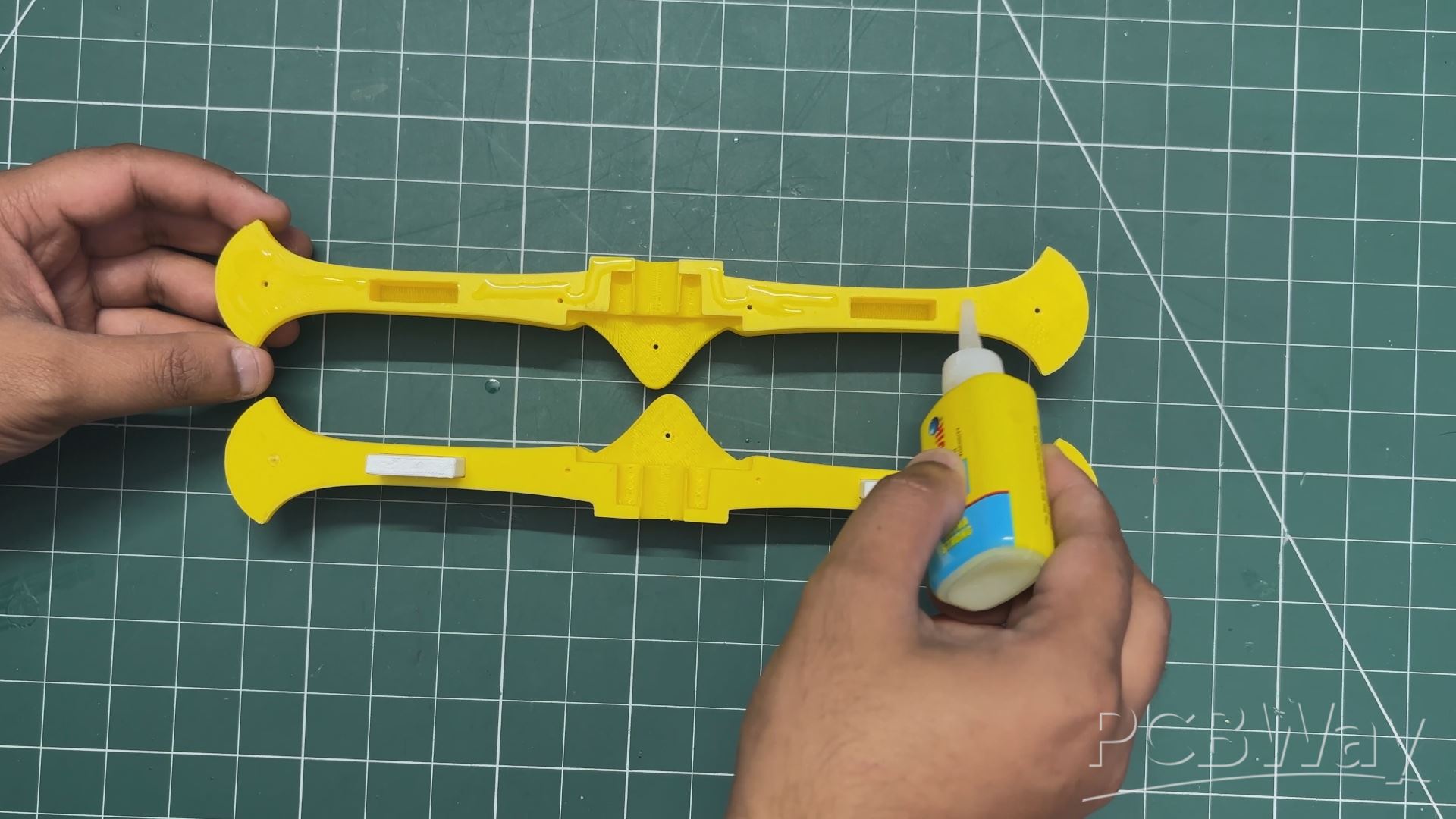
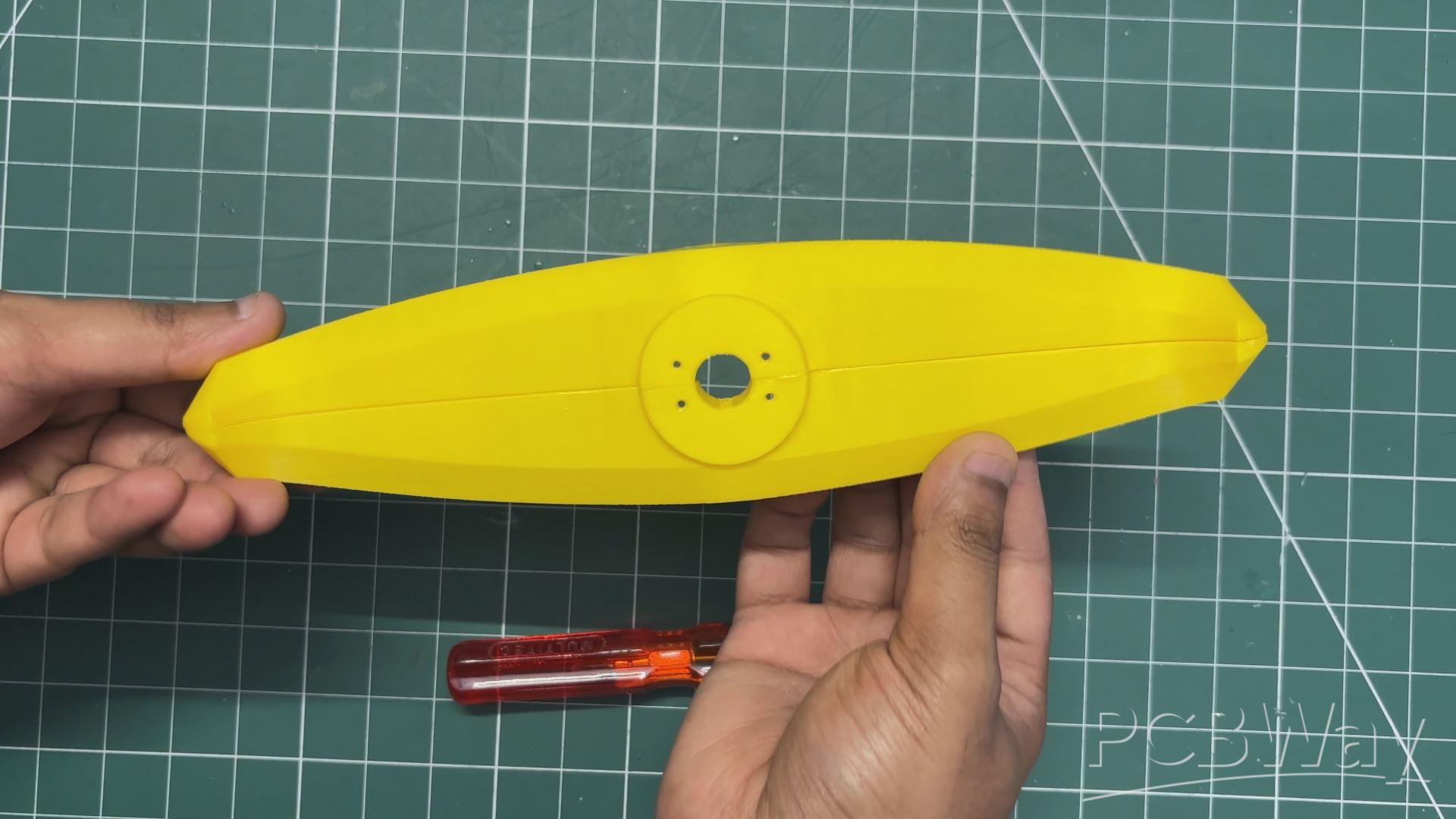
- Similar to the fuller, the crossguard is divided into two halves, with screw holes and internal square dowel features incorporated into the design to ensure proper alignment and secure assembly.
- We begin by applying superglue inside the dowel cavities of one half and inserting both square dowels into their respective positions. Next, we apply superglue to the corresponding dowel cavities on the other half and carefully join the two sections together.
- To ensure both halves remain firmly secured, we insert and tighten five M2 screws through the mounting holes, completing the crossguard assembly.
COMPLETE GRIP ASSEMBLY
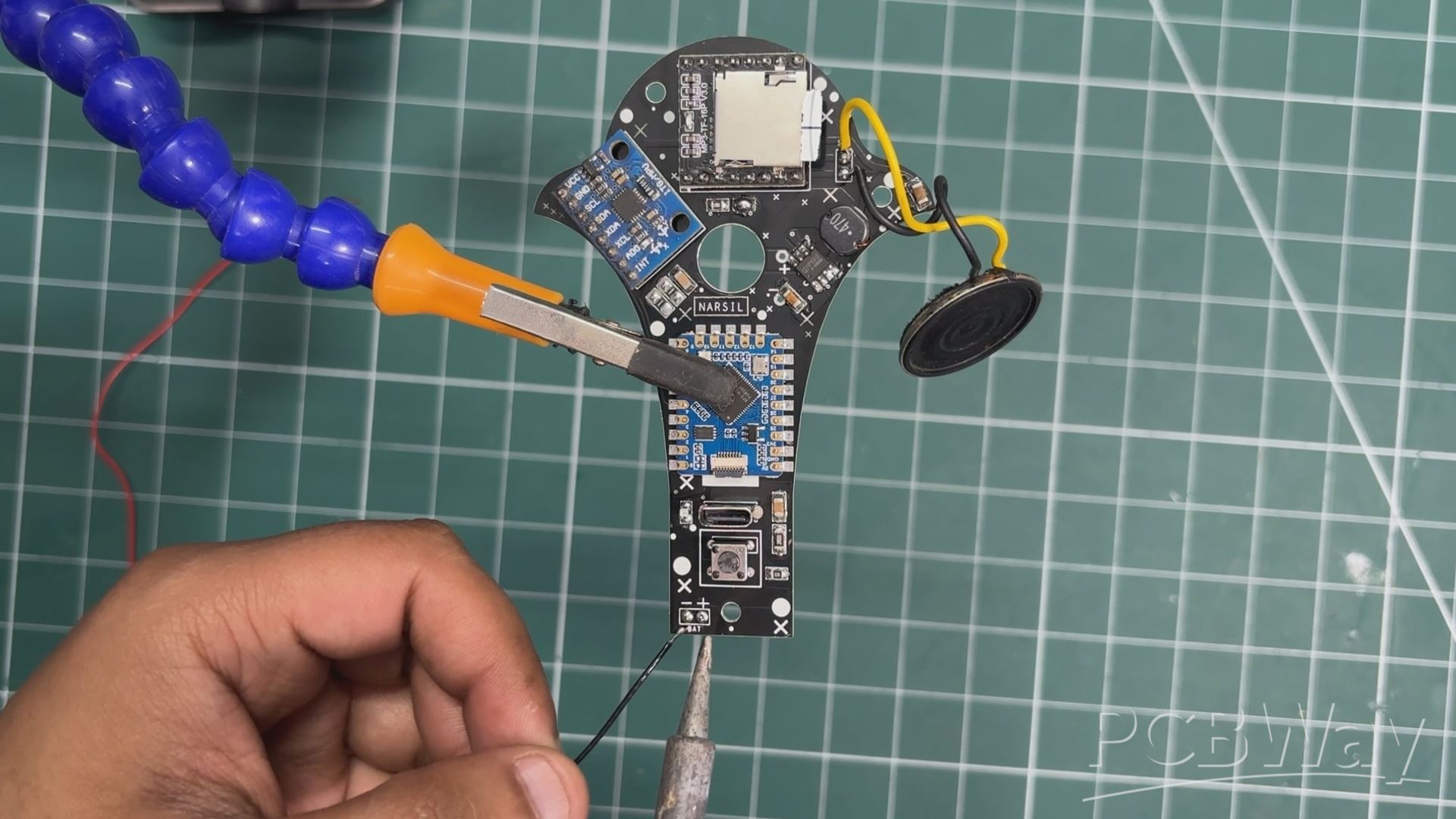
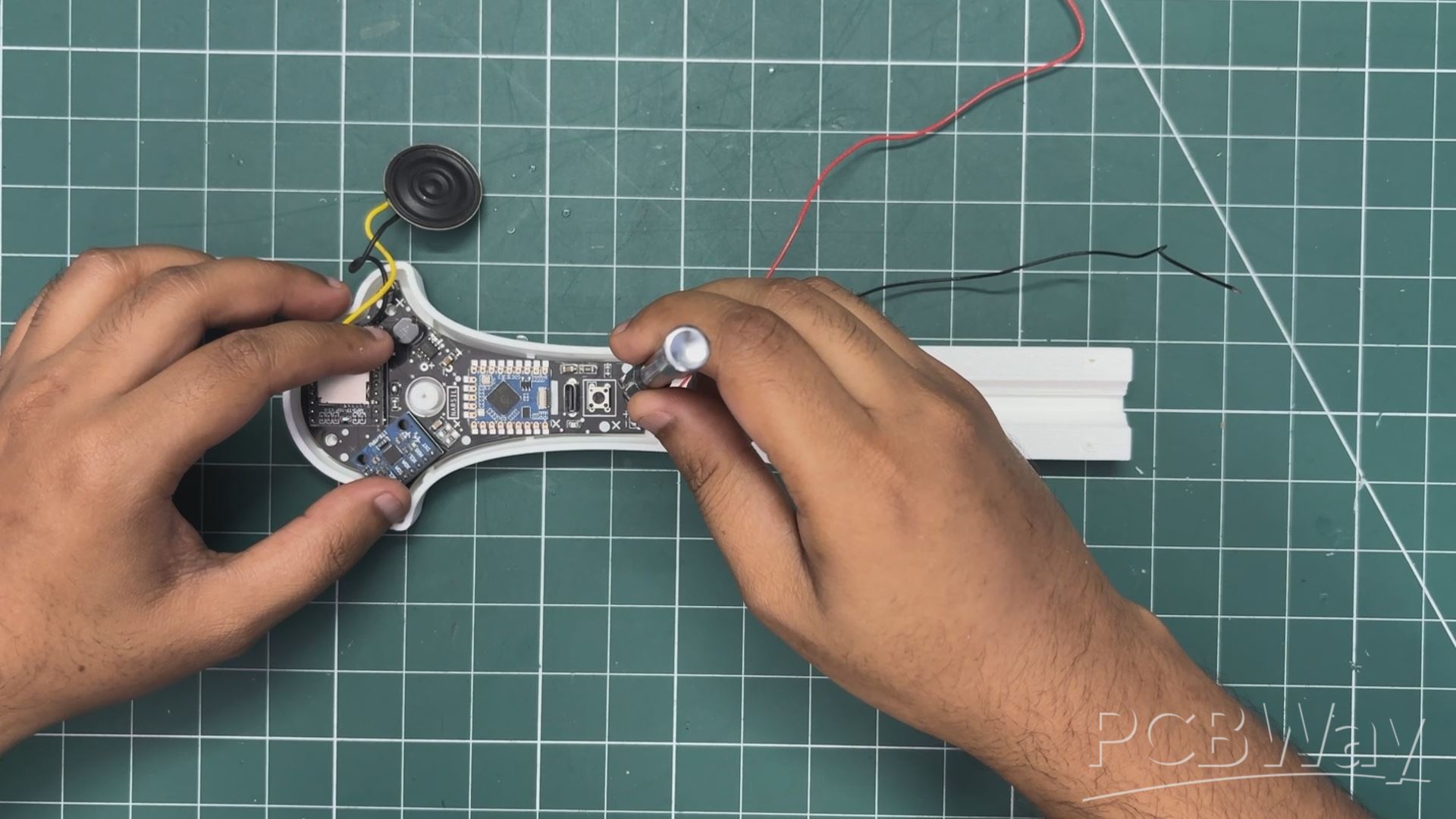
- The grip assembly begins by extending the circuit's battery positive and negative wires to ensure they can reach the lithium-ion cell housed inside the fuller.
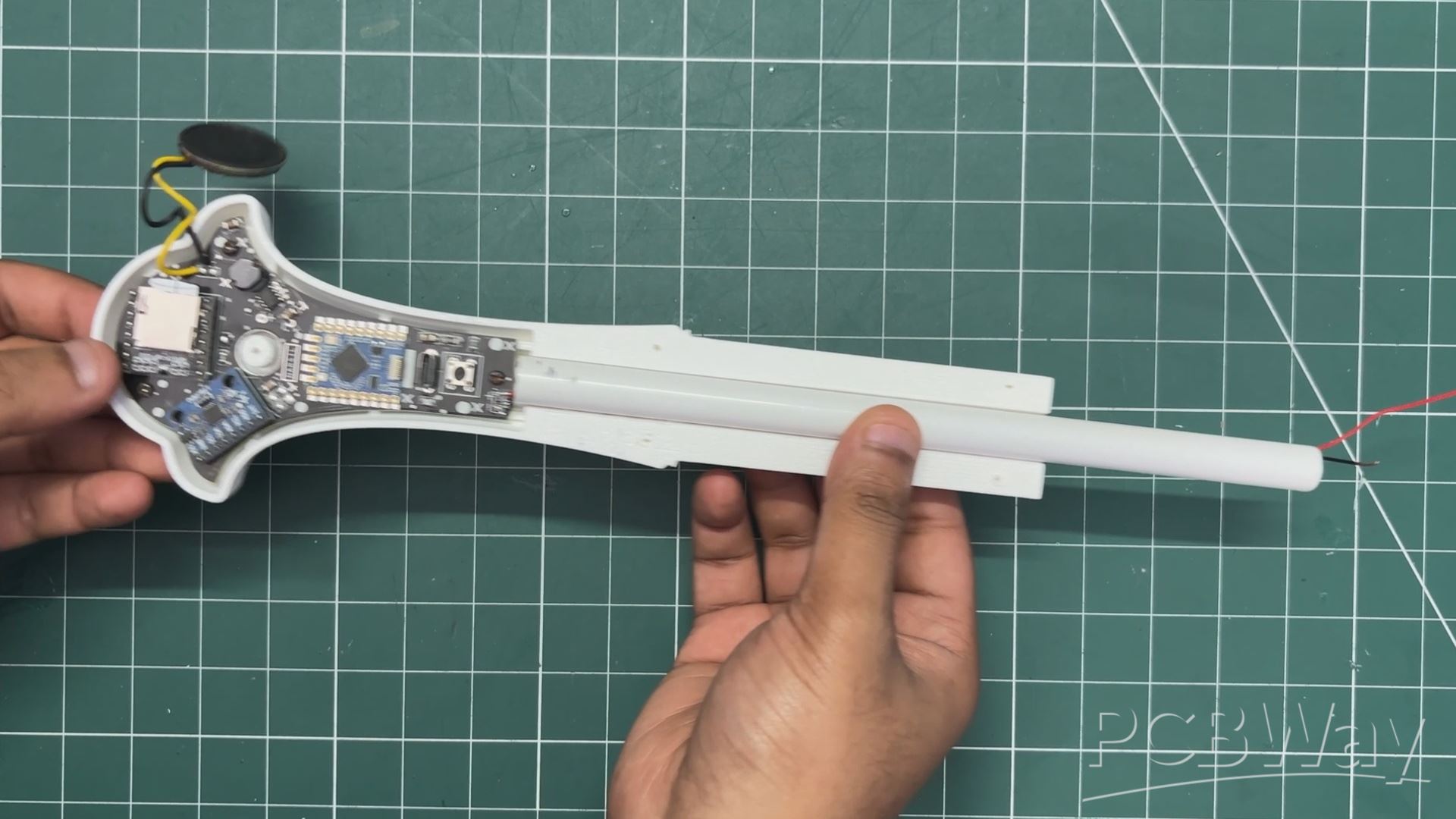
- We then position the main circuit over the mounting bosses in one half of the handle and secure it in place using three M2 screws.
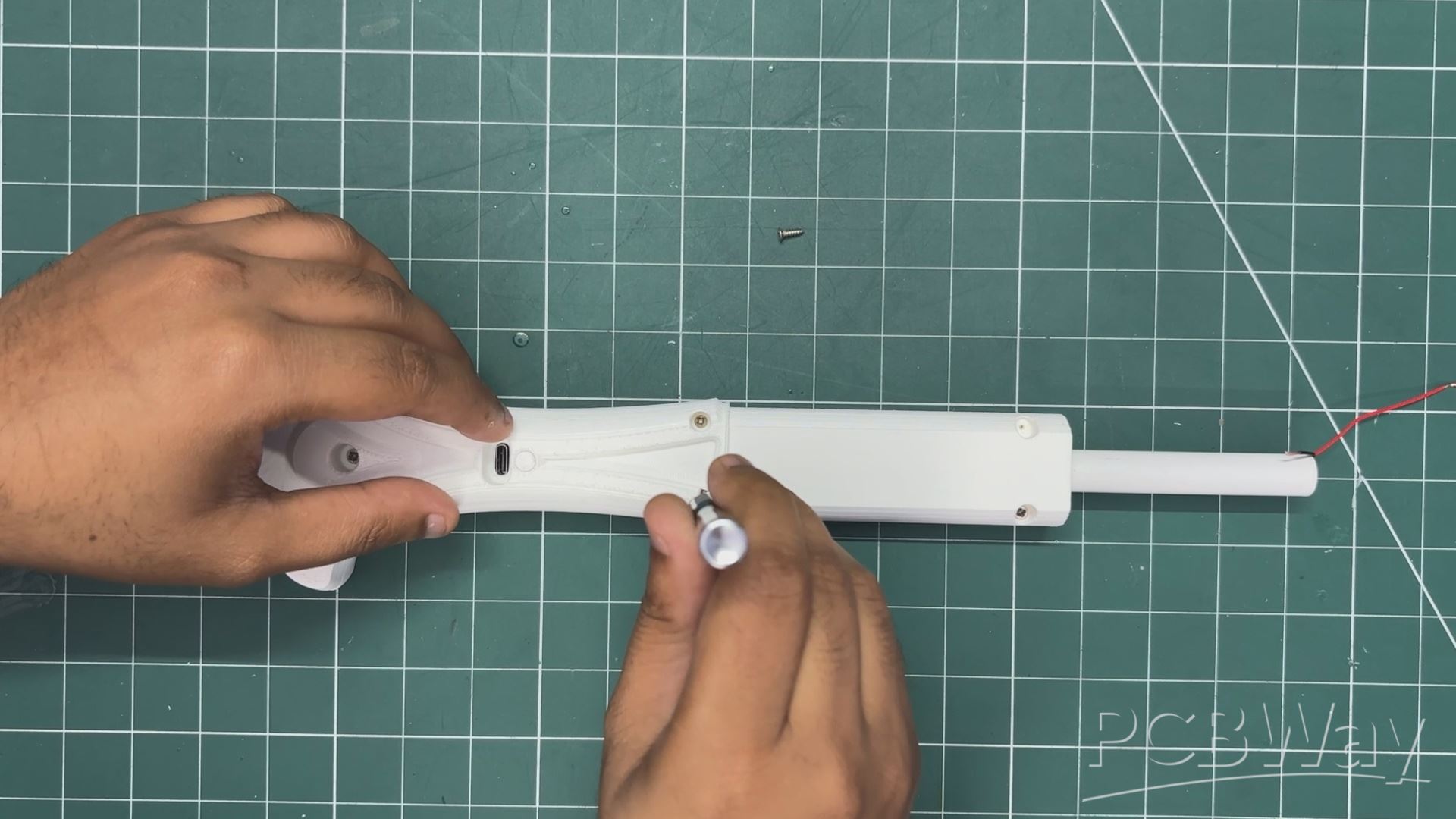
- For additional structural strength, I'm using a 200 mm-long hollow metal pipe inside the handle. Besides reinforcing the structure, the pipe also provides a passage for the battery wires. We route the wires through the pipe and position it inside the handle assembly.
- Next, we take the other half of the handle and press-fit the speaker into its designated mounting position. We also install the 3D-printed switch knob before joining both halves of the handle together.
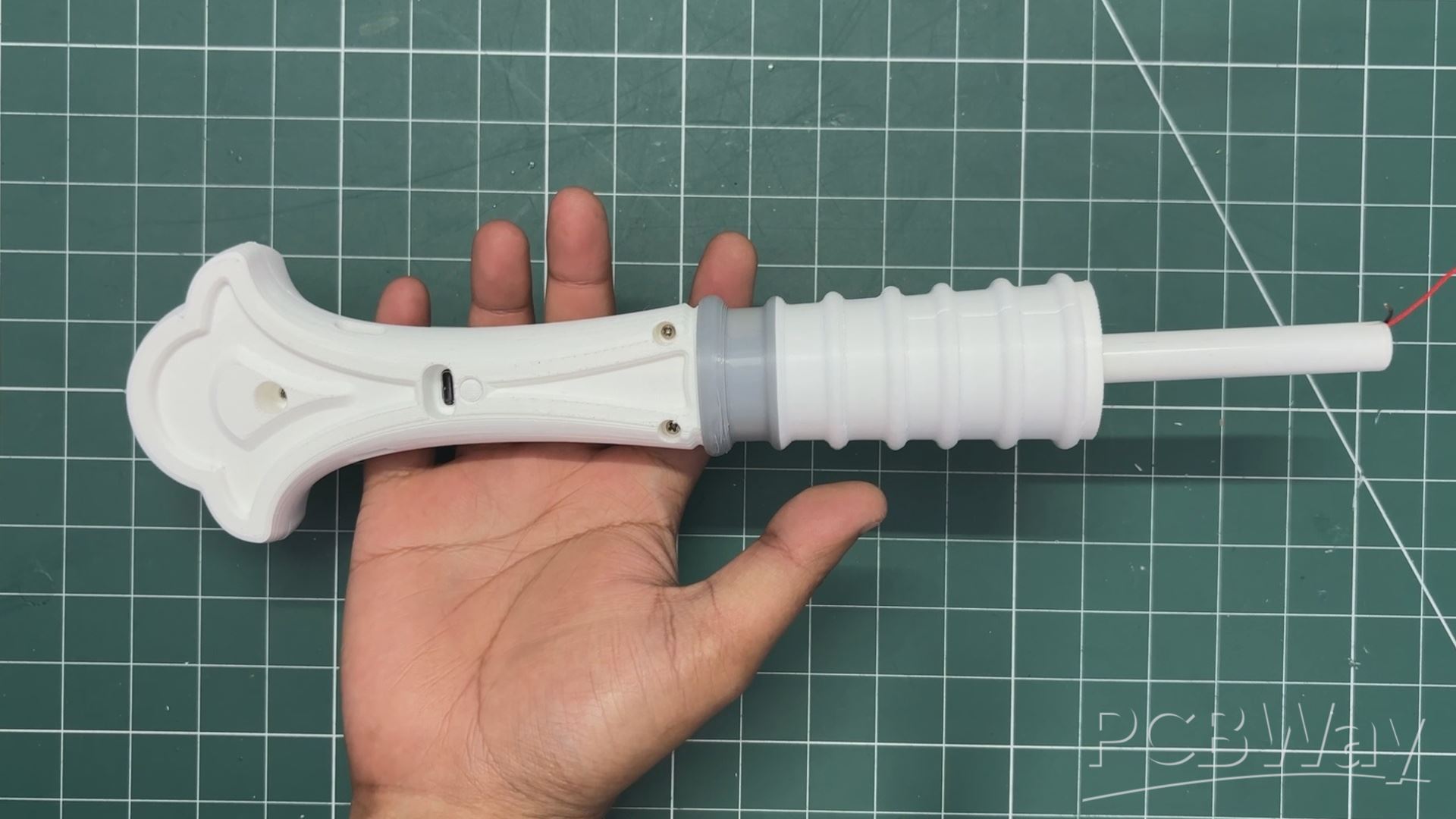
- Once everything is aligned, we secure the two halves using M2 screws. Finally, we slide the 3D-printed sleeve over the grip area to cover the assembly and give the handle a clean, finished appearance
FINAL ASSEMBLY
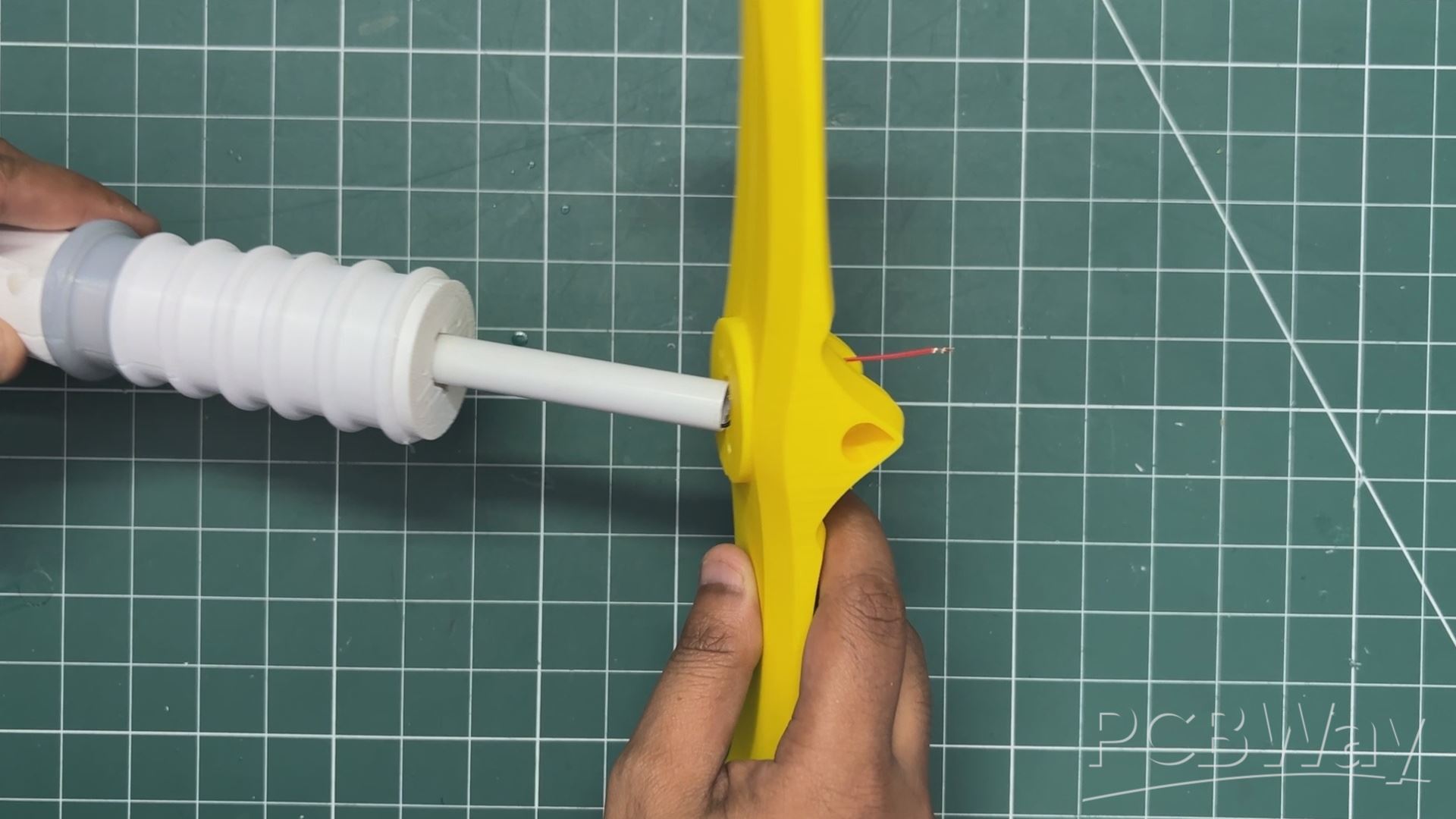
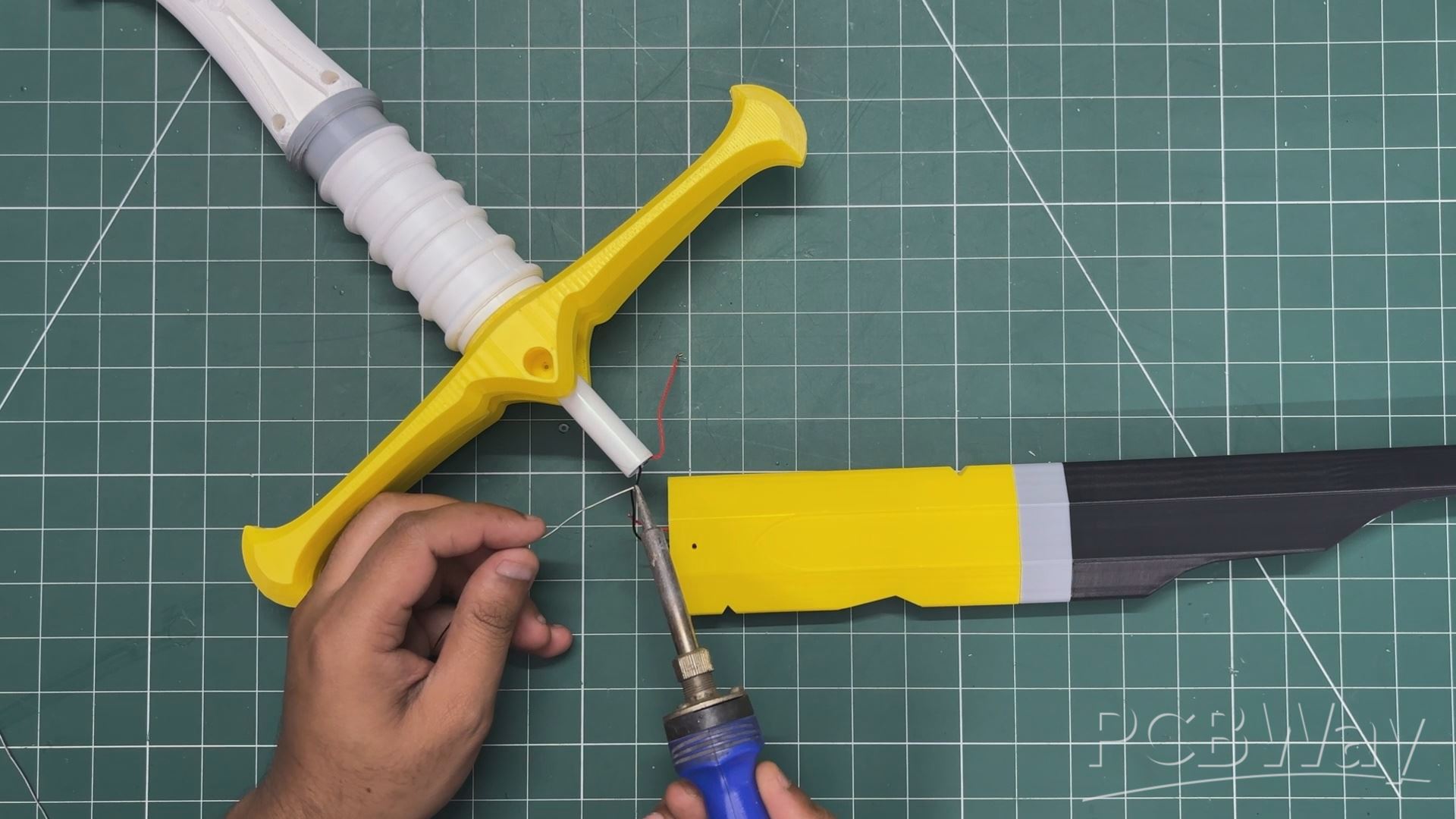
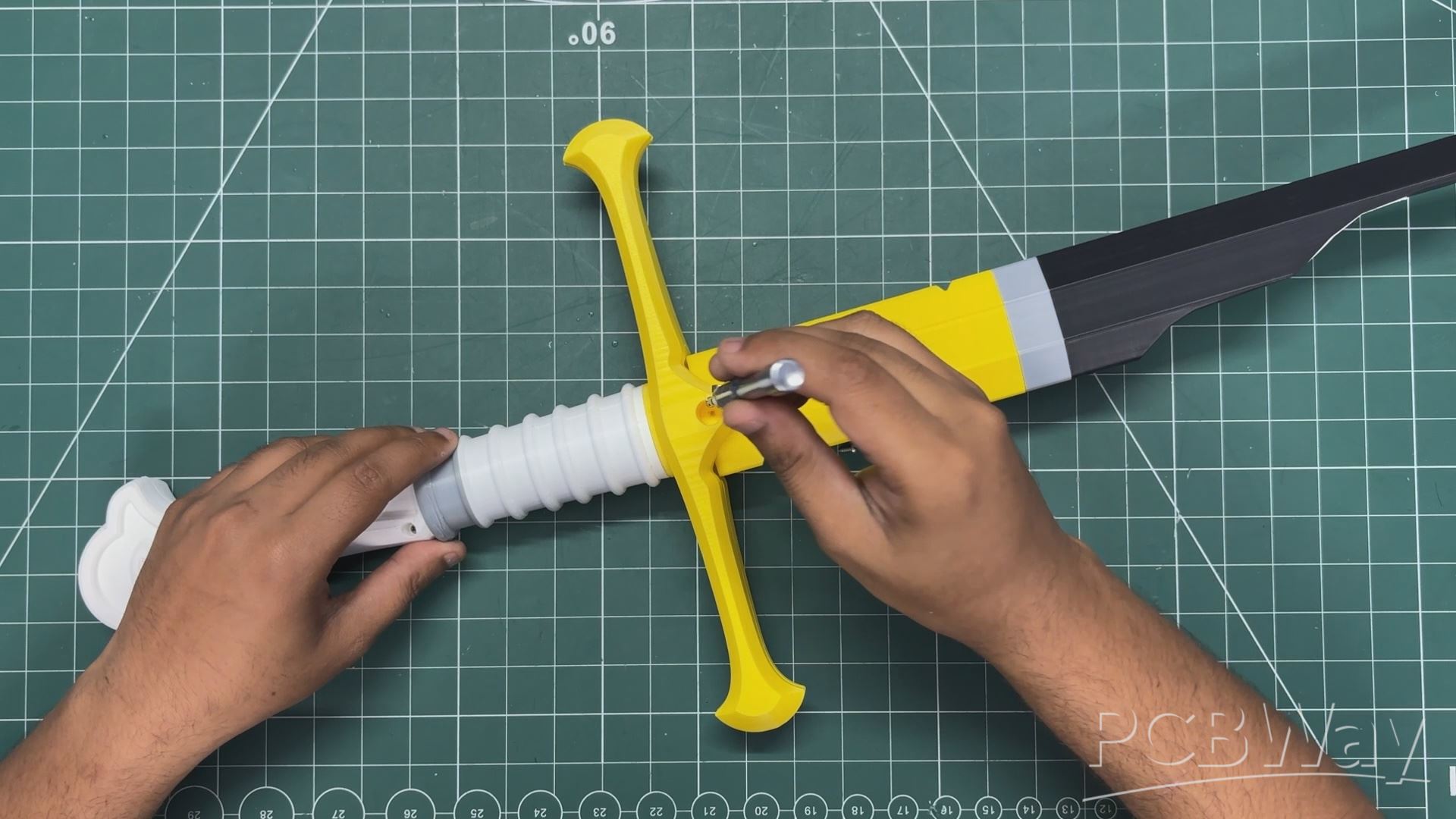
- We now join the crossguard and handle assembly by passing the handle through the central opening in the crossguard. From the top side of the crossguard, we use four M2 screws to secure both parts together.
- Next, we connect the battery wires coming from the fuller to the corresponding battery wires in the lower handle assembly, electrically connecting the lithium-ion cell to the main circuit.
- With the wiring complete, we slide the fuller into its designated position above the crossguard. Finally, we use two M2 screws, one on each side, to secure the fuller to the crossguard assembly.
And with that, the assembly is complete! We now have a fully assembled Narsil replica, with the battery and electronics neatly concealed inside the sword.
RESULTS SO FAR
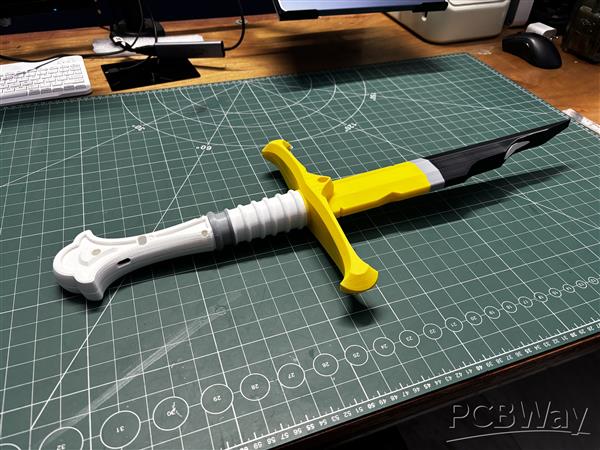
Here's the result so far: a fully assembled, 3D-printed Narsil that actually works! It plays Aragorn's theme when powered on and triggers metallic sword sounds when swung.
But there's one crucial thing missing. Despite all the electronics and sound effects working perfectly, it still looks like a 3D-printed plastic sword with its original mix of yellow, grey, white, and black filament.
To make it look more like a real metal sword, it's time to give Narsil a proper paint job!
PRIMER PAINT PROCESS MATERIALS & PREP WORK
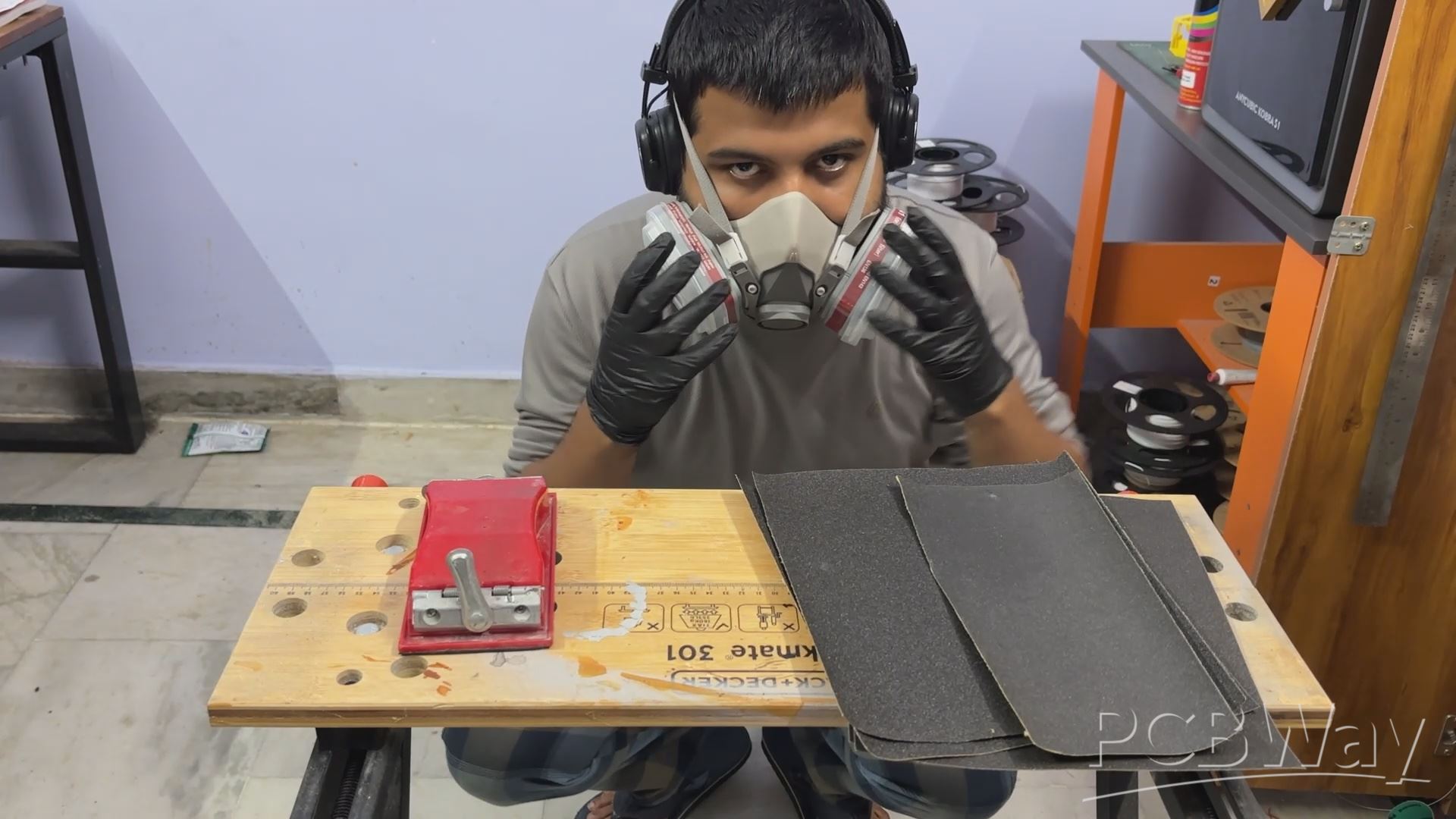
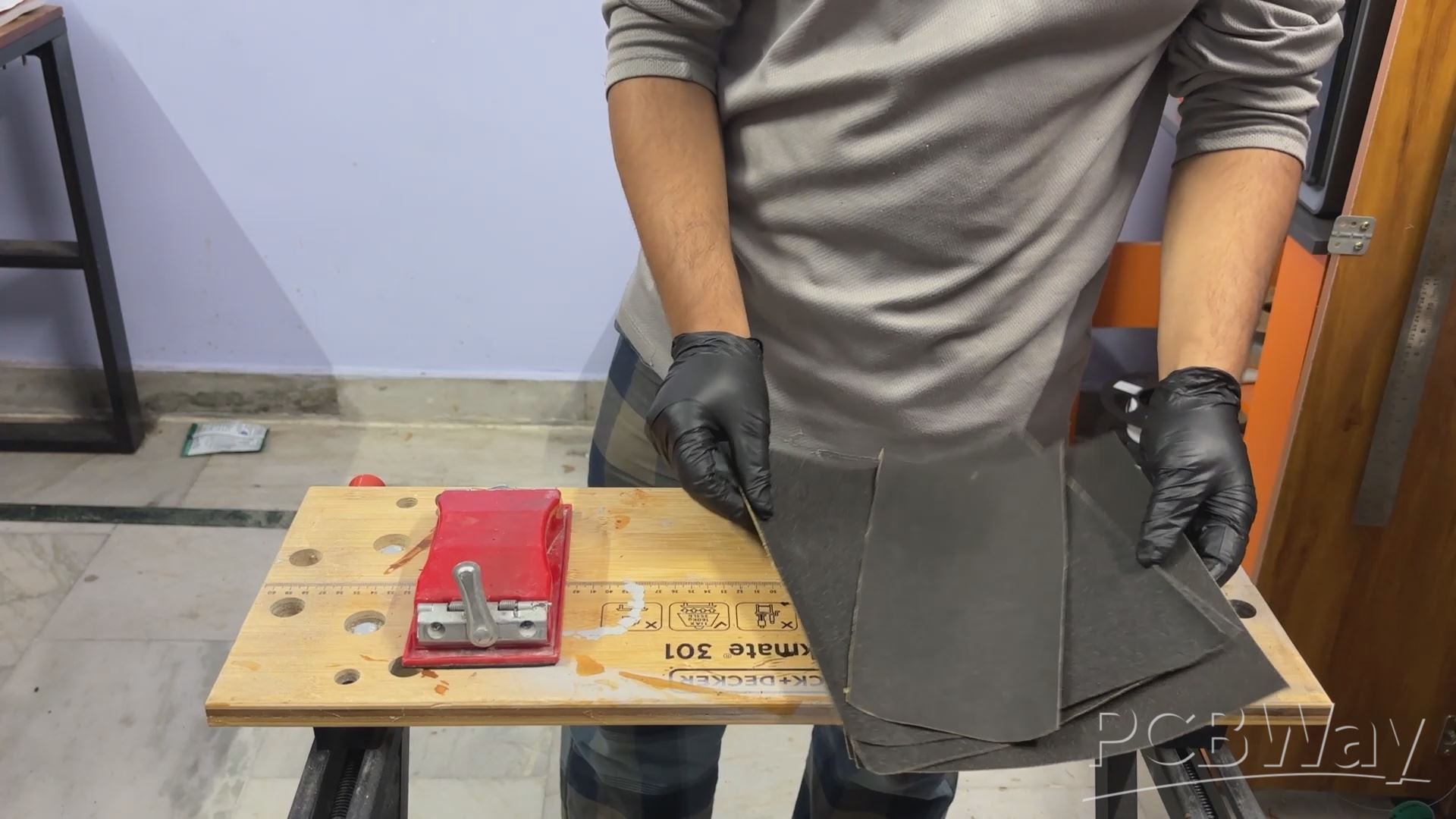
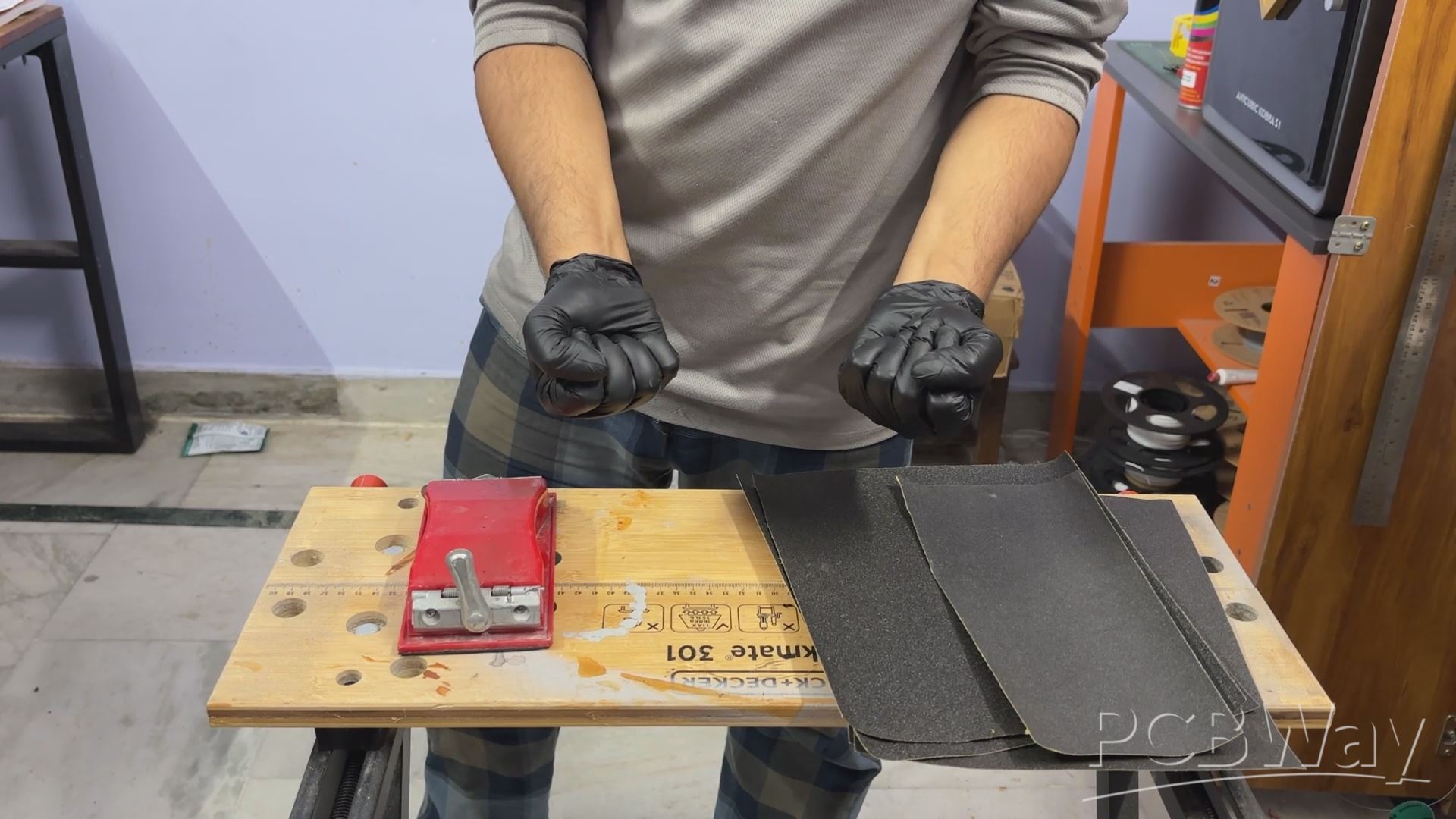
Before starting the priming, sanding, and painting process, we first need to gather all the materials we'll be using.
One of the most important items here is sandpaper. We'll primarily be using two grits: 100-grit for coarse sanding and 150-grit for a smoother finish.
To make sanding easier, I'm also using a sandpaper holder. I cut the sandpaper sheets into strips, attach them to the holder, and use it to sand the surface. It provides a better grip and makes the process more effective than sanding with loose sheets.
Since sanding primer produces fine dust particles, wearing a properly fitted mask with suitable particulate filters is essential. Gloves are also recommended, as this process can get pretty messy!
PRIMER PROCESS
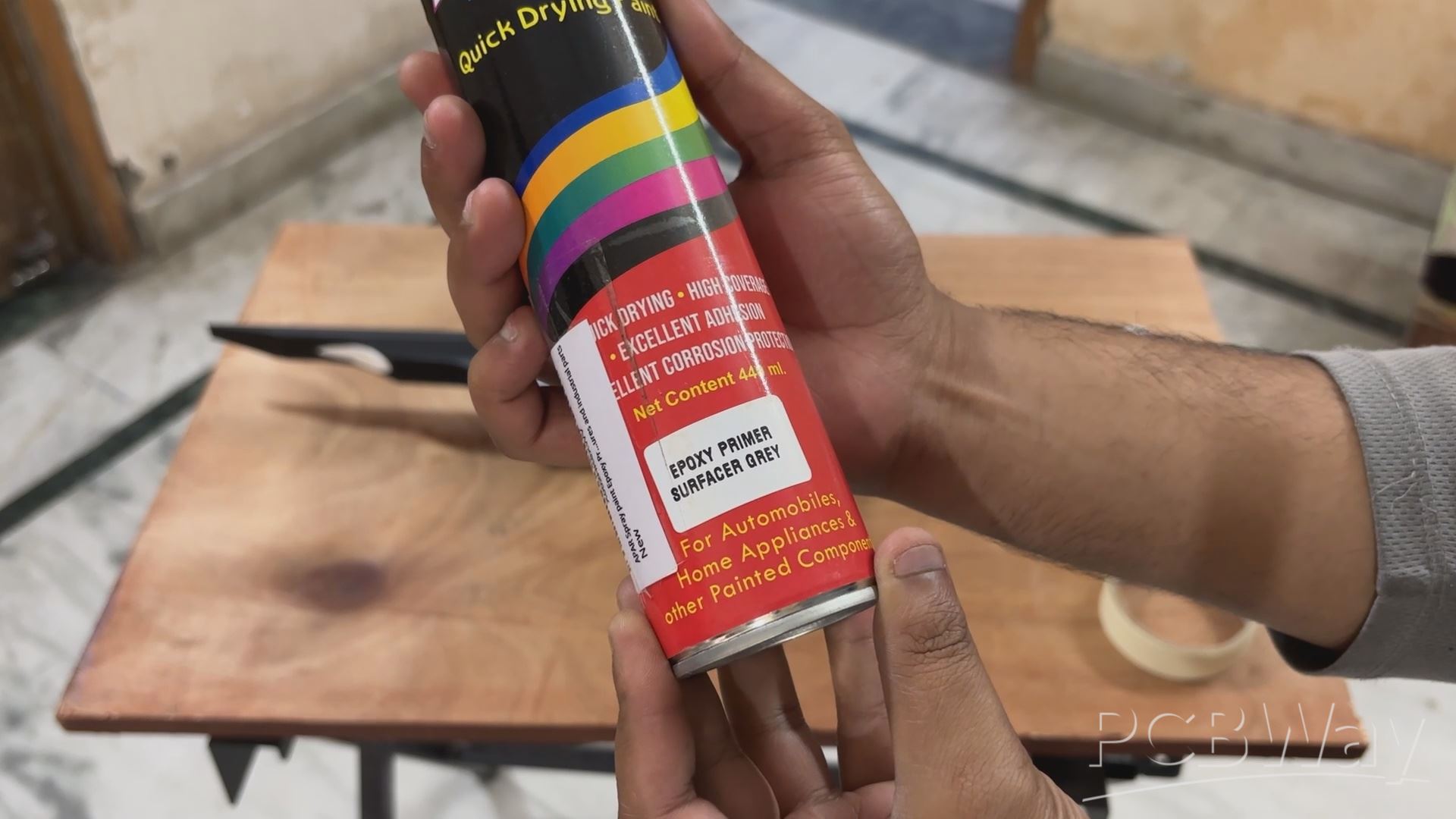
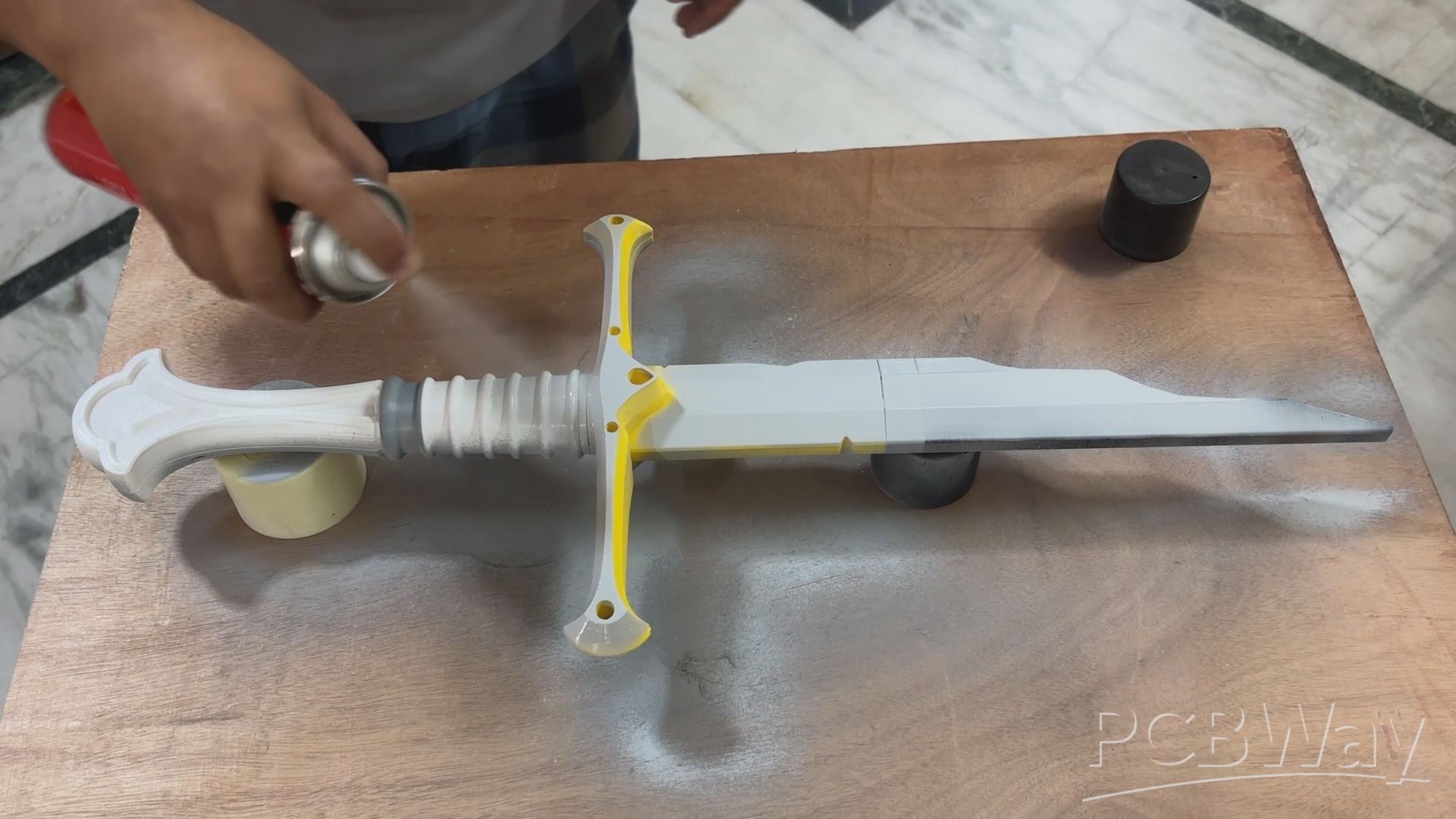
We begin the painting process by applying a coat of primer to the sword. Since we can't apply the paint directly to the bare 3D-printed surface, primer helps prepare the surface for painting and provides a suitable base coat.
I'm using a sandable spray primer for this process. After applying the first coat, I let it dry for about an hour before applying the next one. In total, I applied three coats of primer to ensure the entire sword was evenly covered and ready for sanding.
SANDING PROCESS
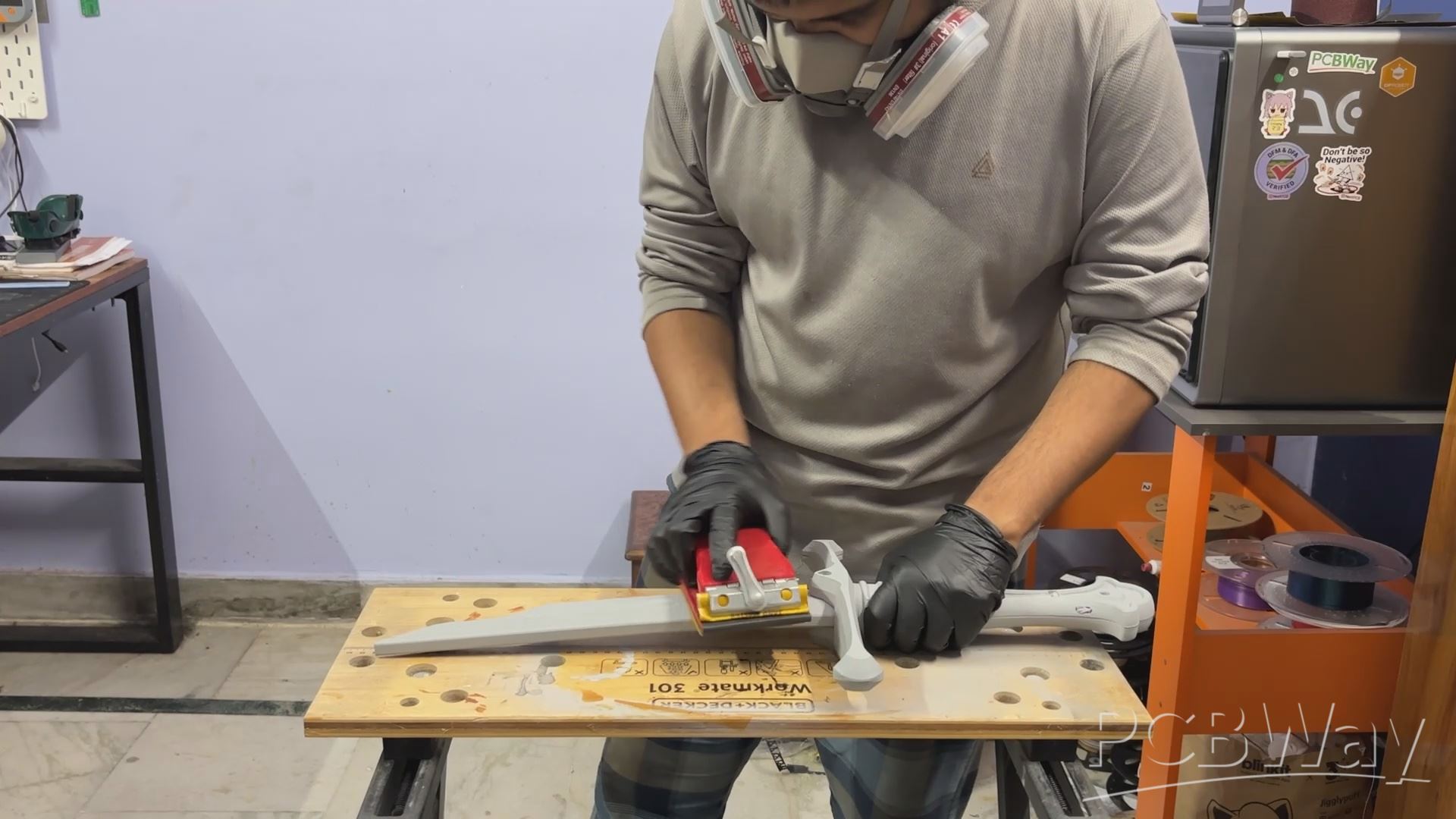
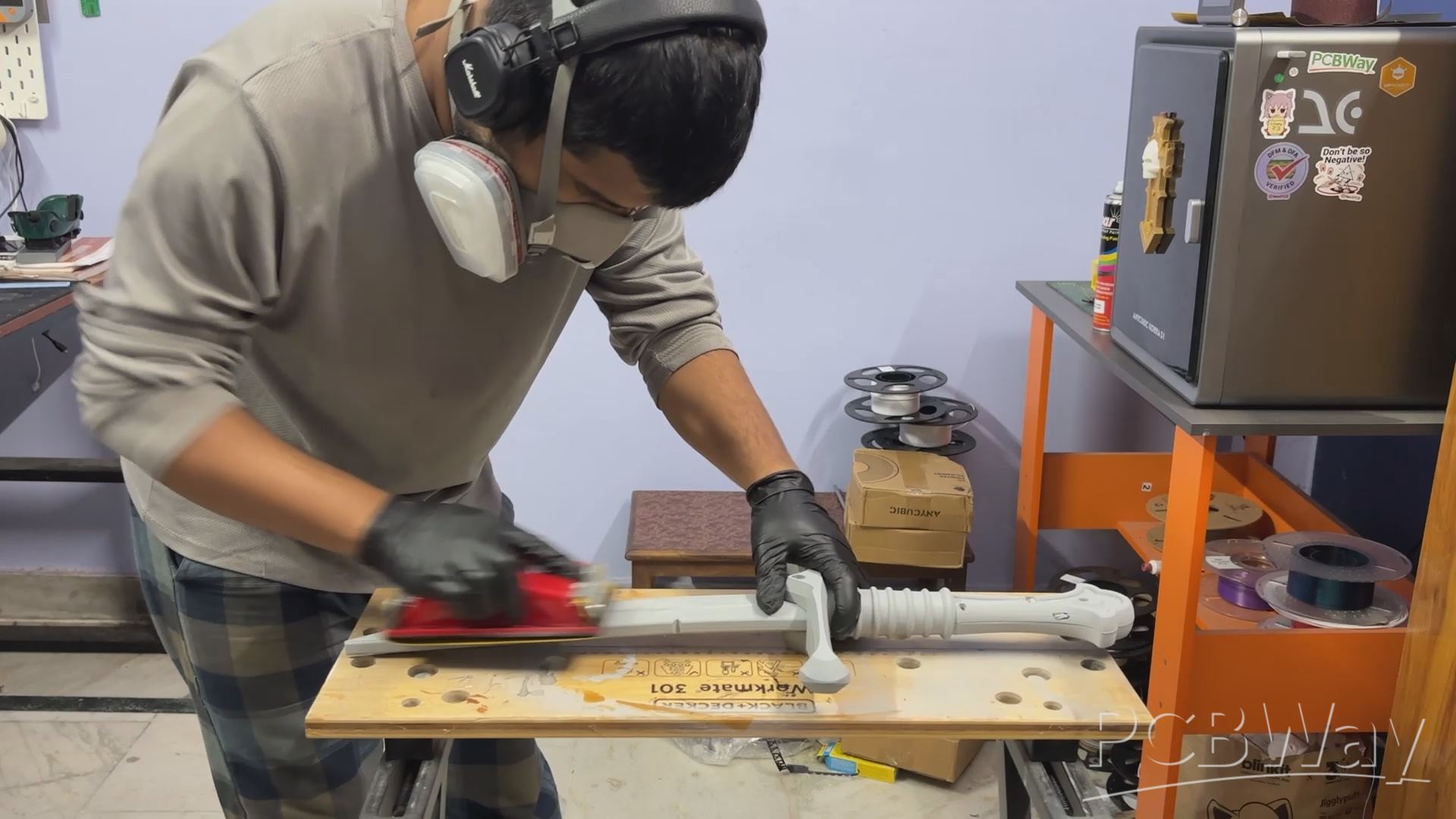
Now comes the messy part: sanding!
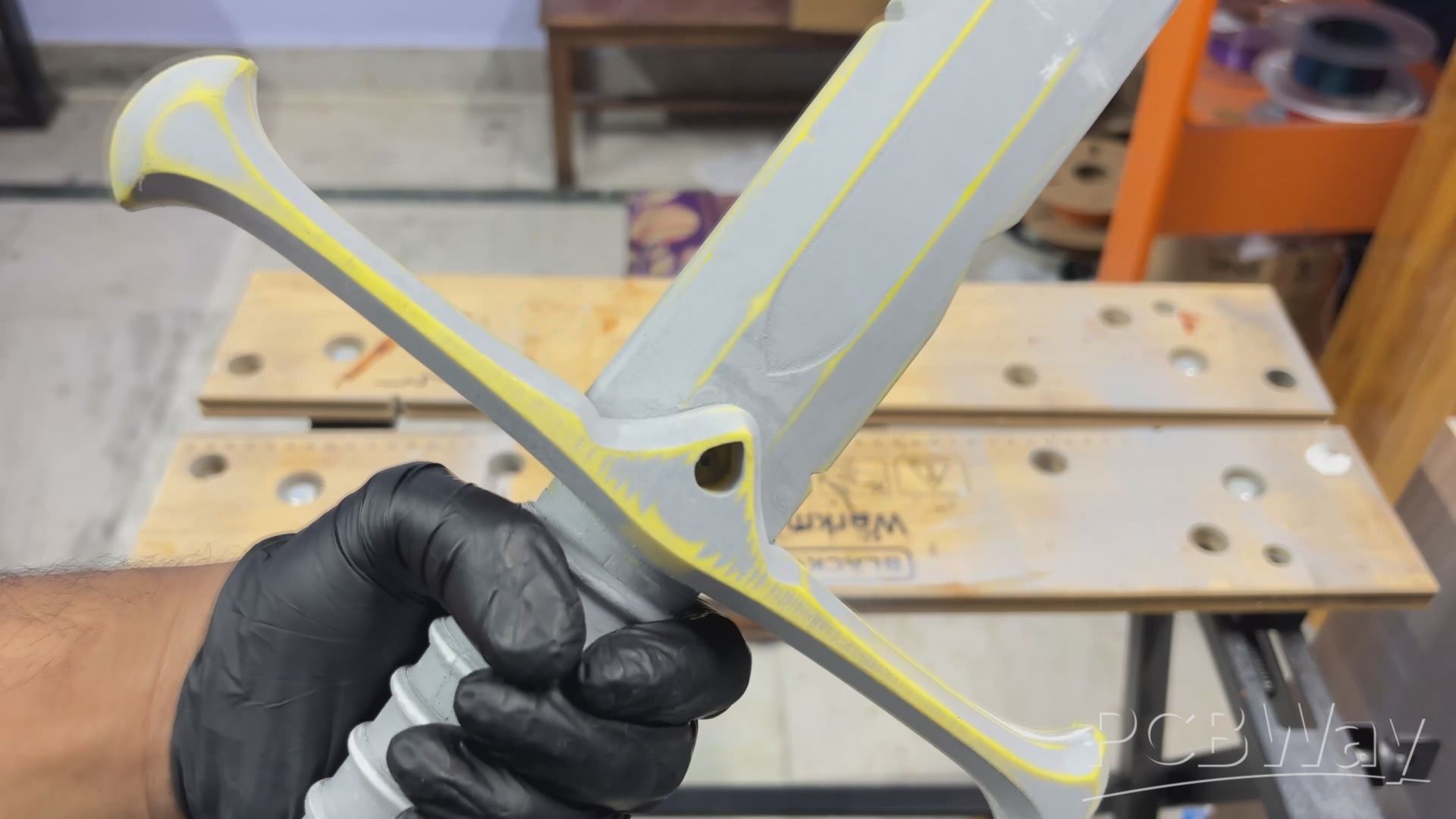
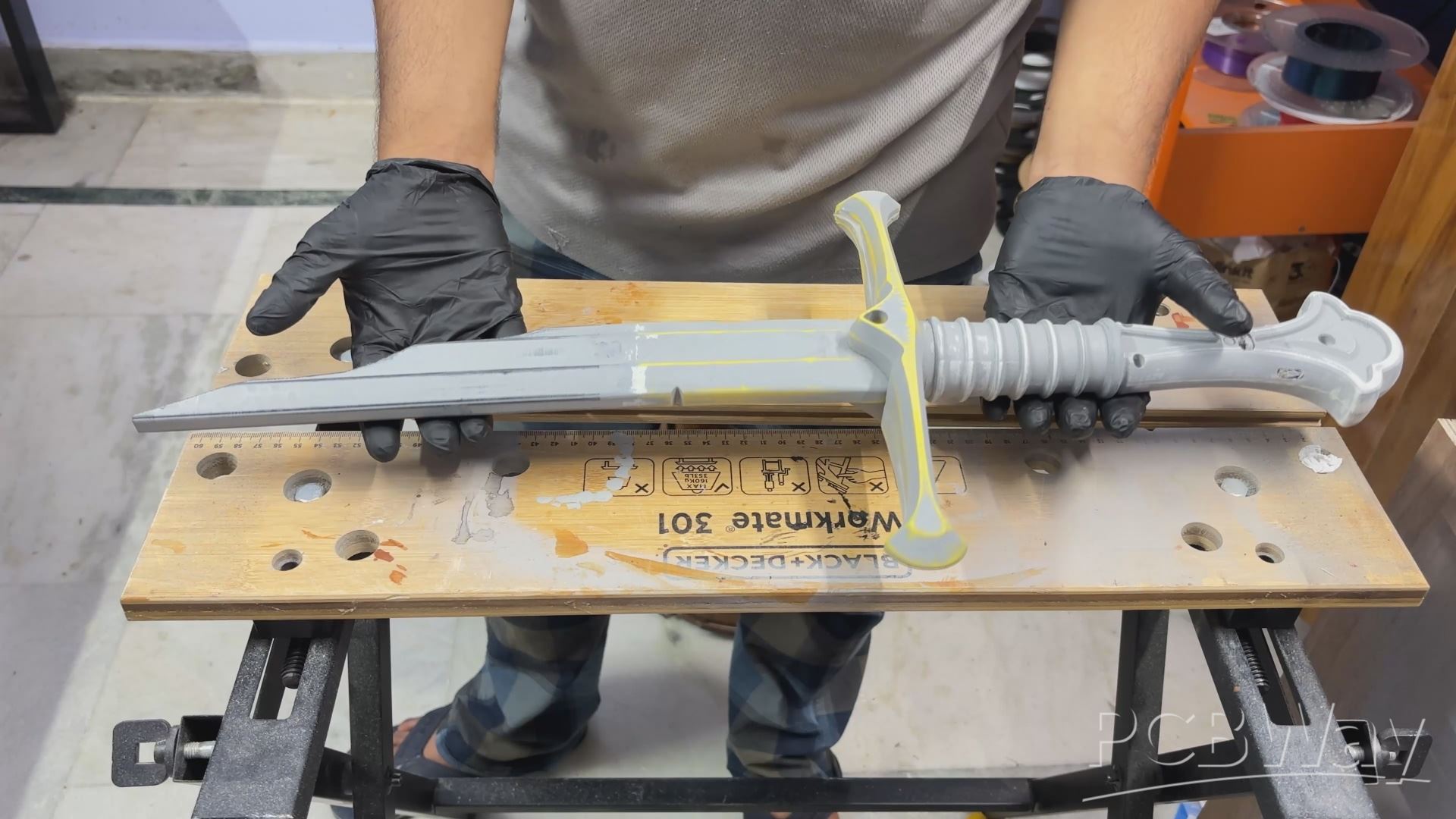
Using our sandpaper holder, we thoroughly sand the entire sword, working across the surface until the visible layer lines are almost completely gone.
The idea here is to let the spray primer fill the tiny gaps between the 3D-printed layers while sanding down the raised areas. We keep sanding until the surface becomes smooth and the underlying plastic starts showing through in places.
It's a time-consuming process, but this step makes a huge difference to the final finish. The smoother the surface, the more realistic our sword will look once the paint is applied.
BASE PAINT COAT
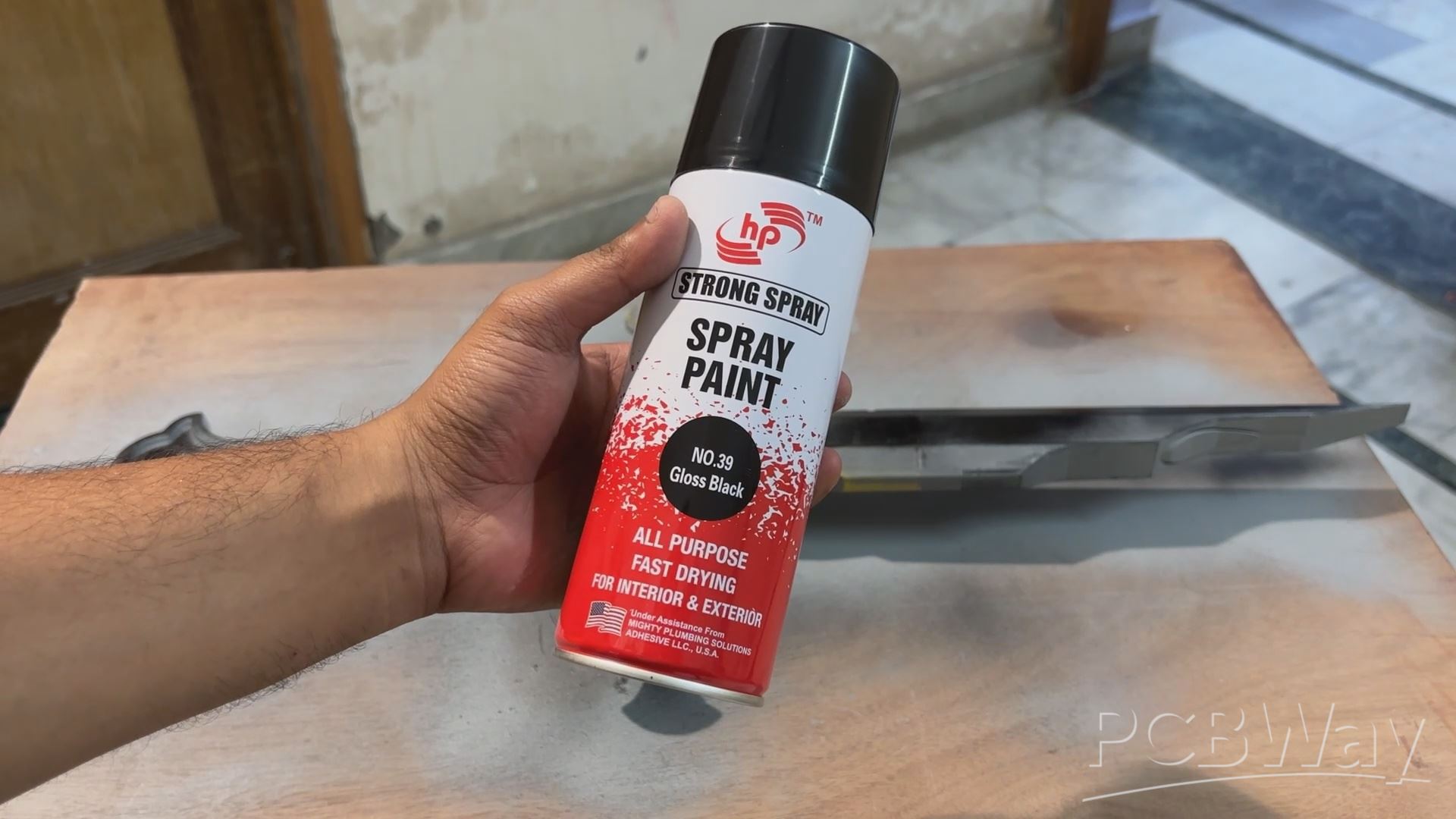
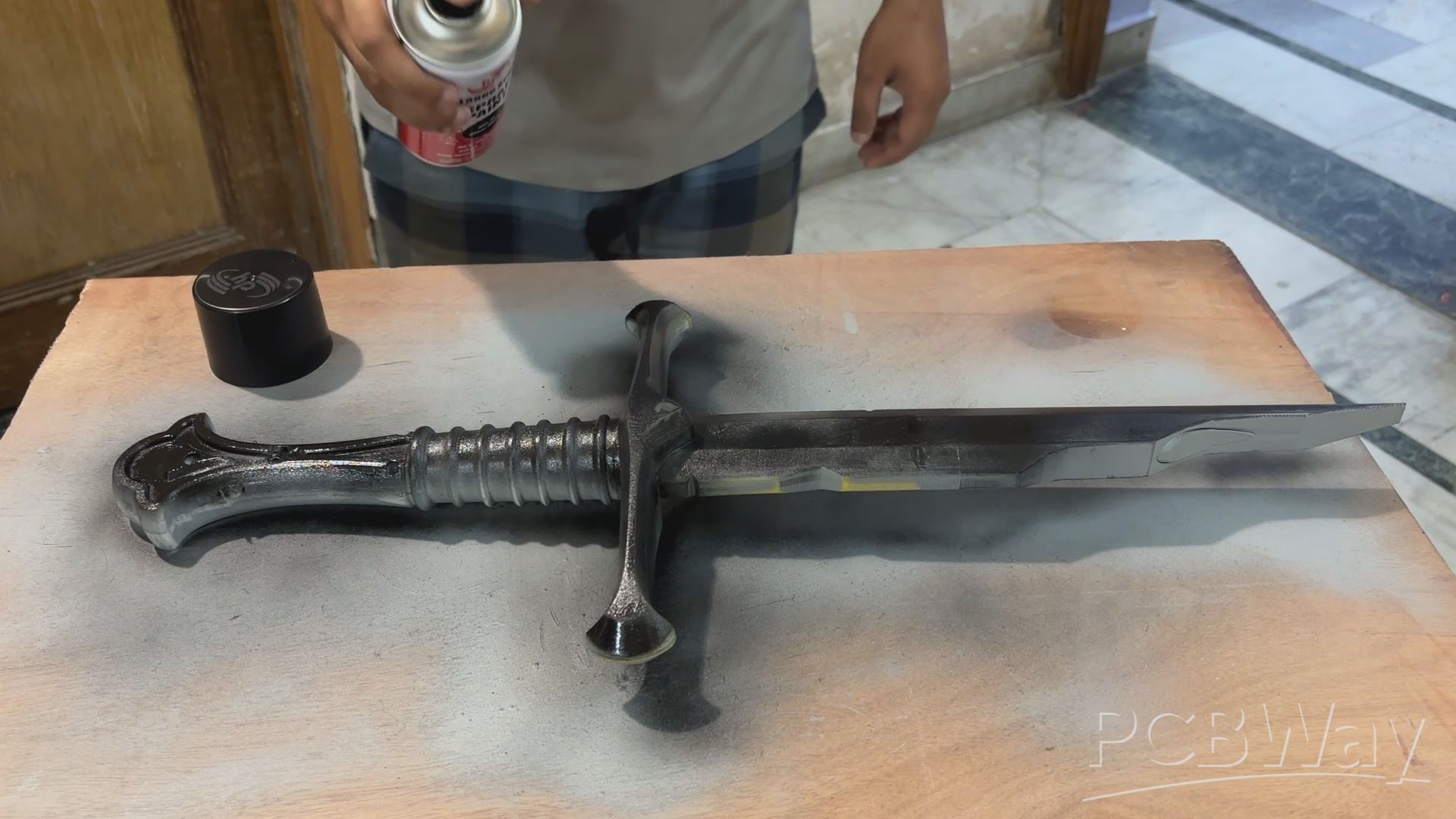
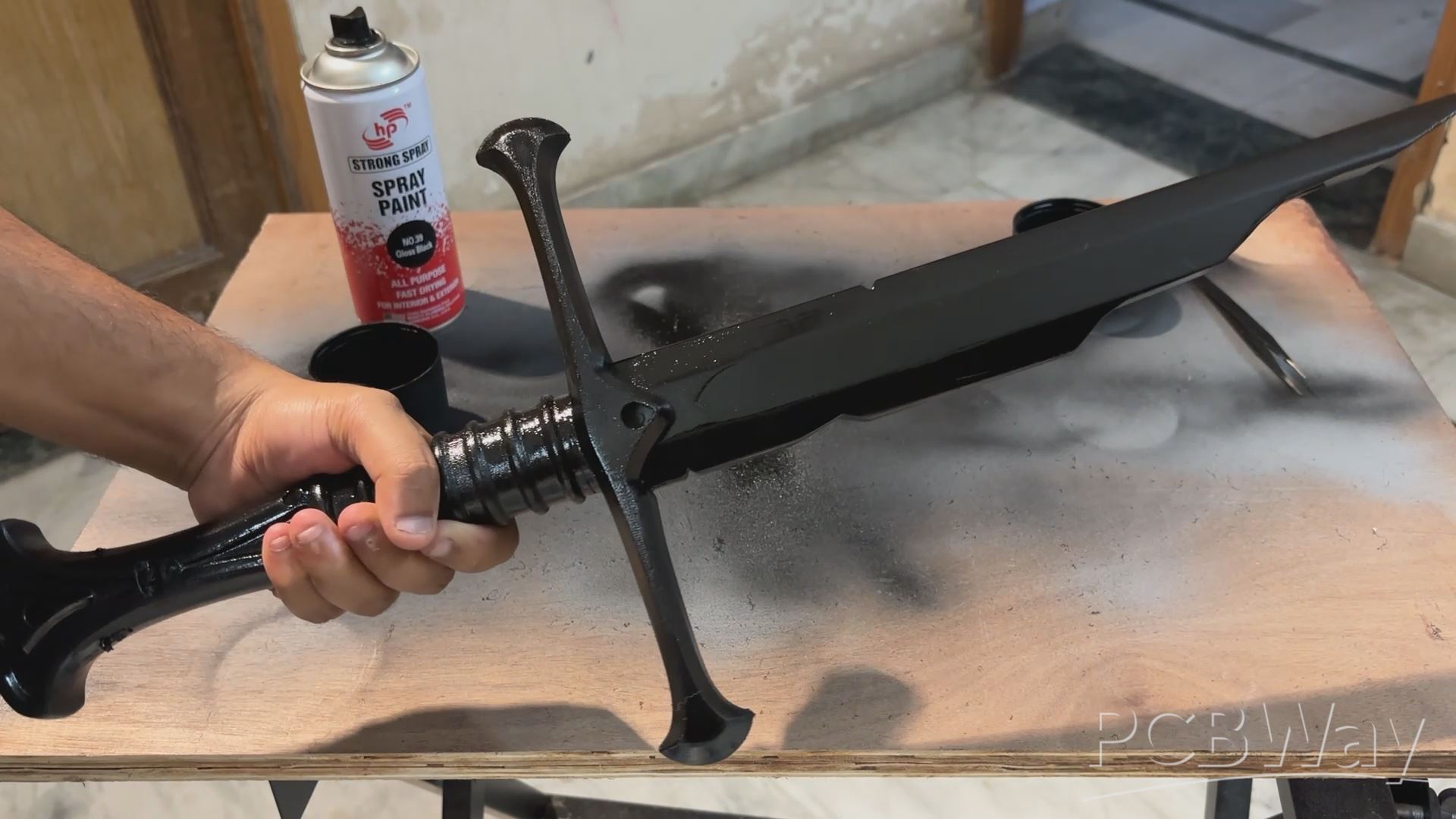
Next, we apply black spray paint to the sword, following a similar process to the primer application. We start with the first coat and let it dry for about an hour before applying the second coat, followed by the third and final coat.
Once the paint has dried, we end up with a completely black Narsil!
It might look a little too dark at this stage, but this black base will help us achieve the metallic finish in the next steps.
SILVER & GOLD COAT
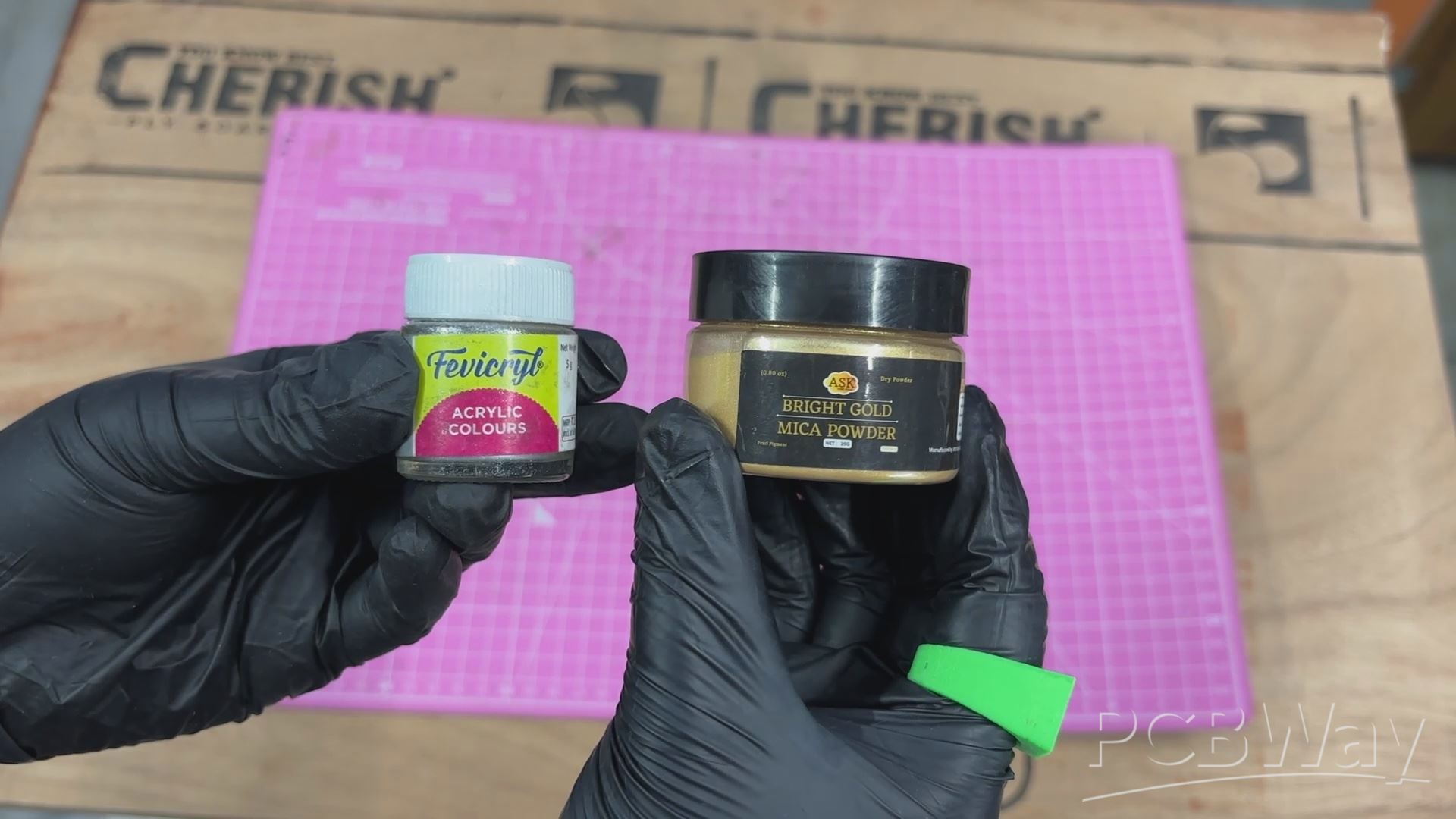
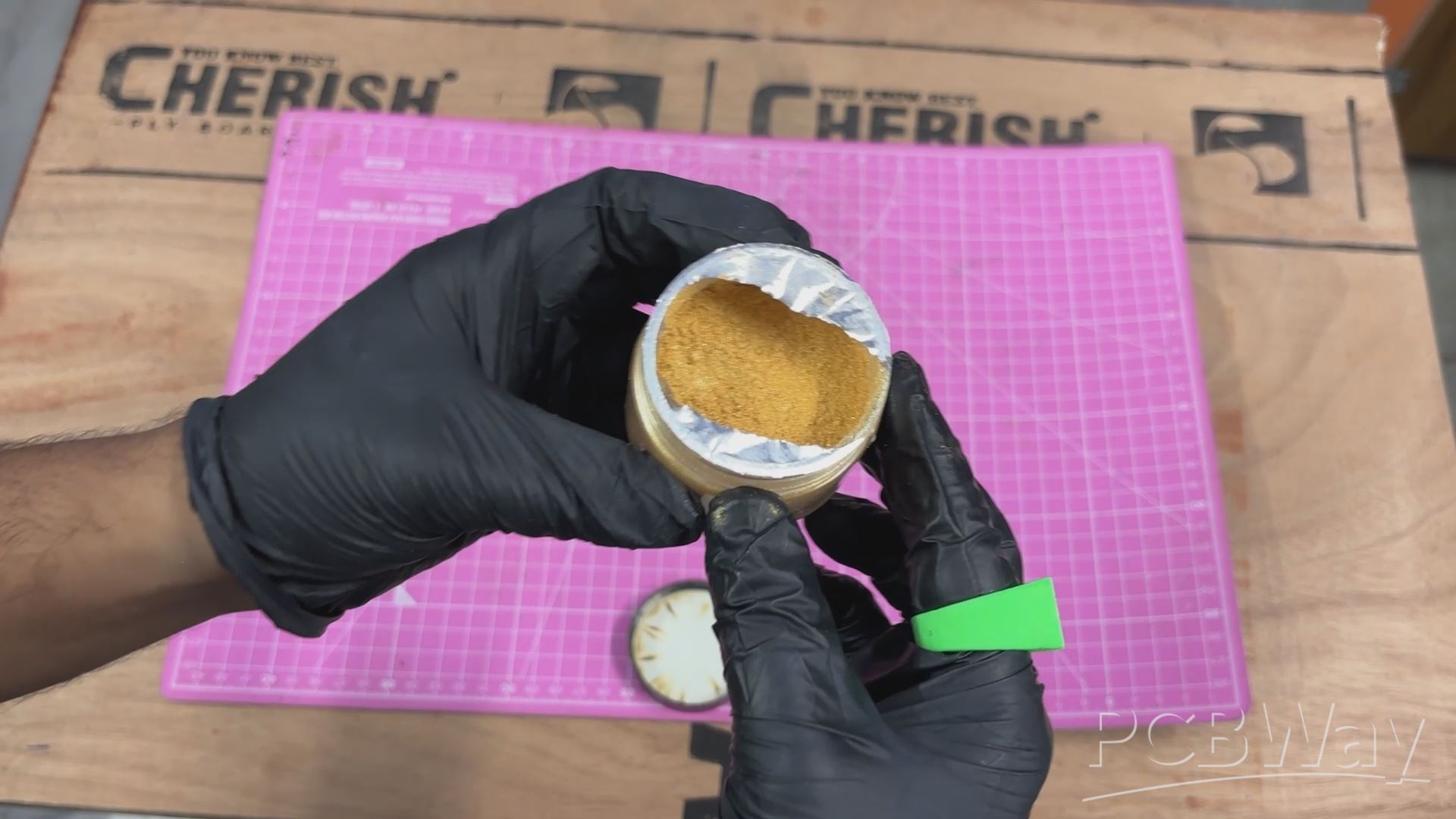
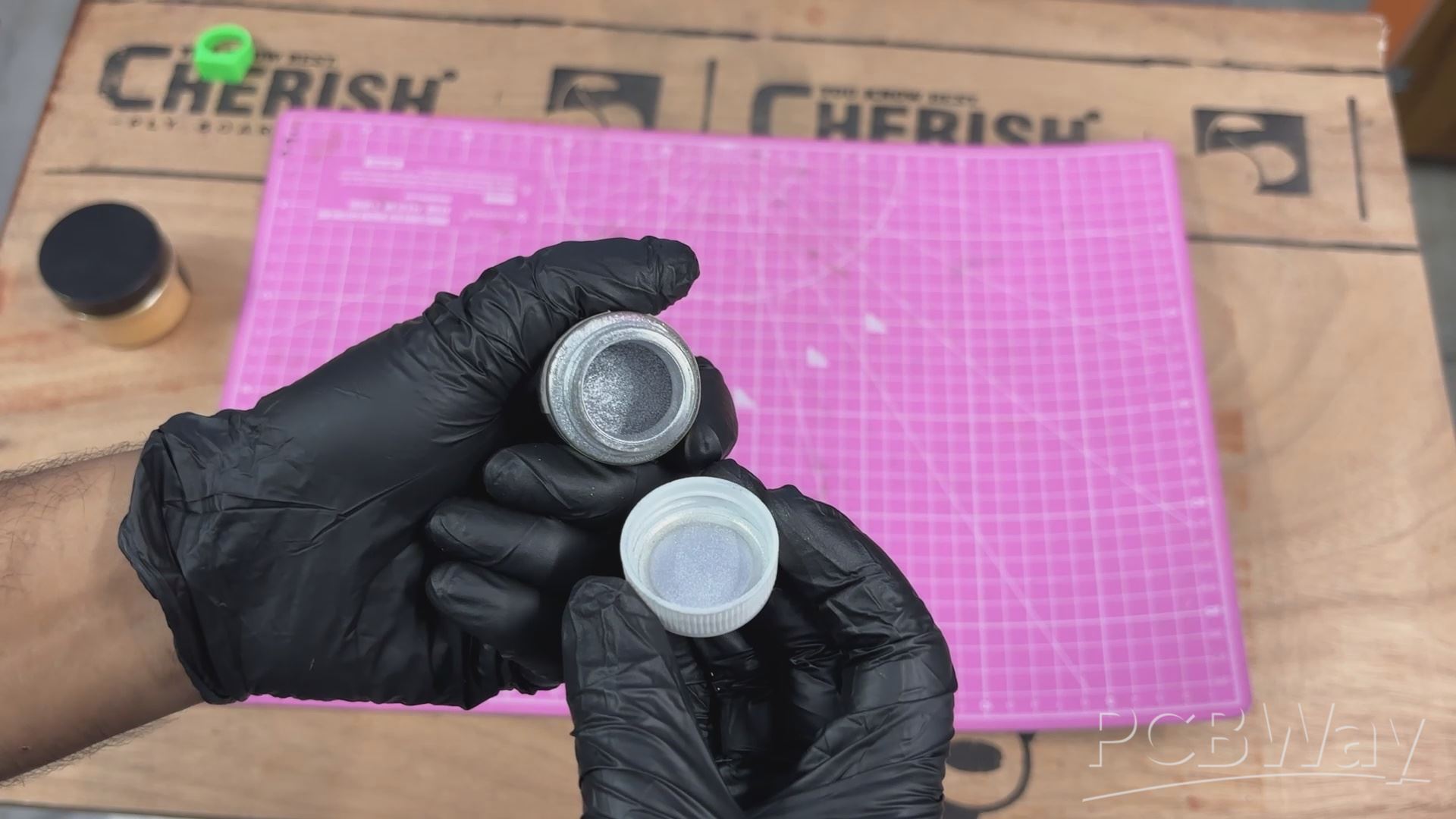
In my experience, one of the best ways to achieve a metallic finish on 3D-printed parts is by using acrylic metallic powder paints. For this project, I'm using silver and gold dust paints.
The idea is to apply these paints over the black base coat to give the surface a metallic appearance. I've used the same technique on my previous Pip-Boy project, and the results turned out really well. You can check out that build using the link below!
https://www.hackster.io/Arnov_Sharma_makes/pipboy-ar-mark-6000-46692c
FULLER PAINT PROCESS
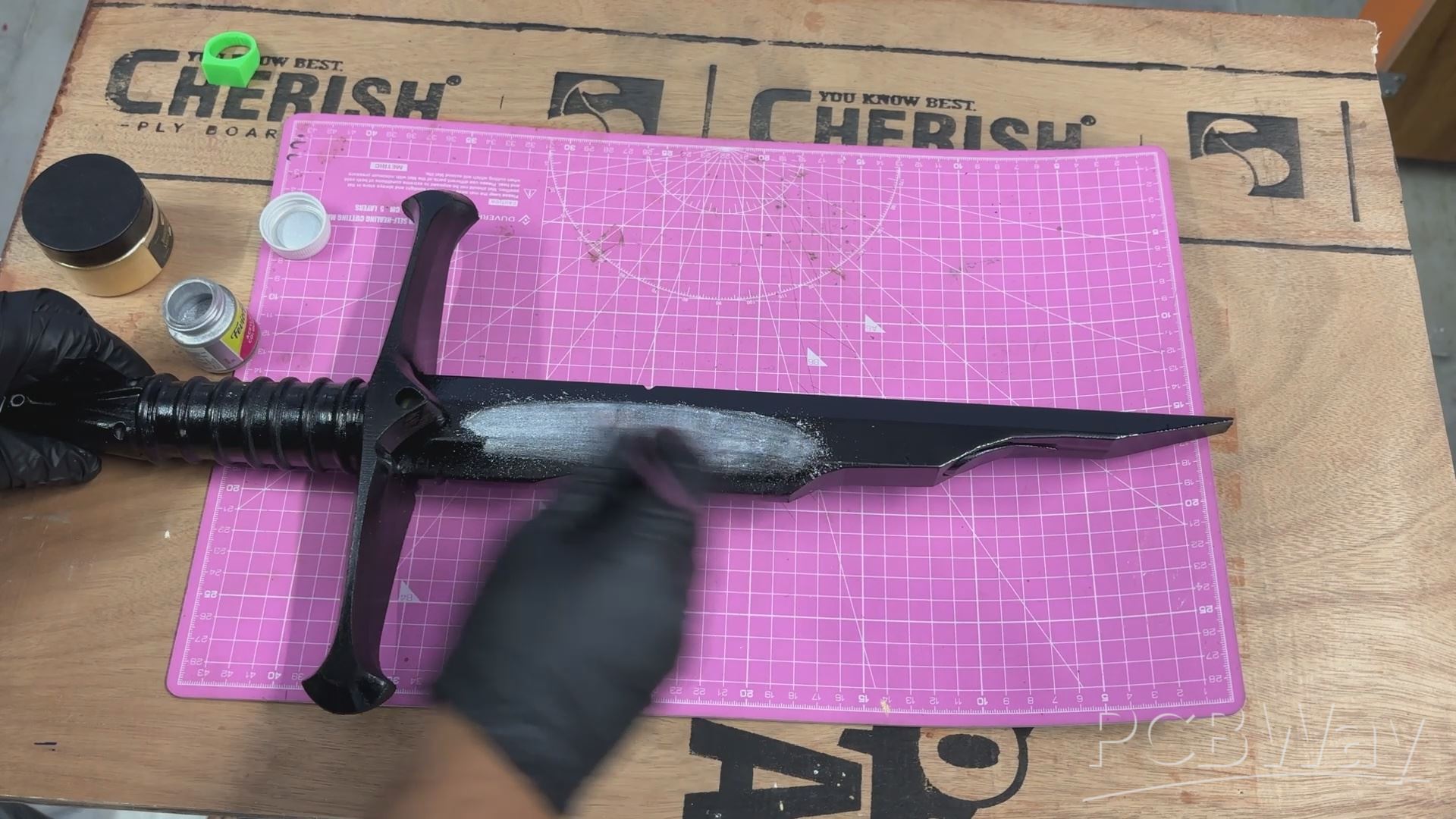
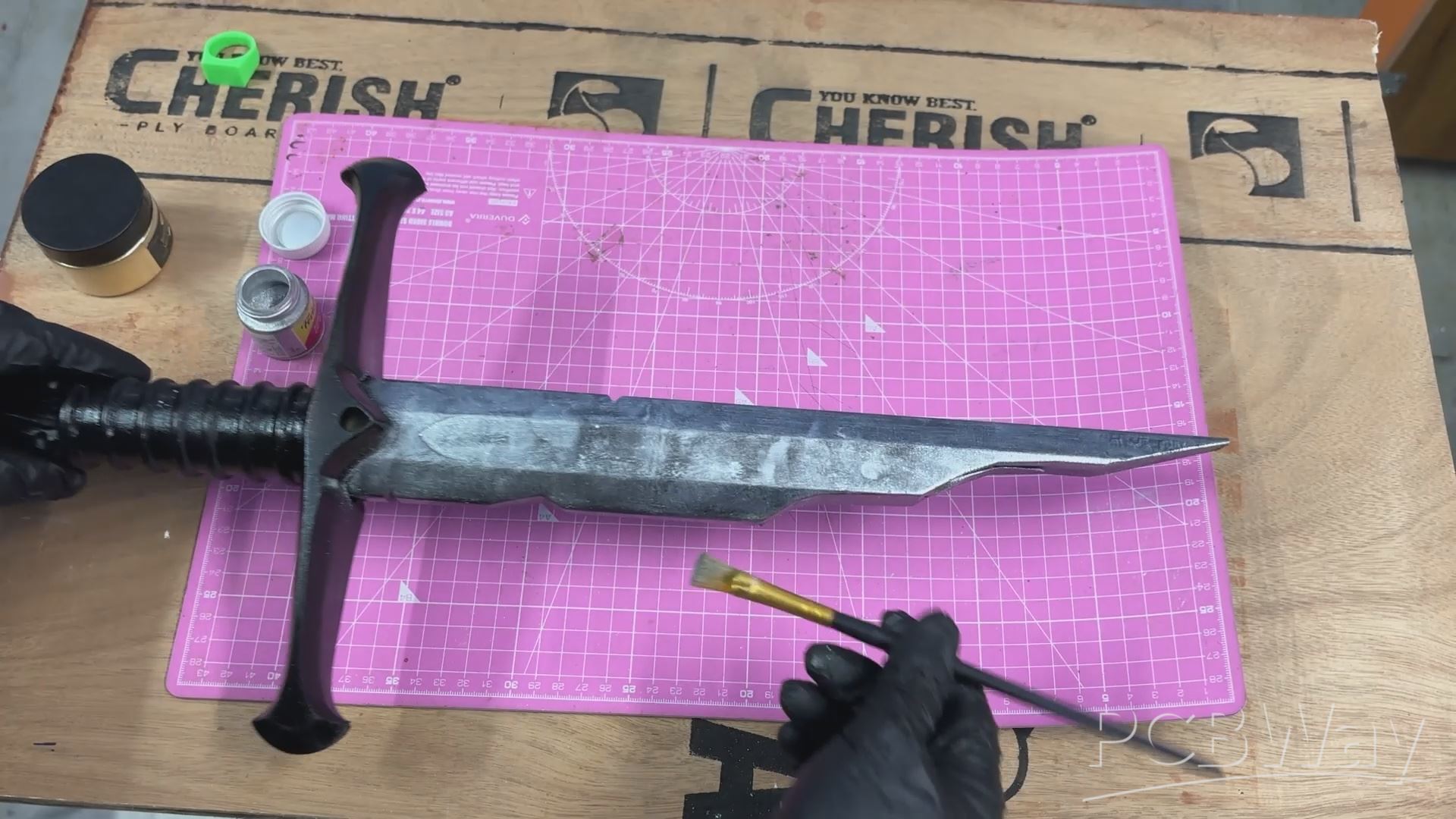
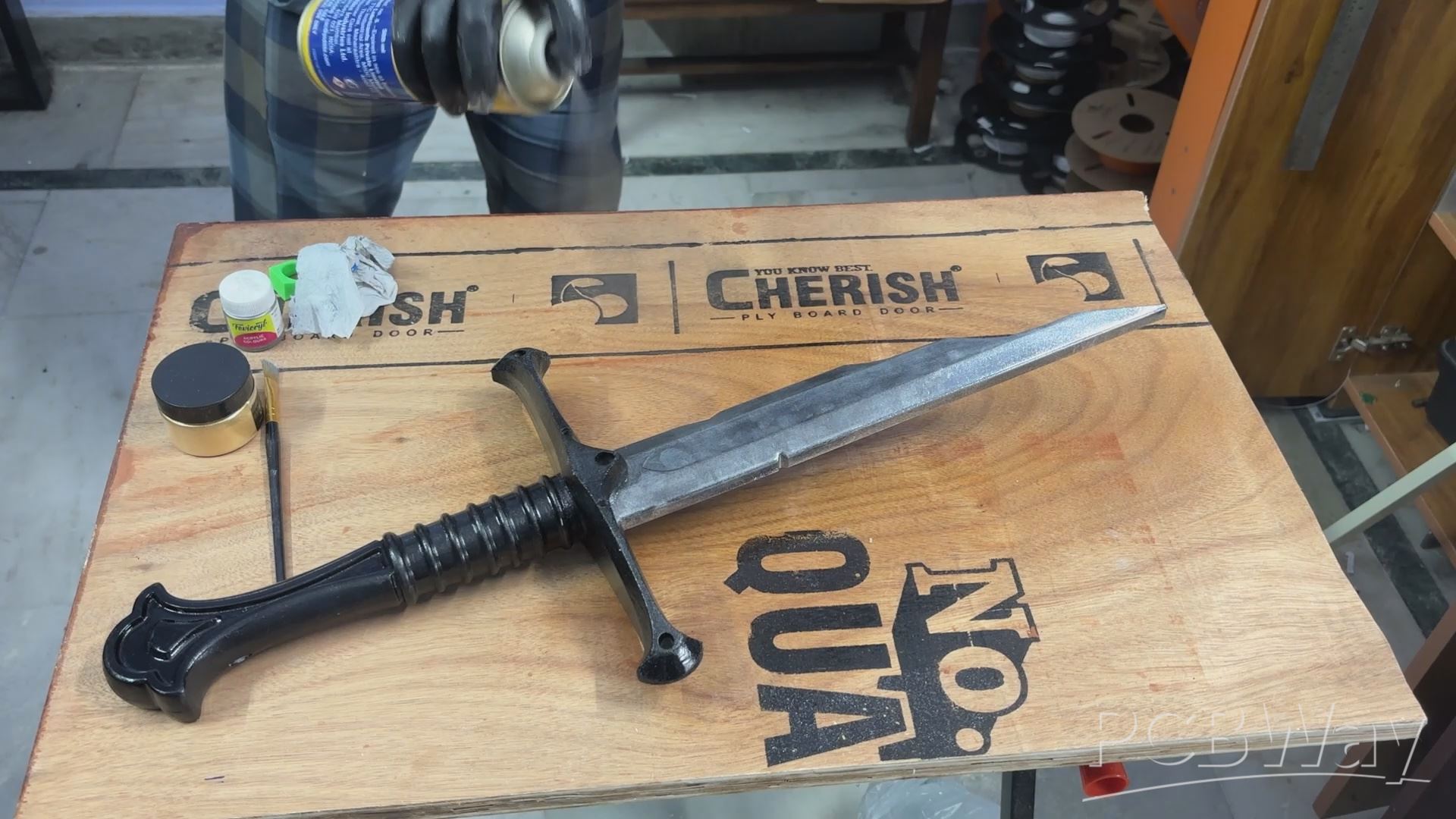
I started the painting process with the fuller. The technique is pretty simple: using a flat brush, I gently apply the silver acrylic dust paint over the black surface.
The key here is to cover the entire fuller evenly, including the front, back, and both sides. The black base coat works really well with the metallic powder, helping create the appearance of metal. The spray paint also provides a surface that allows the powder to adhere nicely.
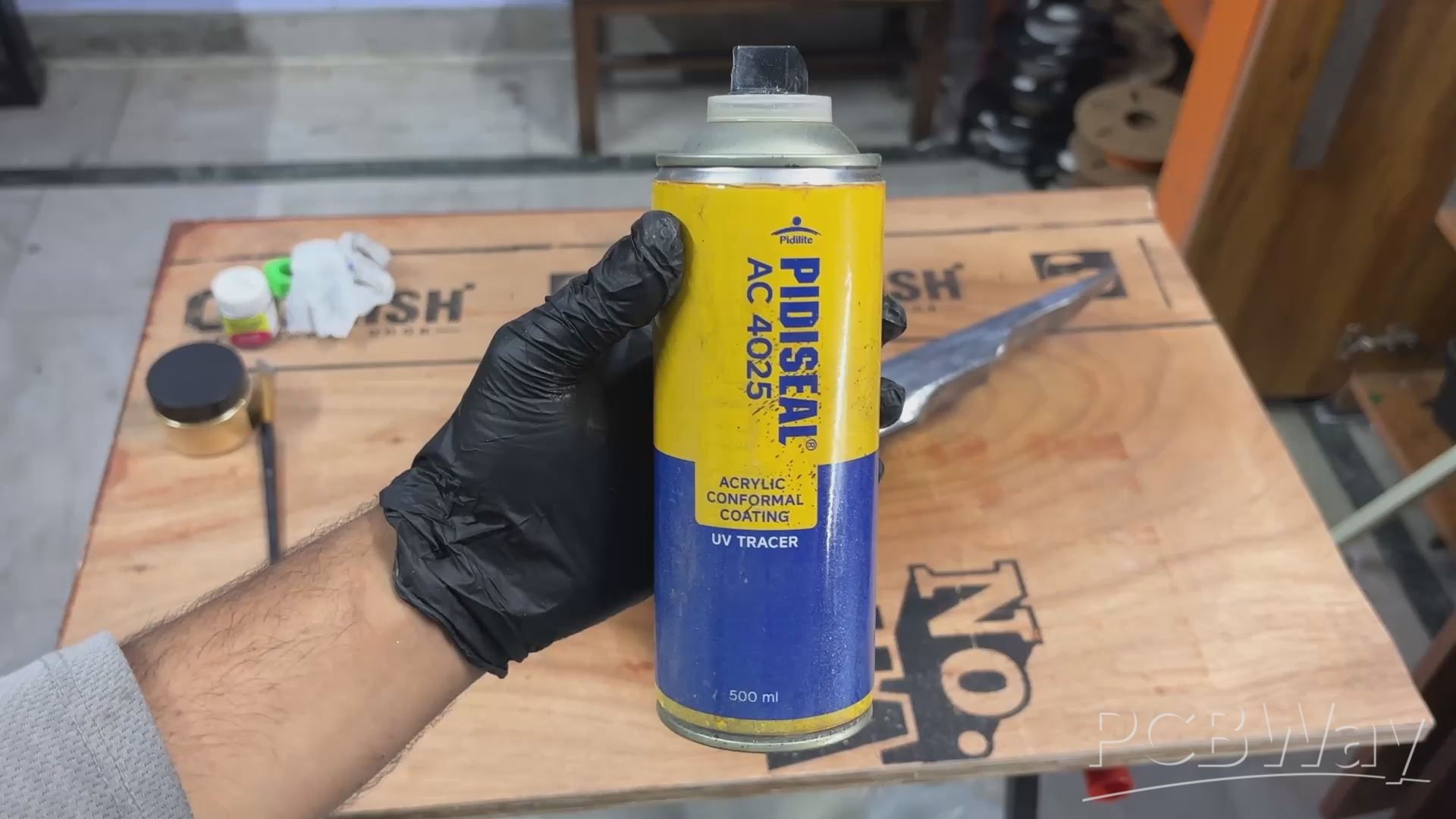
Once the entire fuller is coated, I apply a single, light layer of conformal coating spray over the surface to seal the metallic powder and keep it from rubbing off.
If you want an even more metallic finish, you can apply another layer of powder paint followed by a second coat of conformal spray. For this build, though, I stuck with a single layer, and the result turned out pretty good!
HANDLE PAINT PROCESS
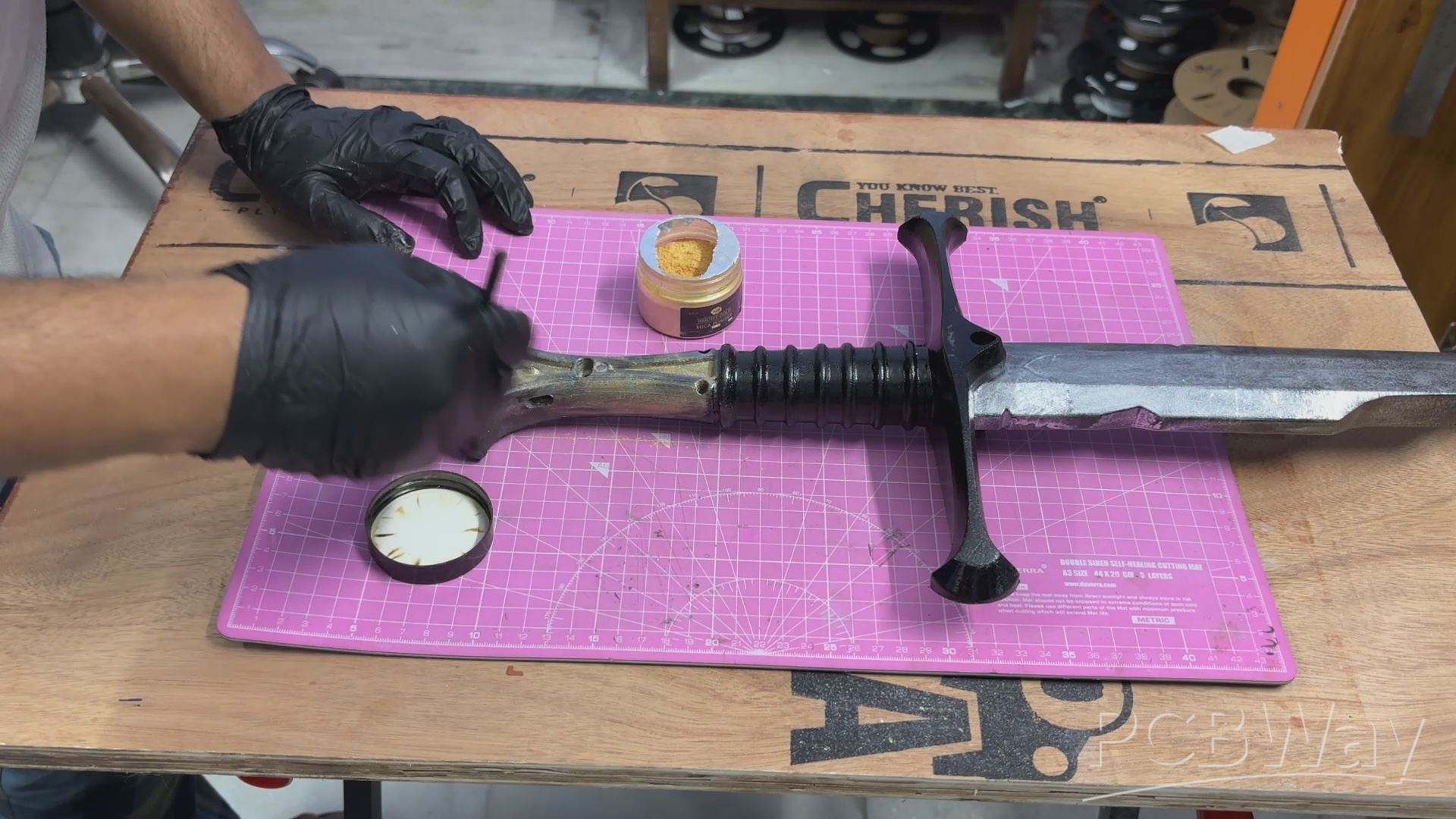
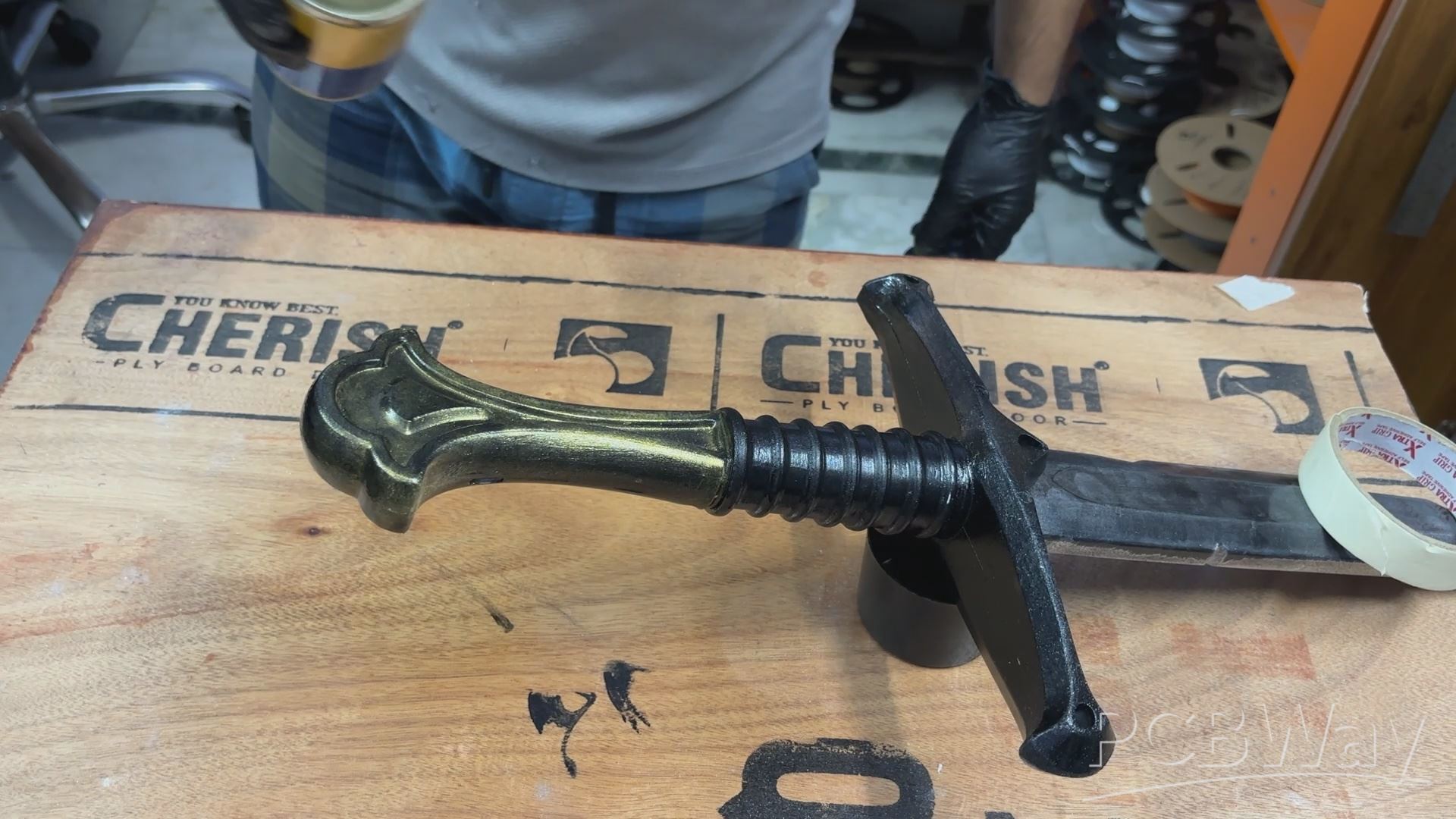
For the handle, I followed the same painting process, but this time I used gold acrylic dust paint to achieve the metallic gold finish.
I applied the gold powder over all the visible surfaces using a flat brush, making sure the entire handle was evenly covered. Once the first layer was complete, I sealed it with a light coat of conformal spray.
However, unlike the silver finish on the fuller, the gold needed a little more work. I applied a second layer of gold powder over the sealed surface and followed it with another coat of conformal spray.
This gave the handle a richer, more uniform gold finish while keeping the metallic powder firmly in place.
GUARD PAINT PROCESS
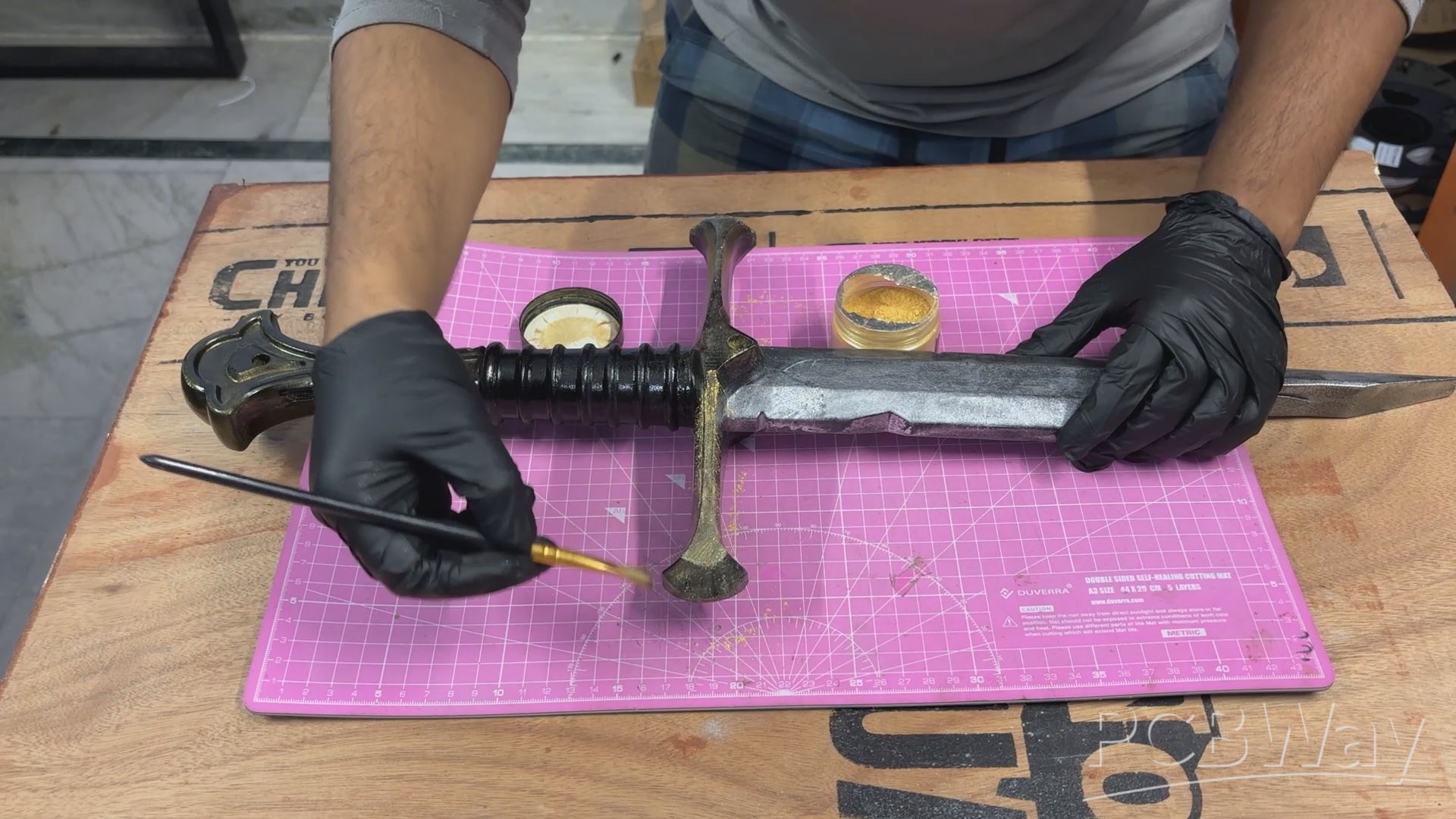
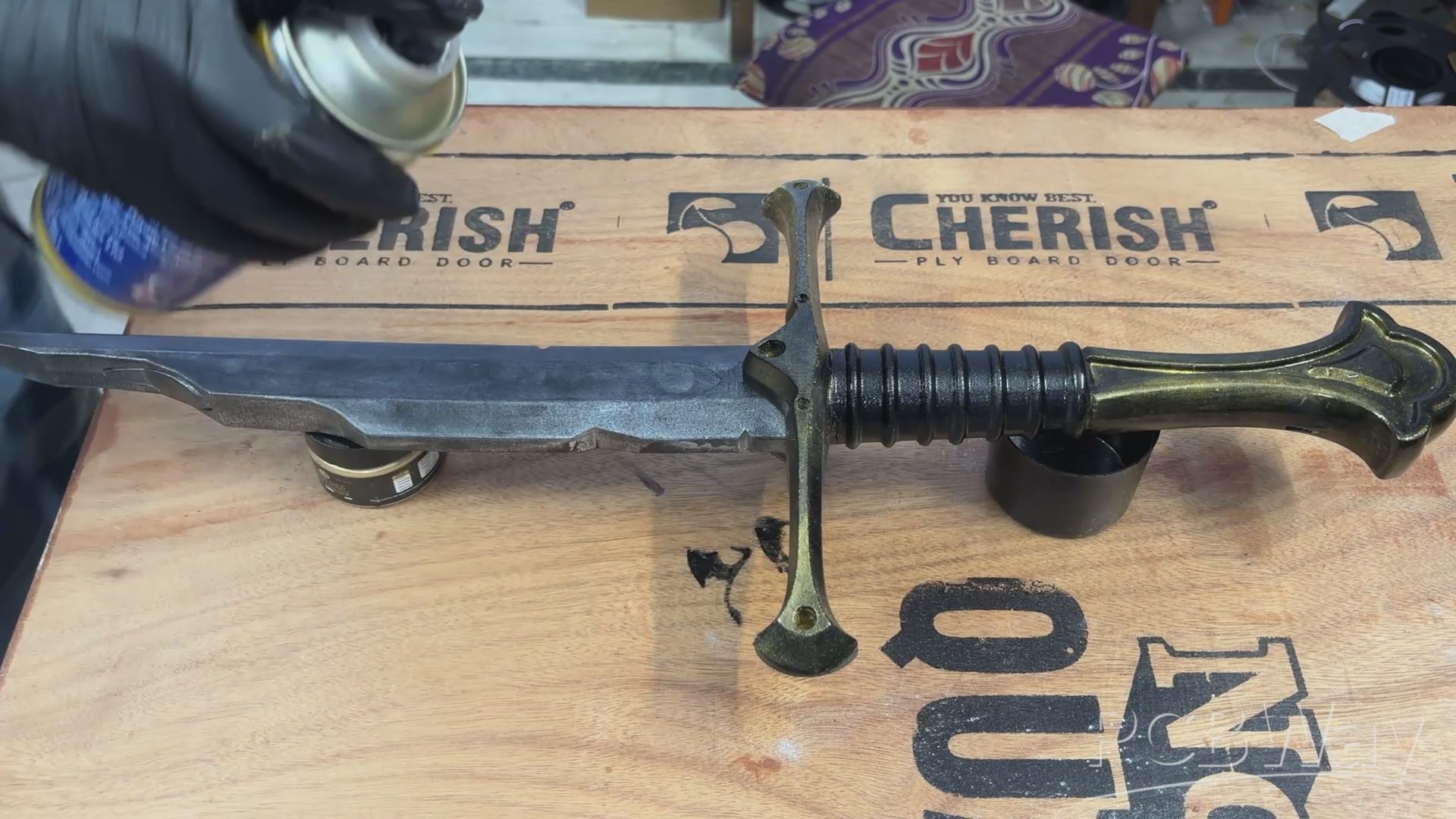
I followed the same process for the crossguard, applying gold acrylic dust paint over all its visible surfaces using a flat brush. Once the first layer was complete, I sealed it with a coat of conformal spray.
I then repeated the process, applying a second layer of gold powder followed by another coat of conformal spray to achieve a richer, more consistent metallic finish.
And with that, the painting process was complete, marking the final step in bringing my 3D-printed Narsil replica to life!
RESULT
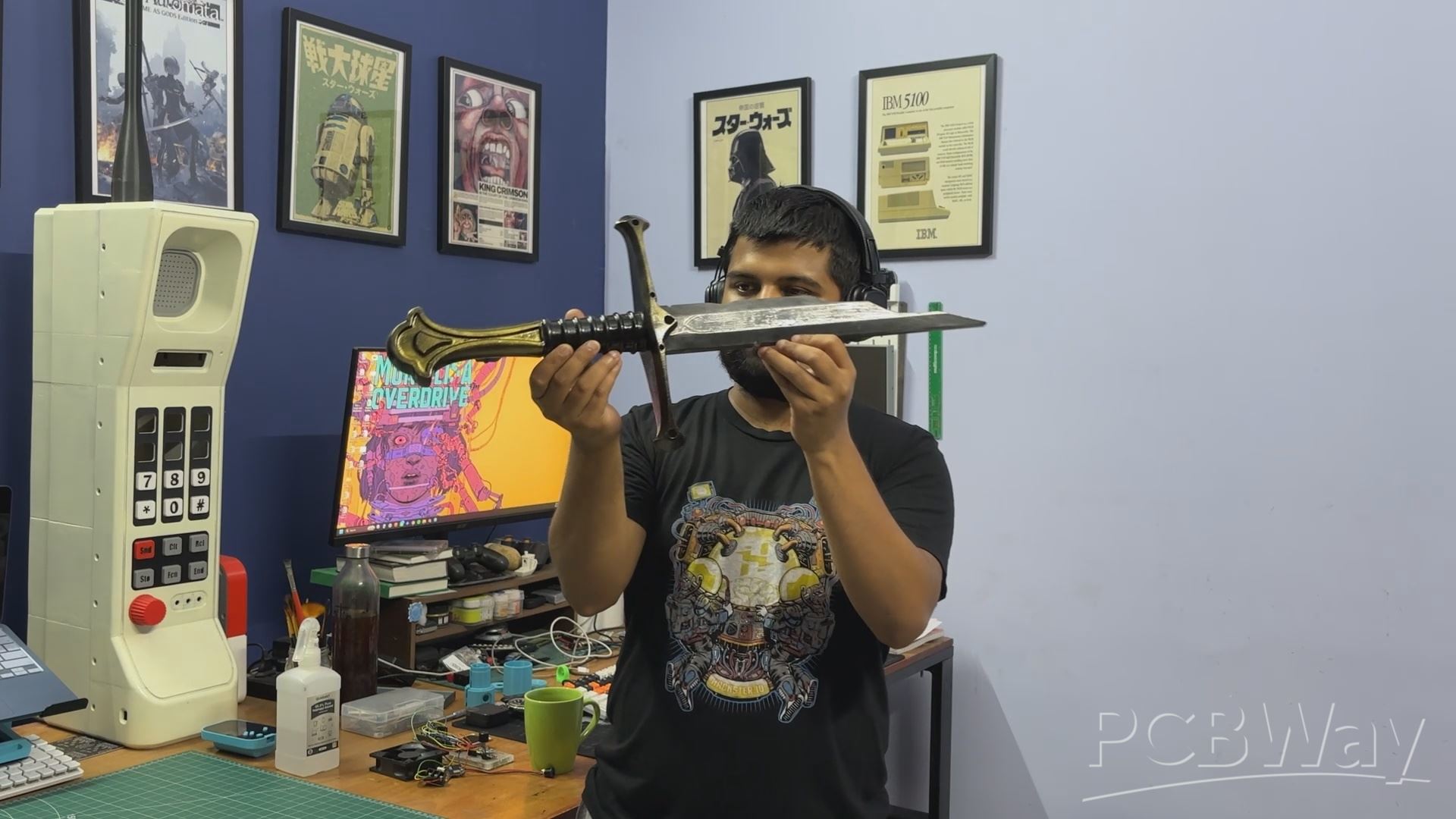
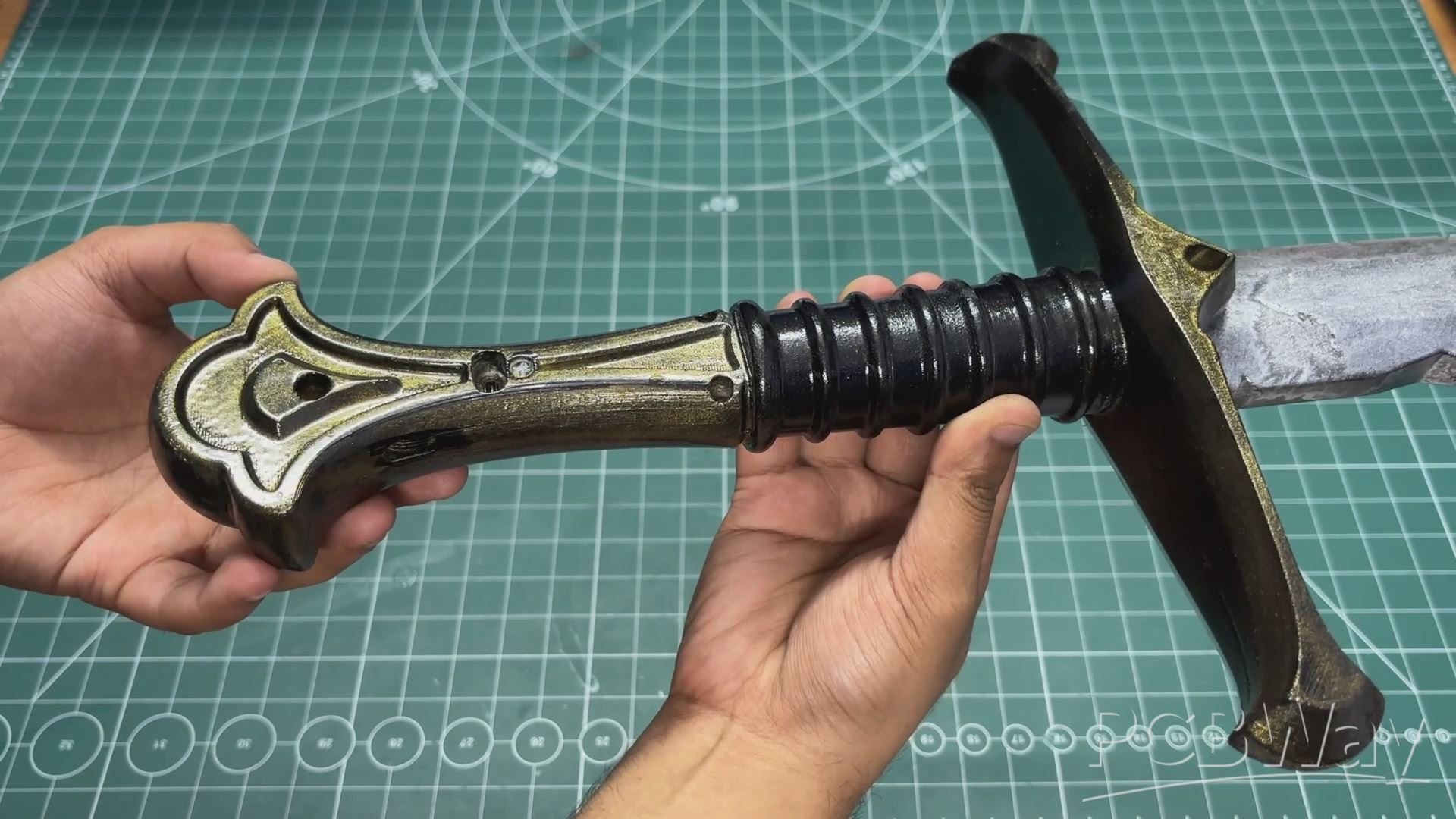
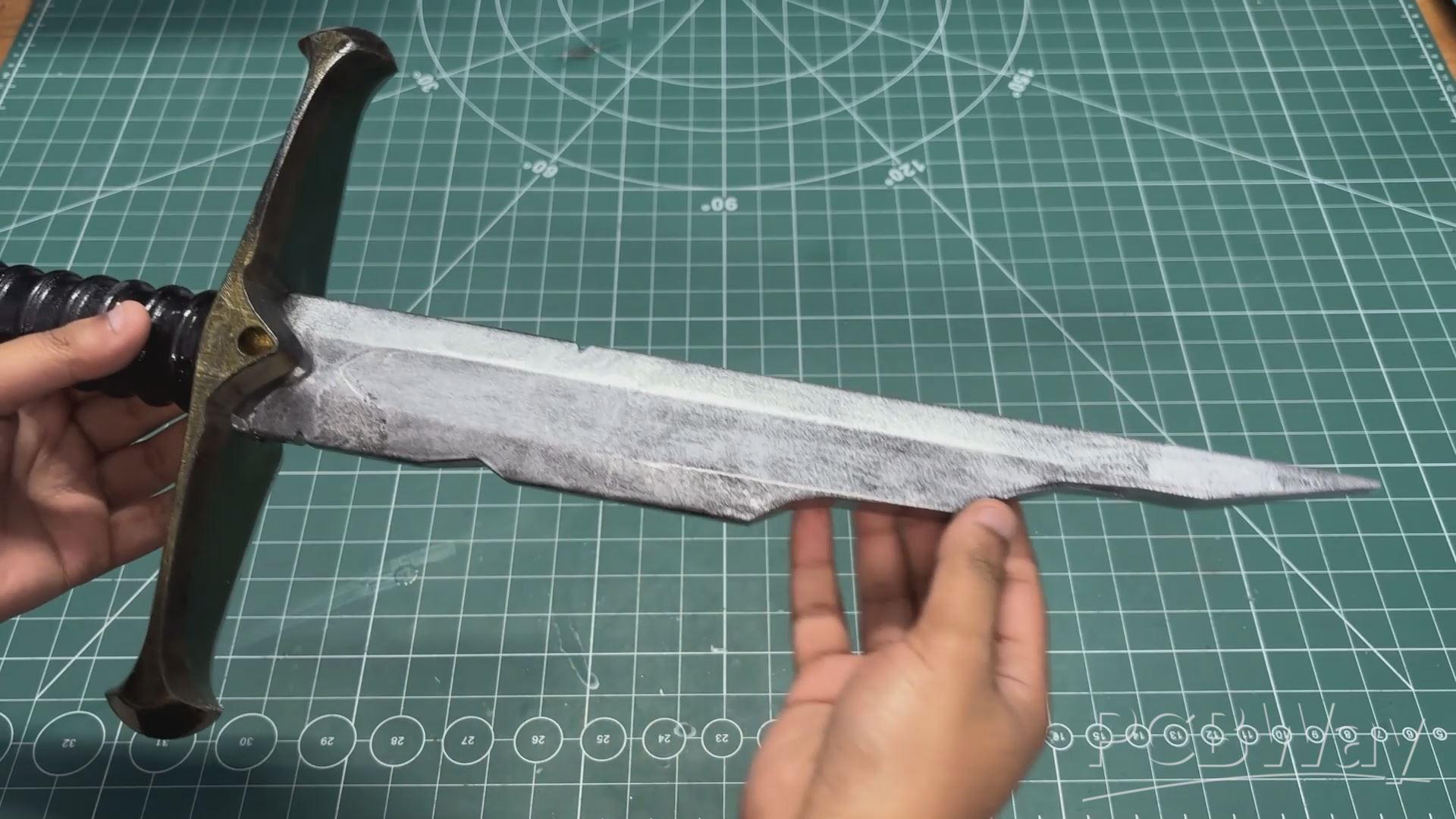
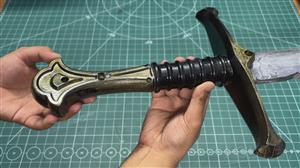
And here's the final result: a fully 3D-printed Narsil, built from scratch and designed to look as close to the original sword as possible. The silver and gold paint gives it a realistic metallic finish, while the conformal coating adds that extra shine.
But this isn't just a display piece. The sword has a button that powers it on, triggering the Aragorn theme song through the built-in speaker. The speaker is surprisingly loud, and you can clearly hear the music.
The sword also reacts to movement using the MPU6050 accelerometer and gyroscope. A normal swing triggers a short metallic sword-clash sound, while a harder swing plays a longer, more dramatic metallic sound, almost like a combo attack in a video game.
Charging is pretty straightforward, too. Just plug a USB Type-C cable connected to a standard phone charger into the port built into the sword. The charging LED blinks while the battery is charging and stays steadily lit once charging is complete.
Reforged by the Elves, charged by a phone charger.
OVERVIEW
And this was Narsil, my almost screen-accurate replica of the sword, built from scratch.
This is a working replica, not just a static prop. When I power it on, it plays Aragorn’s theme in the background. Swing it, and it plays a metallic sword-swing sound. Swing it rapidly, and it triggers a louder combo sound.
The goal was to make something that doesn't just look like a sword but actually reacts to how you use it. And that's the part I find really cool. At its core, it's basically a music player housed inside a 3D-printed sword that looks like it's made of metal.
As of now, I don't have any major changes planned. The project feels complete. Maybe someday I'll build a full version of Narsil instead of the broken one, but this project was more of a litmus test for me. I wanted to see how far I could push a prop build by combining 3D printing, electronics, motion sensing, and sound effects. I can definitely see myself making similar props in the future.
I did come across a comment on Instagram asking what the use case for this project was and why I went to such lengths to overengineer something like this. And honestly, that's a fair question. This project doesn't solve a practical problem, and it doesn't need to.
I made it because I wanted to.
For me, projects like this are a learning experience, especially if you're interested in prop-making or cosplay. You get to experiment, learn new skills, and build something you probably wouldn't get to make otherwise.
Not every maker project needs to serve a practical purpose. Sometimes, the whole point is to have fun making something that excites you. That's how I see it, anyway, and that's just my take on it.
Thanks for making it this far in the article! All the project files and code are attached. If you have any questions or need help building this project, feel free to leave a comment. I'll be back with a new project really soon!
PEACE OUT.
#include <Wire.h>
#include <Adafruit_MPU6050.h>
#include <Adafruit_Sensor.h>
#include "DFRobotDFPlayerMini.h"

// --- OBJECTS ---
Adafruit_MPU6050 mpu;
DFRobotDFPlayerMini myDFPlayer;

// --- TUNING VARIABLES ---
// Adjust based on how hard you want to swing (Standard resting gravity is 9.8)
const float SWING_THRESHOLD = 25.0;

// Prevents a single swing from registering as multiple hits (800 milliseconds)
const unsigned long SWING_COOLDOWN = 800;

// Time window to land the next slash before the combo resets to zero (3 seconds)
const unsigned long COMBO_WINDOW = 3000;

// Track lengths in milliseconds (Adjust these to match the exact length of your MP3 files)
const unsigned long TRACK_1_LENGTH = 4000; // 0001.mp3
const unsigned long TRACK_3_LENGTH = 5000; // 0003.mp3

// --- STATE TRACKING ---
int slashCount = 0;
unsigned long lastSwingTime = 0;
unsigned long effectEndTime = 0;
bool playingEffect = false;


void setup() {
  Serial.begin(115200);

  // 1. Initialize DFPlayer on RP2040 GP0 (TX) and GP1 (RX)
  Serial1.begin(9600);

  // Give DFPlayer time to boot and mount the SD card
  delay(2000);

  Serial.println("Initializing DFPlayer...");
  if (!myDFPlayer.begin(Serial1)) {
    Serial.println("DFPlayer error! Check RX/TX wiring.");
  } else {
    myDFPlayer.volume(20); // Set volume (0-30)
    delay(500);

    // Start the background Aragorn theme
    Serial.println("Playing Aragorn Theme (Track 2)...");
    myDFPlayer.play(2);
    delay(500);
    myDFPlayer.enableLoop();
  }

  // 2. Initialize MPU6050 on RP2040 GP4 (SDA) and GP5 (SCL)
  Wire.setSDA(4);
  Wire.setSCL(5);
  Wire.begin();

  Serial.println("Initializing MPU6050...");
  if (!mpu.begin()) {
    Serial.println("Failed to find MPU6050! Check I2C wiring.");
    while (1) { delay(10); } // Halt here if sensor fails
  }

  // Set to 8G range for fast sword swings
  mpu.setAccelerometerRange(MPU6050_RANGE_8_G);
  mpu.setFilterBandwidth(MPU6050_BAND_21_HZ);

  Serial.println("Narsil is armed and ready!");
}


void loop() {
  // Get fresh motion data
  sensors_event_t a, g, temp;
  mpu.getEvent(&a, &g, &temp);

  // Calculate the total force vector magnitude
  float x = a.acceleration.x;
  float y = a.acceleration.y;
  float z = a.acceleration.z;
  float magnitude = sqrt((x * x) + (y * y) + (z * z));

  unsigned long currentTime = millis();

  // --- 1. SWING DETECTION & COMBO LOGIC ---
  if (magnitude > SWING_THRESHOLD) {

    // Check if the cooldown has passed so we don't double-trigger on one swing
    if (currentTime - lastSwingTime > SWING_COOLDOWN) {

      // If it's been too long since the last swing, break the combo
      if (currentTime - lastSwingTime > COMBO_WINDOW) {
        slashCount = 0;
      }

      slashCount++; // Add a hit to the combo counter
      Serial.print("Swing #");
      Serial.println(slashCount);

      if (slashCount >= 3) {
        Serial.println("COMBO! Playing Track 0003.");
        myDFPlayer.play(3);

        // Set the timer for when this specific combo track will finish
        effectEndTime = currentTime + TRACK_3_LENGTH;
        slashCount = 0; // Reset combo back to zero
      } else {
        Serial.println("Playing standard slash (Track 0001).");
        myDFPlayer.play(1);

        // Set the timer for when the standard slash track will finish
        effectEndTime = currentTime + TRACK_1_LENGTH;
      }

      playingEffect = true;
      lastSwingTime = currentTime;
    }
  }

  // --- 2. AUDIO RESUME LOGIC ---
  // Check if a sound effect was playing AND its timer has expired
  if (playingEffect && currentTime > effectEndTime) {
    Serial.println("Sound effect finished. Restarting theme.");

    // Restart the background theme
    myDFPlayer.play(2);
    delay(500); // Tiny pause just to let the SD card safely load Track 2
    myDFPlayer.enableLoop();

    playingEffect = false;
  }

  delay(20); //
Narsil from LOTR
Project images are for reference only. Actual production is based on the manufacturing files on the project page.
Please review the designer's notes (e.g., PCB thickness) and select the appropriate options.
PCBWay is not responsible
for issues caused by unsuitable parameter selections.
For more important ordering information, please refer to
Read More


Raspberry Pi 5 7 Inch Touch Screen IPS 1024x600 HD LCD HDMI-compatible Display for RPI 4B 3B+ OPI 5 AIDA64 PC Secondary Screen(Without Speaker)
BUY NOW


- Comments(1)
- Likes(0)
More by Arnov Arnov sharma
-
 Poké Pi - Cyberdeck
Greetings everyone, and welcome back!Meet Poke Pi, a DIY Raspberry Pi-based gaming console themed ar...
Poké Pi - Cyberdeck
Greetings everyone, and welcome back!Meet Poke Pi, a DIY Raspberry Pi-based gaming console themed ar...
-
 Wireless Game Controller V1
Greetings everyone and welcome back.This is my prototype for a wireless Bluetooth game controller bu...
Wireless Game Controller V1
Greetings everyone and welcome back.This is my prototype for a wireless Bluetooth game controller bu...
-
 DIY XBOX Controller
Greetings everyone, and welcome back. Here's something fun and custom.This is my version of an Xbox ...
DIY XBOX Controller
Greetings everyone, and welcome back. Here's something fun and custom.This is my version of an Xbox ...
-
 Pocket SNES
Greetings everyone, and welcome back! Today, I’ve got something fun and tiny to share—the Pocket SNE...
Pocket SNES
Greetings everyone, and welcome back! Today, I’ve got something fun and tiny to share—the Pocket SNE...
-
 Batocera Arcade Box
Greetings everyone and welcome back, Here's something. Fun and nostalgic. Right now, we are using ou...
Batocera Arcade Box
Greetings everyone and welcome back, Here's something. Fun and nostalgic. Right now, we are using ou...
-
 64x32 Matrix Panel Setup with PICO 2
Greetings everyone and welcome back.So here's something fun and useful: a Raspberry Pi Pico 2-powere...
64x32 Matrix Panel Setup with PICO 2
Greetings everyone and welcome back.So here's something fun and useful: a Raspberry Pi Pico 2-powere...
-
 Portable Air Quality Meter
Hello everyone, and welcome back! Today, I have something incredibly useful for you—a Portable Air Q...
Portable Air Quality Meter
Hello everyone, and welcome back! Today, I have something incredibly useful for you—a Portable Air Q...
-
 WALKPi PCB Version
Greetings everyone and welcome back, This is the WalkPi, a homebrew audio player that plays music fr...
WALKPi PCB Version
Greetings everyone and welcome back, This is the WalkPi, a homebrew audio player that plays music fr...
-
 Delete Button XL
Greetings everyone and welcome back, and here's something fun and useful.In essence, the Delete Butt...
Delete Button XL
Greetings everyone and welcome back, and here's something fun and useful.In essence, the Delete Butt...
-
 Arduino Retro Game Controller
Greetings everyone and welcome back. Here's something fun.The Arduino Retro Game Controller was buil...
Arduino Retro Game Controller
Greetings everyone and welcome back. Here's something fun.The Arduino Retro Game Controller was buil...
-
 Super Power Buck Converter
Greetings everyone and welcome back!Here's something powerful, The SUPER POWER BUCK CONVERTER BOARD ...
Super Power Buck Converter
Greetings everyone and welcome back!Here's something powerful, The SUPER POWER BUCK CONVERTER BOARD ...
-
 Pocket Temp Meter
Greetings and welcome back.So here's something portable and useful: the Pocket TEMP Meter project.As...
Pocket Temp Meter
Greetings and welcome back.So here's something portable and useful: the Pocket TEMP Meter project.As...
-
 Pico Powered DC Fan Driver
Hello everyone and welcome back.So here's something cool: a 5V to 12V DC motor driver based around a...
Pico Powered DC Fan Driver
Hello everyone and welcome back.So here's something cool: a 5V to 12V DC motor driver based around a...
-
 Mini Solar Light Project with a Twist
Greetings.This is the Cube Light, a Small and compact cube-shaped emergency solar light that boasts ...
Mini Solar Light Project with a Twist
Greetings.This is the Cube Light, a Small and compact cube-shaped emergency solar light that boasts ...
-
 PALPi V5 Handheld Retro Game Console
Hey, Guys what's up?So this is PALPi which is a Raspberry Pi Zero W Based Handheld Retro Game Consol...
PALPi V5 Handheld Retro Game Console
Hey, Guys what's up?So this is PALPi which is a Raspberry Pi Zero W Based Handheld Retro Game Consol...
-
 DIY Thermometer with TTGO T Display and DS18B20
Greetings.So this is the DIY Thermometer made entirely from scratch using a TTGO T display board and...
DIY Thermometer with TTGO T Display and DS18B20
Greetings.So this is the DIY Thermometer made entirely from scratch using a TTGO T display board and...
-
 Motion Trigger Circuit with and without Microcontroller
GreetingsHere's a tutorial on how to use an HC-SR505 PIR Module with and without a microcontroller t...
Motion Trigger Circuit with and without Microcontroller
GreetingsHere's a tutorial on how to use an HC-SR505 PIR Module with and without a microcontroller t...
-
 Motor Driver Board Atmega328PU and HC01
Hey, what's up folks here's something super cool and useful if you're making a basic Robot Setup, A ...
Motor Driver Board Atmega328PU and HC01
Hey, what's up folks here's something super cool and useful if you're making a basic Robot Setup, A ...
-
SmallOLED - Live PC Stats, Animated Clocks & Audio Visualizer
839 0 3 -
"Talking Multimeter": Arduino-Based Speech Add-on for Multimeters with SCPI Protocol
479 0 1 -
Programmable Mist Maker - XIAO / QT PY Extension
2953 2 3 -
RadioHAT - Raspberry Pi radio development platform
2499 0 4 -
-
-
-
ARPS-2 – Arduino-Compatible Robot Project Shield for Arduino UNO
4580 0 6